
Heard the terms “virtualization” or “virtual machine” used in your school and office and wondered what they were talking about? In a world where collaborating and working remote have become commonplace, you’re going to hear these phrases more and more. They represent an important change in how people are using computers — but if you’ve been wondering what the big deal is with them, you’ve come to the right place.
Here’s what people are talking about when they mention a virtual machine, the benefits of this software, and how it’s being used.
What is a virtual machine?
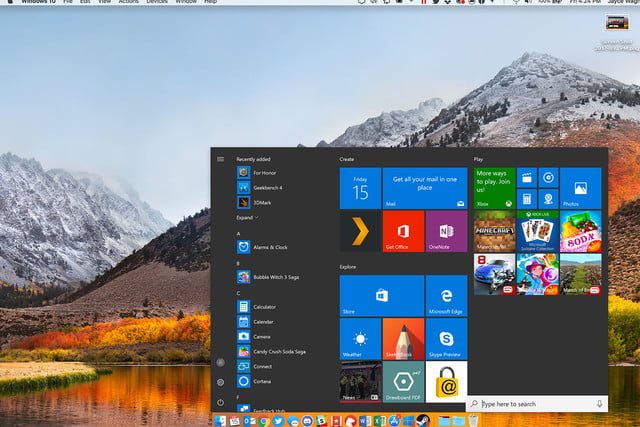
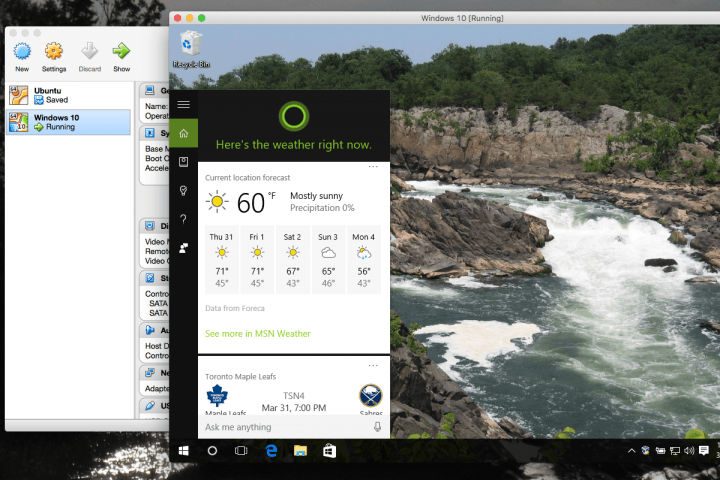
At its heart, a virtual machine or VM is an app — typically called a hypervisor — that emulates an operating system. You launch the app, and it (generally speaking) opens a window that’s another operating system, which operates exactly like it’s own computer. Everything in the VM is self-contained, and it typically has all the capabilities of the operating system it is imitating.
Yes, that’s like using a “fake” computer within a computer! However, there are some important distinctions. A virtual machine is indeed entirely virtual – it doesn’t have any hardware of its own, except for the storage drives it comes from. Modern VMs are also frequently associated with servers and network connections, since more complex versions are typically supported by server setups.
Virtualization services are often provided by specific companies — currently providers like VMWare and VirtualBox box are at the top of the field, but there are a number of different creators, some focused on business and some focus more on individual apps.
Why use a virtual machine setup?
Flexible work: Today, a growing application of VMs helps companies arrange flexible and remote work environments. When the software itself is the workspace, then where the computer or device is physically located doesn’t matter nearly as much. This allows everyone to collaborate in similar spaces no matter where they are or what machine they are using — or to switch to a different mode without the need to change computers. Storage space also isn’t very important, because most of the VM activity is managed behind the scenes by central servers.
Security: Virtual machines are used in two interesting security tactics. First, they are used to study ransomware, viruses, and other types of nasty attacks in a relatively safe environment. In this case, the malware usually thinks that VM is a real computer and starts to attack it, while white hat security experts can study how it operates and find weaknesses without endangering their “real” computers. Second, organizations can use VMs to help protect from device-based attacks, such as attacks using a smartphone OS framework.
Experiments: One of the oldest uses of virtual machines is to test new apps or coding changes in a safe environment that won’t crash the computer if something goes wrong. This type of VM can be very simple and inexpensive — and is commonly used by developers to to test apps for different operating systems.
Data management: Virtualization allows organizations to centralize data, change how they use servers or how many servers they use, and refine their hardware purchase strategy.
Special cases: In some cases, a VM setup can allow people to run software that they would not otherwise be able to run. For example, maybe you want to run an app that only works on an older version of the OS you are using (say a Windows 8 app on Windows 10) — a VM can allow you to do that without removing all your updates. Or you can use a VM to run an entirely different OS as needed for specific apps. This may be particularly useful for students who don’t have the right OS for classwork software, or similar cases.
The downside to virtual machines
Expense: When used for the right solutions, VMs can help individuals and companies save a lot of money. However, implementing a VM is a different case. If you’re just downloading a single VM app for your schoolwork, it probably won’t be that expensive. But building and customizing an in-house VM solution for a large company can be very pricey. Ongoing data management costs may also be higher than before (although hardware costs may be lower). In other words, it can take significant investment to adopt a widespread VM solution, and it often takes a lot of analysis of the costs and savings to make a decision.
Complexity: Choosing, managing, and maintaining VMs can also be pretty complex. Employees or students who must use a VM may have a lot of new things to learn, which can make fast-paced adoption difficult. Additionally, VMs may take more technical expertise, including experience that current IT specialists may not have.
Limitations: Not all computers or operating systems can support virtual machines. This is especially true of older systems.
How can I try a virtual machine?
You can download a VM yourself by finding the right apps. Here are a few common options:
- VirtualBox: VirtualBox allows you to open up a number “guest operating systems” to emulate older operating systems. It’s ideal for a first solo experimentation.
- VMWare: VMWare is more business friendly than VirtualBox, but it’s also more difficult to learn. It favors server software and a variety of server setups for downloading more complex VMs.
- Parallels 13: Parallels is an app designed for the specific purpose of running Windows 10 as a virtual machine within MacOS.
- Microsoft: Microsoft provides fee 90-day VMs to emulate older versions of IE and more, which may help with experimenting or using older software.
Future of virtual machines
Expect to see a lot more VMs in the future as their use cases expand. The security qualities in particular may mean that VMs will be more common than not in the coming years.



