
Facebook started out as a great way to connect the world, find old friends, and upgrade this whole “face-to-face” talking thing we’ve been stuck with. It ended up as a way for marketers to Hoover up our information and sell stuff to us. The recent fiasco with Cambridge Analytica is a perfect example of everything that’s wrong with the social network.
But maybe, just maybe, there’s still some good left in Facebook. Maybe you don’t want to leave — how else would you stay in touch with Cousin Margo and that friend who moved to Australia? There are a variety of ways you can protect your private data, ensure your confidentiality, and in general prevent all those bad actors from latching onto your data. Follow the steps below to protect yourself without deleting Facebook entirely — or just go whole hog and delete your Facebook account completely.
Alternative No. 1: Remove Facebook from apps
This first alternative removes Facebook from connected apps. You’re essentially turning the platform off so third-party apps don’t have access to your account and its information. Here’s how to block them:
Step 1: Click on the down arrow button next to the question mark icon on the navigation bar.
Step 2: Click Settings.
Step 3: On the resulting “General Account Settings” page, click the “Apps” category in the menu on the left.
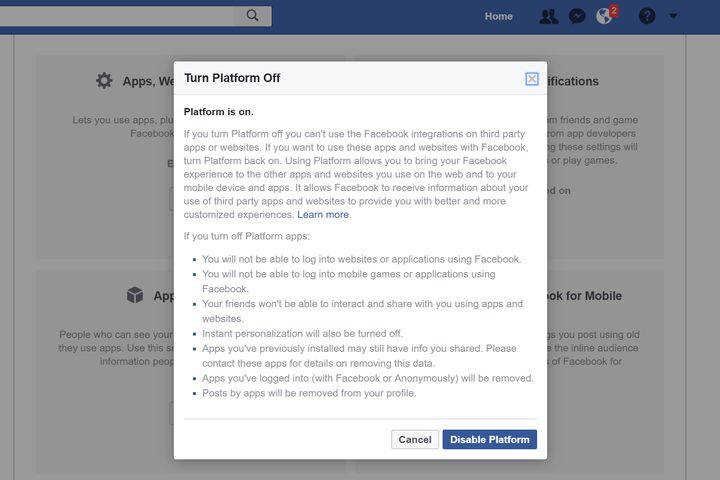
Step 4: On the resulting page, locate “Apps, Websites and Plugins” listed under the apps and click the “Edit” button.
Step 5: On the pop-up, click the blue “Disable Platform” button.
Alternative No. 2: Block specific data used by other apps
With this method, you’re controlling the data friends and family take with them to other apps, such as your birthday, relationships, education, employment, and so on. Here’s how you can cut off their data supply:
Step 1: Click on the down arrow button next to the question mark icon on the navigation bar.
Step 2: Click Settings.
Step 3: On the resulting “General Account Settings” page, click the “Apps” category in the menu on the left.
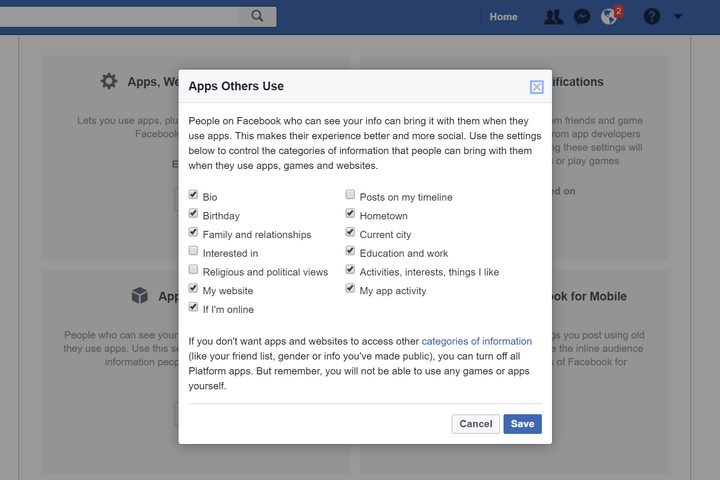
Step 4: On the resulting page, locate “App Others Use” and click the “Edit” button.
Step 5: On the pop-up window, choose the data you allow other people to bring with them in their apps.
Step 6: Click the blue “Save” button.
Alternative No. 3: Turn off Facebook’s data collection on other websites
Finally, our third alternative pertains to your Facebook information used for advertisements. These include your use of websites and apps, and advertisements paired with your social actions. Here’s how to nuke this use of your data:
Step 1: Click on the down arrow button next to the question mark icon on the navigation bar.
Step 2: Click Settings.
Step 3: On the resulting “General Account Settings” page, click the “Ads” category in the menu on the left.
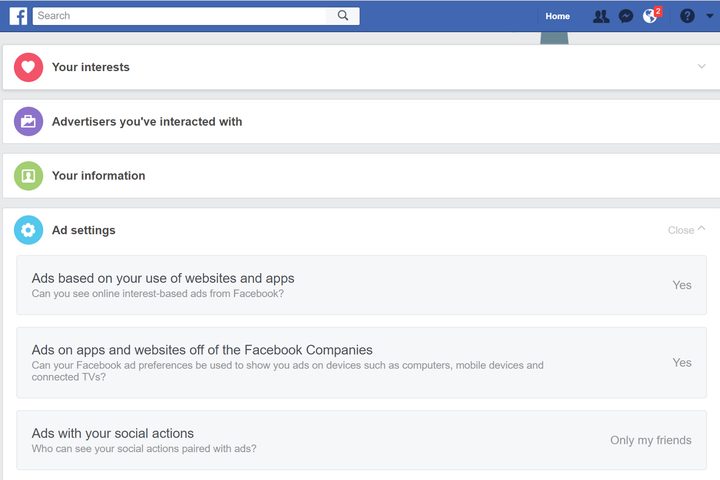
Step 4: On the resulting “Your ad preferences” page, scroll down to “Ad Settings.”
Step 5: Switch on or off “Ads based on your use of websites and apps.”
Step 6: Switch on or off “Ads on apps and websites off of the Facebook Companies.”
Step 7: Choose “Only my friends” or “No One” for “Ads with your social actions.”
Step 8: While you’re here, scroll up to “Your information” and switch off the available settings to your preference.
Still want to delete your Facebook account? Fine then. Let’s move on.


