
Sometimes it’s annoying to see a website’s push notifications pop up in your browser, even if they are trying to keep you informed. And so, if you’re tired of them, here’s a quick guide to disabling push notifications from websites in some of your favorite browsers. To opt-out of these notifications, simply follow the instructions below.
Disabling push notifications in Google Chrome
Step 1: Hit the More button — the three vertical dots in the upper-right corner — and select Settings.
Step 2: Select Privacy and Security on the left side of your screen. Click on Site Settings.
Step 3: Scroll down and choose Notifications.
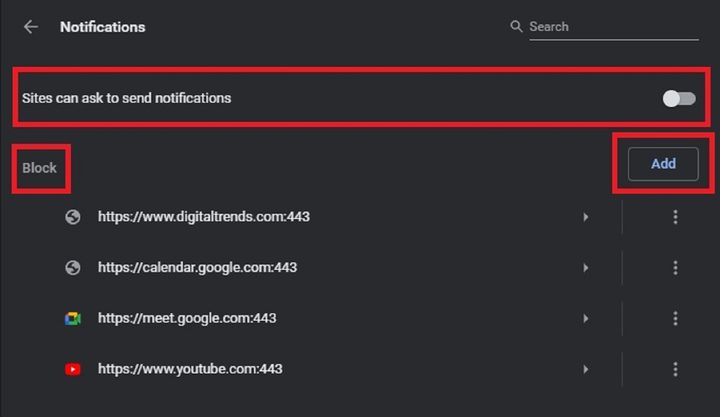
Step 4: To block notifications from all sites, select the toggle button next to Sites Can Ask to Send Notifications so that the button turns gray (off position).
Step 5: To just block a specific website: Click the Add button next to Block. In the text box that pops up, enter the URL of the website you want to block. Then click Add.
Disabling push notifications in Firefox
Step 1: Click the Menu button — the three vertical lines — and select Options.
Step 2: Next, go to Privacy and Security, scroll to Permissions, and click the Settings button to the right of Notifications.
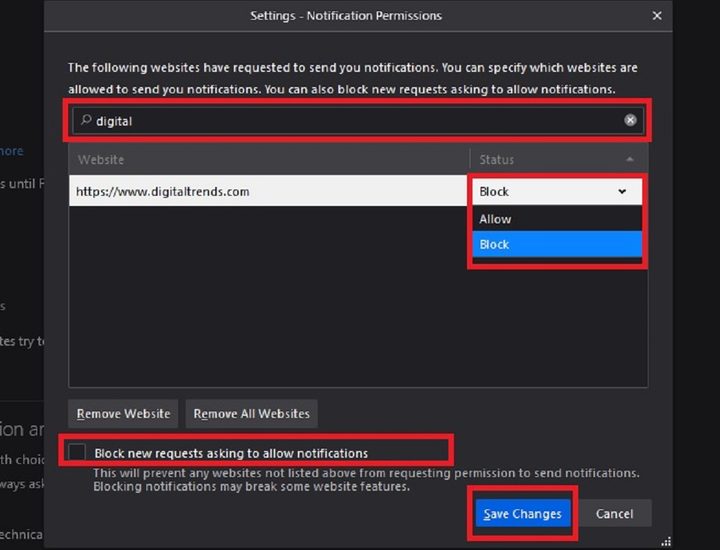
Step 3: On the Notification Permissions screen, you’ll see a list of websites that have already requested to send notifications. If you have a specific website in mind with notifications you want to block, scroll through the list or use the search box to search the list for your desired website, and then click on the drop-down menu to the right of the website.
Step 4: Choose Block from the drop-down menu. Then click Save Changes.
Step 5: If you want to block a website that wasn’t listed or just want to block all new requests going forward, just tick the box next to Block New Requests Asking to Allow Notifications. Then click Save Changes.
Disabling push notifications in Microsoft Edge
Step 1: Open Edge and click on the Settings and More icon in the top-right corner of your screen. It looks like three horizontal dots. Then, choose Settings from the menu that pops up.
Step 2: Select Cookies and Site Permissions from the left side of your screen. Then choose Notifications.
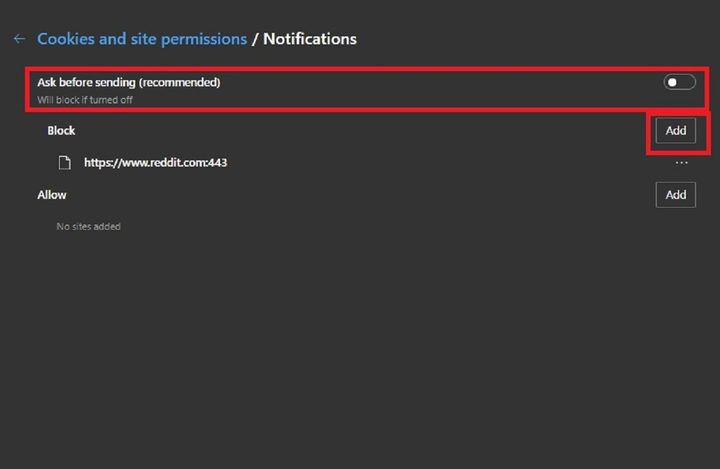
Step 3: To block all notifications, tap on the toggle button next to Ask Before Sending until the button is black (off position).
Step 4: To only block notifications from a specific website: Click on the Add button next to Block.
Step 5: In the text box that pops up, enter the URL of the website you want to block. Then click Add.
Disabling push notifications in Safari
Step 1: With Safari open, head to the Safari tab at the top, then select Preferences.
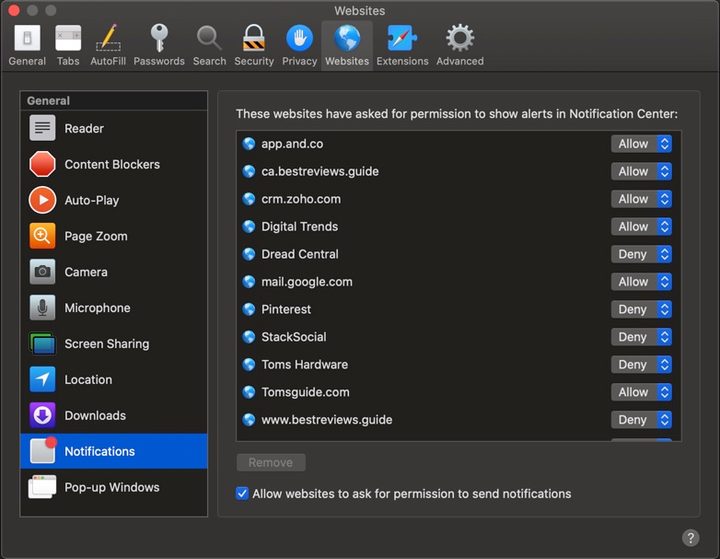
Step 2: When the Preferences tab opens up, head over to the Websites icon and click the Notifications tab toward the bottom.
Step 3: From here, you can toggle which websites can and cannot send you notifications, or you can uncheck the Allow Websites to Ask for Permission to Send Notifications box to stop notifications completely.


