
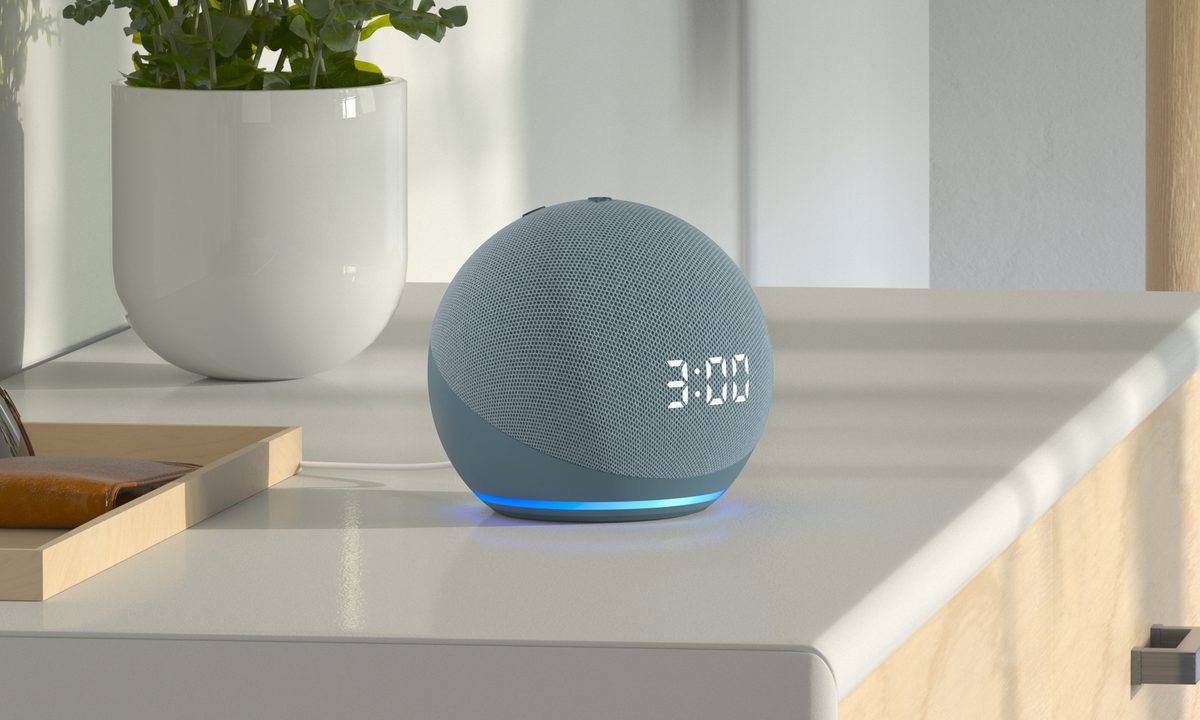
All-knowing and always listening, Alexa sometimes responds even when you don't want her to. This may happen if you or someone in your home is named Alexa (or something close to it, like Alex), or if your Alexa device is near a TV or music source that sounds the word out (or, again, something close to it). Fortunately, there’s a way to fix it.
In this tutorial, we'll explain how to change Alexa's name (a.k.a. "Alexa's wake word"), as well as the name Alexa calls you. Once you've wrapped up this quick tutorial, be sure to check out some other great tips and tricks for your Alexa device.


How to change Alexa’s wake word
These instructions assume the Echo device currently uses the default “Alexa” wake word.
Step 1: Open the Amazon Alexa app.
Step 2: Tap the Devices tab at the bottom.
Step 3: At the top, scroll to select All Devices.
Step 4: Select your Echo device on the resulting list.
Step 5: Scroll down and select Wake Word.
Step 6: Change your wake word to either Amazon, Echo, or for Star Trek fans, Computer!
The new name for Alexa will only work on this individual Echo device. To change Alexa’s name on any other Echo device, tap the back button, select any other Echo devices, and repeat the steps outlined above.
Change Alexa’s name with a verbal command
These instructions assume the Echo device currently uses the default “Alexa” wake word.
Step 1: Say “Alexa, can you change your name?” or “Alexa, can you change your wake word?”
Step 2: Alexa will respond by saying, “I can help you change the wake word for this device. Should we do that now?” Respond with a “Yes.”
Step 3: Alexa will respond by saying, “OK, you can choose from Amazon, Computer, or Echo. Which of these do you like?” Speak the name you wish to use.
Step 4: Alexa will respond by saying, “OK, you can call me [name] on this device in a few seconds.”
As indicated, you can use the new wake word after a few seconds. If you chose “Computer,” now is a good time to use your best Picard or Kirk voice!


How to get Alexa to call you a different name
One of Alexa’s customizations includes changing the name she calls you, whether it’s your real name, a nickname, or something off-the-wall that will make you laugh when you hear it. An Alexa user named Robert, for example, can choose to be called Robert, Rob, or Bobby. If you want to have a little fun with it, go for a title like Captain or a pet name like Darling. Follow these steps to change the name Alexa will call you.
Step 1: Open the Amazon Alexa app.
Step 2: Hit the Communicate section at the bottom of the screen.
Step 3: Tap the icon of the tiny person that represents your profile in the upper-right-hand corner of the screen.
Step 4: On the next window, go underneath your name and hit My Communication Settings.
Step 5: Go to the upper-right-hand corner and hit Edit.
Step 6: Switch your first name based on your preference.
Step 7: Go to the upper-right corner to tap Save to finish.
Step 8: Make sure your name change works by saying, “Alexa, what’s my name?" Then, she’ll respond, “I’m talking to [your new name]. This is [account owner]’s account.”
Before you choose a completely silly name, remember that changing the name setting means that nickname will also show up in other Alexa-enabled features. For example, if your name changes from Calvin to Fancy Guy, Alexa will refer to you as Fancy Guy when sending messages to Echo users as well, so that will be the name that pops up for them. Request that Alexa verify your name, and she will respond, “I’m talking to Fancy Guy. This account is Calvin’s.”
In addition to this name showing up on all of Alexa’s features, it will also be displayed on your public profile, so you want to be careful about what you choose to be called.
Frequently Asked Questions
Can I rename my Alexa?
Yes, you can rename Alexa in a few simple steps:
- Say “Alexa, can you change your name?”
- Alexa will respond by saying, “I can help you change the wake word for this device. Should we do that now?” Respond with a “Yes.”
- Alexa will respond by saying, “OK, you can choose from Amazon, Computer, or Echo. Which of these do you like?” Speak the name you wish to use.
- Alexa will respond by saying, “OK, you can call me [name] on this device in a few seconds.”
How do I change my Alexa wake name?
To change Alexa's wake name, do the following:
- Open the Amazon Alexa app.
- Tap the Devices tab at the bottom.
- Scroll to select All Devices.
- Select your Echo device from the list.
- Scroll down and select Wake Word.
- Change your wake word to either Amazon, Echo, or for Star Trek fans, Computer!
Can I get different voices for Alexa?
Yes, you can get different voices for Alexa. You can get a list of options from Alexa by saying, "Alexa, change your voice." Alexa will respond with several choices. Alternatively, you can change Alexa's voice by going through the Alexa app by taking the following steps:
- Open the Alexa app.
- Choose Devices.
- Go to Device Settings> Alexa's Voice.
- Pick the voice that you prefer.


