
Zoom’s web app already makes it ultra-easy to plan out, start, and customize your video conference to talk with your team and get things done. But if you’re using Zoom frequently for work, there’s a way to make it even handier: Combine it with Outlook. Zoom does allow for some useful integration with Microsoft Outlook that works very well for scheduling online meetings and getting everyone to attend more easily. Here’s what to do, and how it works.
Step 1: Download the Zoom for Outlook app
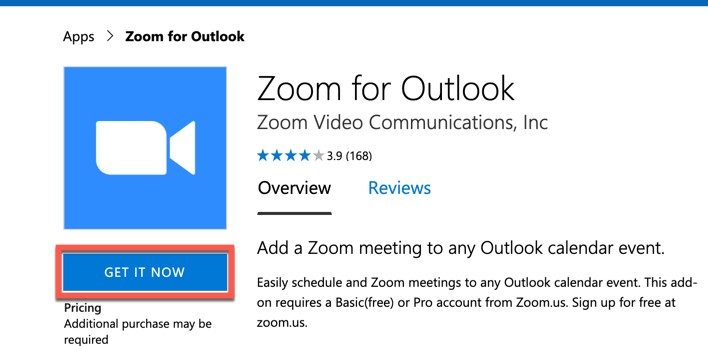
Microsoft has its own app for integrating Zoom, which makes this process much easier. Go to the Microsoft Store and download it. Make sure you are downloading onto the computer that you use for work and Outlook purposes, and have Outlook open when starting the process to make it easier. It’s a free download, so select Get It Now to get started.
When downloading, the app will ask you to sign in with your Outlook address and sign an agreement about using the service. When this is finished, look to your Outlook window, and you should see a notification pop up that says, “Add an add-in from the Office Store.” Select Install to begin the process.
Step 2: Create a new Zoom meeting

The capability to use Zoom in Outlook is there now, but you need to know what it can do! Start by opening your online Outlook calendar and selecting New at the top to create a new calendar event. Fill out the form as you would for any meeting, detailing the meeting’s purpose and adding attendees and time slots until it’s ready.

When finished, look at the top menu bar and select the three dots off to the right. Select them and your Zoom add-in should pop up, along with any other add-ins you may already be using on Outlook. Select Zoom, and in the next menu select Add a Zoom Meeting.
If you haven’t signed into Zoom on this computer yet, Zoom will now ask for login information. Supply it, and the calendar event you have created will now be a Zoom meeting, with appropriate join meeting links and everything else in place. Easy!
Step 3: Choose Zoom settings in Outlook
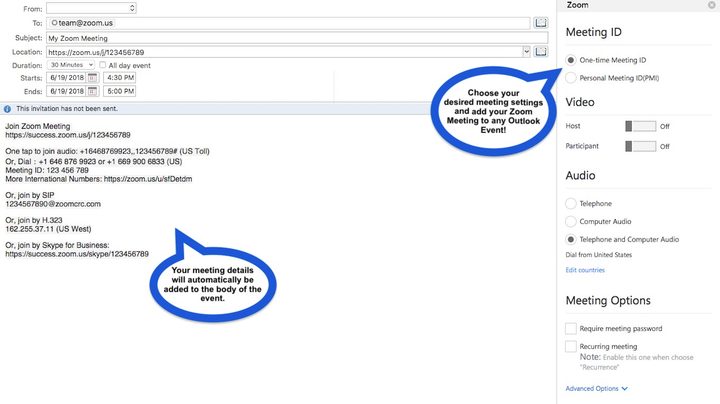
Normally, a Zoom meeting created through Outlook will have all the normal settings from your online Zoom profile. However, you can also change this easily through Outlook to customize a meeting based on its individual needs.
To do this, select the meeting on your Outlook Web Calendar. Then select your Zoom add-in as before, but this time select Settings from Zoom’s drop-down menu. This will open up a new section to choose Zoom settings for that meeting. Options include:
- Changing who the meeting is scheduled for
- Creating a meeting ID number for tracking
- Choosing if participants will have video
- Choosing your audio options
- Enabling join before host options
- Muting participants when they arrive
- Automatically recording the meeting
When finished tailoring the meeting to your needs, select Update to save all your changes.
Alternative for Outlook 2013/2016 desktop app
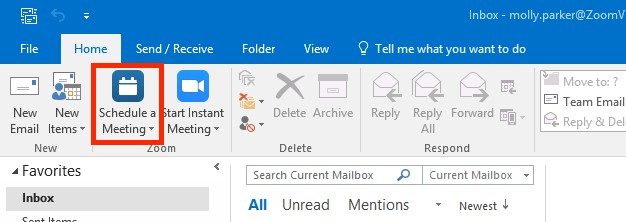
Zoom for Outlook works very similarly if you are using the desktop app instead, but downloading it is a little different. Here, you will want to open the app, select File, then select Manage Add-ins.
This should open a website to control your Outlook settings. Look for the plus and minus signs here, and select the plus sign, then select Add from the Office Store. This will open up a search window where you should search for “Zoom for Outlook.” When the right app pops up as a result, download and continue as before. You can find the Schedule a Meeting option in the Home tab of your Outlook app. Then, in the Meeting tab, you’ll see a video camera icon with an option to Add a Zoom Meeting that you can select when ready.
Note: If you are an administrator enabling Zoom capabilities for a team of Outlook users, your process for signing everyone up is very similar to enabling Zoom for the Outlook app. When signed in as administrator, look at your admin center menu and you should see an option for Add-ins under Settings. Then simply choose Deploy Add-in, and select I want to add an Add-in from the Office Store, and proceed to search for the app as before.



