
It’s a cliché, but the concept of what a computer is, is changing. Unless you’re a graphic designer, music producer, or video editor, you probably don’t need a high-powered laptop anymore. And even if you are one of those things, you can probably do a lot of your work on a mobile device — like a tablet. I’ve made the switch myself, selling my laptop and embracing the iPad Pro as my do-it-all mobile workstation.
Of course, a big part of using a new device to do work is learning how to use it to the fullest. The iPad is very easy to use in day-to-day life, but dig a little deeper, and there are a ton of little tricks and gestures that are worth learning.
Interested in seeing whether or not an iPad could replace your laptop? If you have one lying around, try using it for a day or two, and make use of the tricks I use to get the most out of using the iPad for productivity.
Get a decent keyboard with a trackpad

If you get nothing else from this article, the most important thing I can tell you if you want to unlock better productivity on your iPad is to get a solid keyboard, with a trackpad. Typing on the display just isn’t the same as a natural-feeling keyboard with a trackpad that’s responsive and allows for multi-touch gestures.
It’s expensive, but my recommendation is Apple’s Magic Keyboard. Keys on this keyboard feel great, and as you would expect from Apple, the trackpad works great. Say what you will about the floating design, but it makes it easy to grab your iPad Air or iPad Pro for normal use, and it allows you to type on your lap, without needing a tablet.
Buy the Apple Magic Keyboard for iPad Air and iPad Pro
The Magic Keyboard is also very expensive, but thankfully there are some alternatives. For example, you could go for a Brydge wireless keyboard, which makes your iPad look like a MacBook, and also has a trackpad built into it, even if that trackpad isn’t quite as great as the Magic Keyboard’s.
Buy the Brydge wireless keyboard for iPad
Use split-screen mode
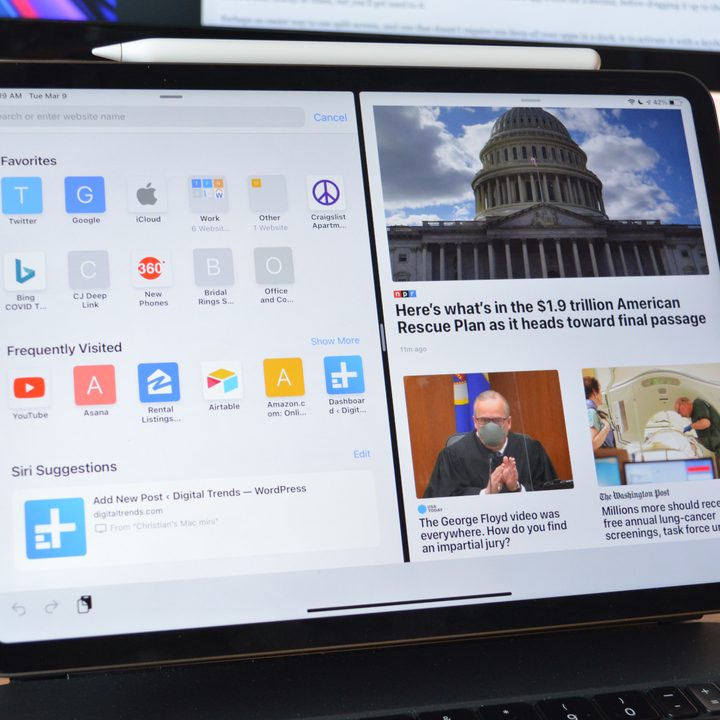
On a Mac, split-screen mode, or even just the ability to have two windows open at a time, is how I get work done. The iPad works a little differently, but you can still use two apps side-by-side with Split View mode.
Enabling this changes a little depending on what your setup is. Without a keyboard, you’ll need the apps you want to use in split-screen in your dock. Then, open the first app, slide up to see the dock, and hold it on the second app’s icon for a second before dragging it up to the side you want it. It’s a little finicky at times, but you’ll get used to it.
Perhaps an easier way to use split-screen, and one that doesn’t require you to keep all your apps in a dock, is to activate it with a keyboard and the new iPad Search function. Open your first app, then tap CMD + Space on your keyboard to open search. Search for the second app you want to open, then tap and hold on the app icon for a second, and drag it to the side you want it on.
In Split View mode, you don’t have to give apps equal space. You can also give the left or right app a quarter of the screen, and the other three quarters. Unfortunately, you can’t have more than two apps open on the screen at the same time yet.
Use Slideover
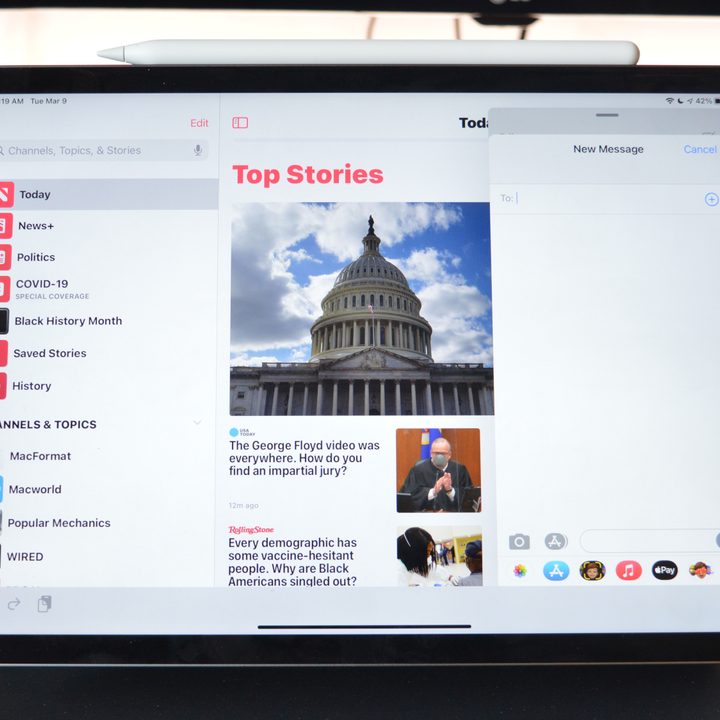
Perhaps you need quick and easy access to more than two apps — in which case Slideover is worth taking advantage of. I personally use Slideover for all my messaging when I’m working — whether it be Microsoft Teams, Slack, Messages, or even the Mail app. With Slideover, you can bring in these iPhone-sized apps when you need them, and hide them when you don’t.
Enabling an app in Slideover is actually very similar to using one in split-screen. Swipe up to see the dock or search for the app in Search, then hold on it for a second and drag it over to the left or side of the screen. It should preview in a rectangular shape. Then, release, and the app will open over the top of your other apps. You can then swipe it away at the top of the window, or switch between Slideover apps at the bottom of the window, like you would on an iPhone.
Enable widgets on the home screen
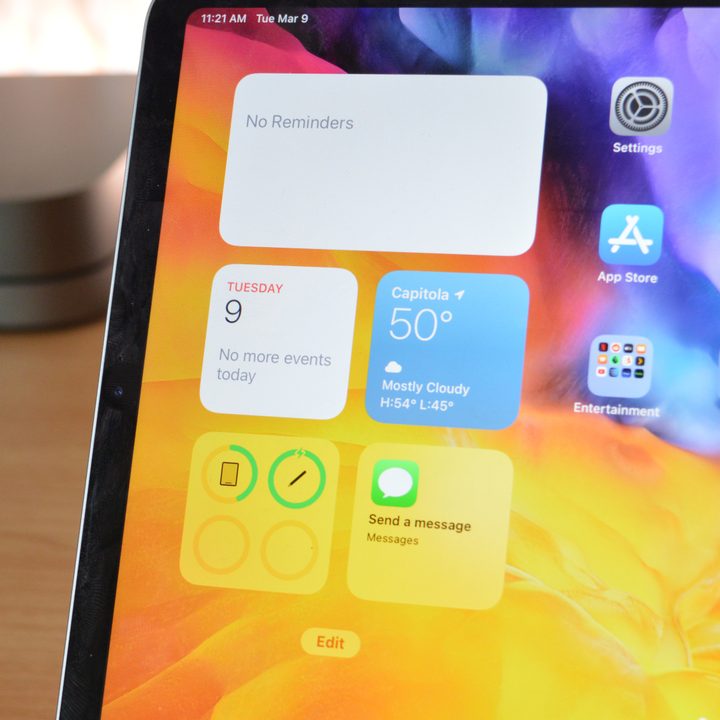
If you want quick, glanceable information, it’s worth taking advantage of widgets on your iPad’s Home Screen. Unfortunately, widgets in iPadOS don’t yet work like they do on iOS — so you can’t just place a widget wherever you want it. But, you can keep your Today view permanently on your Home screen if you want. This is perfect for things like to-do apps, seeing the weather, and so on — without having to open up apps to do so.
To see your Today View, swipe right from the left edge of your iPad. You can then swipe to the bottom of that view, and hit the Edit button to select which widgets you want to see, and toggle whether or not those widgets always stay on the Home Screen. Unfortunately, even when that toggle is on, you won’t see your widgets in portrait mode.
Use the Files app with iCloud
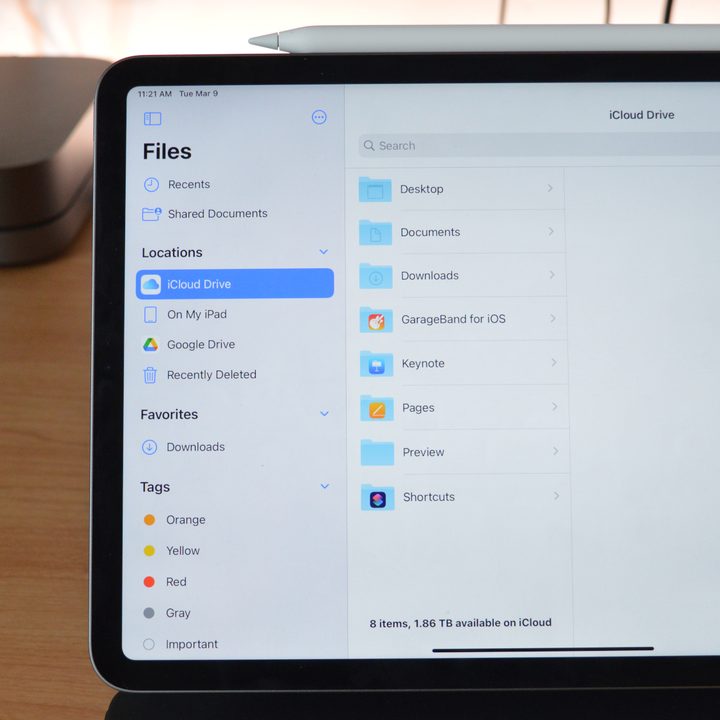
The iPad now has a full-fledged file management app, in the form of Files. Files has gotten a whole lot better over the past few years, and you can now use it to manage all your files, even on other cloud storage services, and on SD cards and drives. It gets even more powerful if you have a Mac and use iCloud Drive — as it means you can view synced documents from your Mac on your iPad without needing to manually transfer them. That includes files on your desktop, in the Documents folder, and so on.
Ultimately, the iPad Pro and iPad Air can easily handle most productivity tasks, and it’s set to get better too. Right now, apps like Microsoft Word, AirTable, and so on, run very well — and more pro-level apps, like Final Cut and Logic, are likely to eventually make their way to the iPad too. Who knows, maybe it could replace your laptop too.


