
Nvidia G-Sync modifies the refresh rate of your monitor to provide a smooth, seamless gameplay experience. If you have one of the best monitors, it probably has G-Sync so you’ll need to know how to enable G-Sync on a PC. And in this guide, we’re going to show you how.
Got an AMD graphics card or a Freesync monitor instead? Here’s how to enable Freesync.
How to enable Nvidia G-Sync on PC
Before getting to how to enable G-Sync, you need to make sure you have a G-Sync monitor. Nvidia has a few different G-Sync categories. G-Sync and G-Sync Ultimate monitors come with dedicated hardware inside that handles the variable refresh rate, and they’re typically more expensive than other monitors. There are also G-Sync Compatible monitors, which don’t have dedicated hardware but still support Nvidia’s adaptive refresh feature.
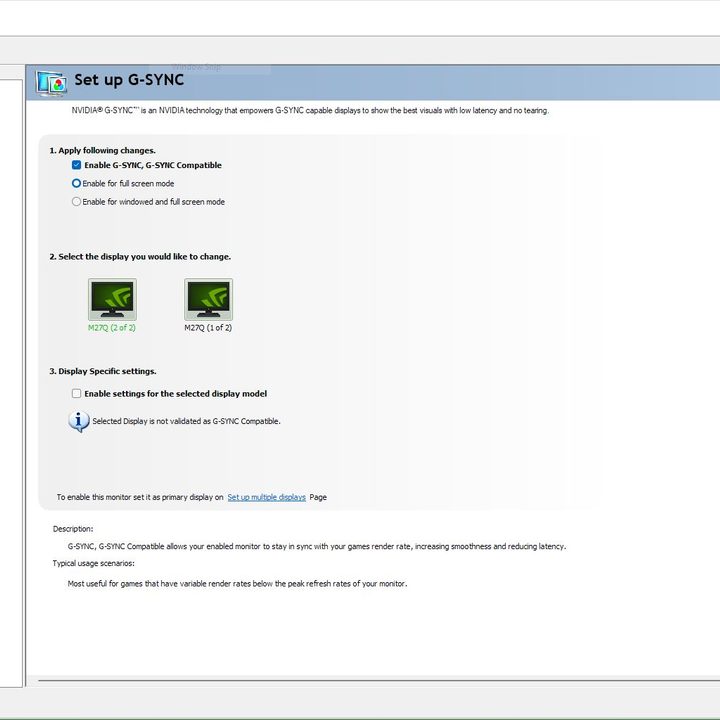
You also need an Nvidia graphics card. As long as you have everything you need, hook up your monitor, update your graphics card drivers, and install the latest version of Nvidia Control Panel. From there, enabling G-Sync is simple:
Step 1: Open the Nvidia Control Panel.
Step 2: Expand the Display tab and select Set Up G-Sync.
Step 3: Check Enable G-Sync, G-Sync Compatible.
Step 4: Select either Enable For Full Screen Mode or Enable for Windowed and Full Screen Mode depending on what you want.
Step 5: Click Apply.
Using multiple monitors with G-Sync
If you have multiple monitors, you’ll see a few more settings on the page. You can apply G-Sync settings to a specific display if you choose, which can be useful in a few different situations. If your primary display supports G-Sync, for example, but your secondary display doesn’t, you can apply the setting only to a single display.
If that’s what you want to do, follow these additional steps:
Step 1: Select the display you want to update.
Step 2: Check Enable Settings for the Selected Display Model.
Step 3: Click Apply.
You also need to make sure the display you’re applying the settings to is your primary display. To do that, head to System > Display in Windows, select your primary display, and then check Make This My Main Display.
Enable G-Sync for your monitor
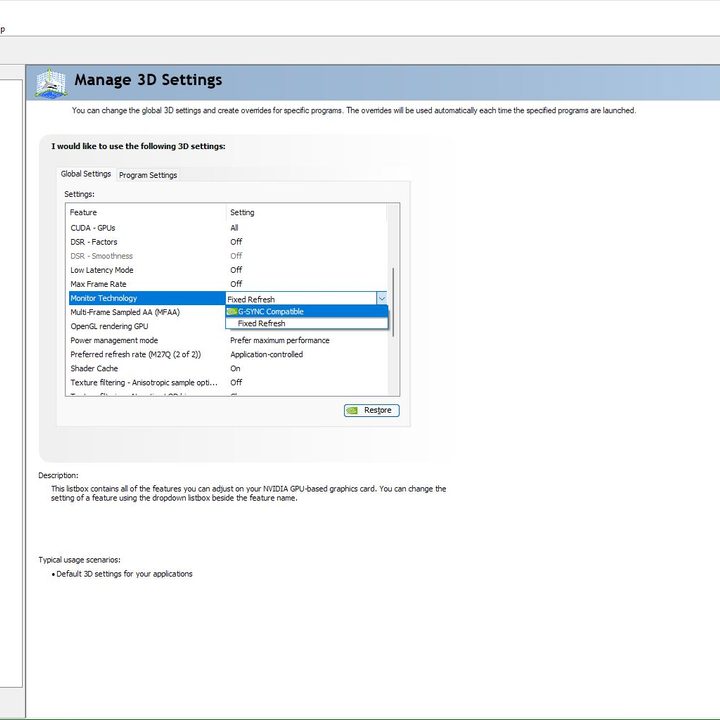
After you’ve done that, you’ll want to double-check that your monitor is set to use G-Sync instead of a fixed refresh rate. In the Nvidia Control Panel, take these steps:
Step 1: Expand the 3D Settings tab and select Manage 3D Settings.
Step 2: Under the Global Settings tab, find the Monitor Technology setting.
Step 3: Change the setting from Fixed Refresh Rate to G-Sync.
Step 4: Click Apply.
That’s it. Whenever you load up a game, you’ll be able to use variable refresh rate as long as you have a compatible display. In most cases, you don’t need to do anything on your monitor. However, some displays come with a toggle in the settings for G-Sync, so make sure to turn that on, as well.
Still weighing up the best option for your graphics and display solution? Check our comparison of G-Sync and FreeSync.


