
You and your smart home rely on your Alexa mainframe. The treasured Internet-of-Things controller and web-connected brains of the homestead, your Echo speaker or smart display is the commander of everything from your smart thermostats and video doorbells to your lighting, music streaming, and daily schedule. But what do we do when our Alexa hardware starts failing us? Or what if we have plans to offload an old Echo speaker to make a bit of chump change?
Whether you’re having troubles with your Alexa products or plan on getting rid of one or several, resetting your Alexa device is a fairly straightforward process, although the process will differ depending on what gear you own. Here’s an explainer on how to reset some of the most common types of Alexa hardware.
Bugging out? Start with a hard reset
First and foremost, if your Alexa product is running sluggishly or not responding at all, a hard reset may be all you need to get your trusty voice assistant back in working order. For a quick hard reset, all you need to do is unplug your Alexa device, wait about 10 seconds, and then re-power the hardware.
Give it a minute or two to reconnect to your Wi-Fi network, then test your equipment. Ask Alexa a question or tell her to perform some kind of command, whether that’s launching your favorite Spotify playlist or turning down the thermostat. If everything goes according to plan then you’re good to go. If not, it’s time to get a bit more drastic with a factory reset.
Resetting an Echo speaker (Echo, Echo Dot, etc.)
One of the most commonly owned types of Alexa-powered devices, Amazon’s lineup of Echo speakers spans four generations and features several different models, from the standard Echo speaker to the miniature Echo Dot.
If your speaker is acting finicky or you plan on selling/giving yours away, you’ll want to perform a factory reset. Doing so will eliminate all of your user data, allowing you or your interested buyer to start fresh. There’s more than one way to reset your Echo speakers, and the means to do so also varies by model. We’ve covered all methods below.
Resetting with speaker buttons (standard Echo lineup)
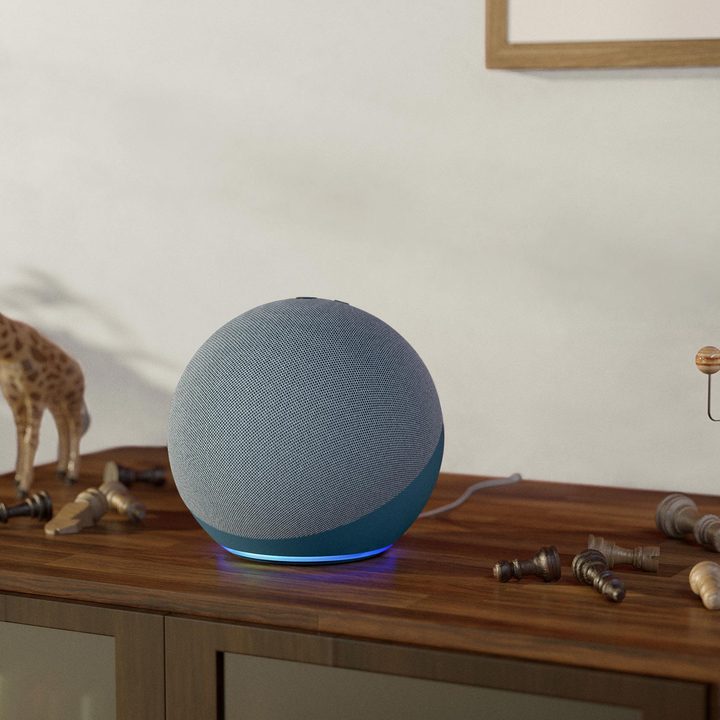
Are you the proud owner of a first-generation Echo speaker? If it’s time to upgrade to the latest fourth-gen iteration, you’ll need a paper clip or other finely pointed object to get at this speaker’s factory reset button, located on the back of the device. Press and hold your pointer to the Reset button and wait. Once the light ring turns off then on again, that’s the sign that you’ve successfully reset your first-gen Echo.
For second-gen Echo speakers, you’ll want to press and hold the Microphone off and Volume down buttons at the same time, holding for about 20 seconds. When the LED light ring glows orange, this means your reset went through. (You can also reset a second-gen Echo Dot using the same method.)
For third- and fourth-gen Echo speakers, press and hold the Action button for 25 seconds. The light ring will glow orange then turn off. Once the speaker re-powers, it should first glow blue, then orange again, indicating your reset worked.
Resetting with speaker buttons (Echo Dot lineup)

Resetting your puck-shaped or globular Echo Dot is a quick and simple process across the three generations of the speaker.
For second-gen Echo Dot resetting, you’ll want to press and hold both the Mic off/Volume down buttons at the same time. Once the light ring shines orange (you’ll wait about 20 seconds), your reset is complete.
For third- and fourth-gen Dots, as well as Echo Dot with Clock models, all you have to do is press and hold the Action button for 25 seconds.
Resetting with speaker buttons (Echo Pulse, Echo Studio, Echo Sub)

To reset a first-gen Echo Echo Pulse, grab your pointed object and press/hold the Reset button on the back of the speaker. Wait for the light ring to turn off then back on again. For the second-gen Pulse, press and hold the Action button for 20 seconds. Once the light ring goes off then on again, you’re golden.
To reset the almighty Echo Studio speaker, press and hold the Mic off/Volume down buttons for 20 seconds. Have an Echo Sub to go along with the rest of your Echo family that you want to reset? Press and hold the Action button (located above the power cord) for 25 seconds.
Resetting an Echo Show
Amazon’s lineup of Echo smart displays can all be factory reset straight from the touchscreen, with the reset process varying slightly by generation.
For first-gen Echo Shows and Echo Spots, swipe down from the top of the screen, then choose Settings. You can also say “Alexa, go to settings” to jump straight to the Settings screen. Once you’ve landed, tap Device Options, then Reset to Factory Defaults.

To reset a second-gen Echo Show, Echo Show 5, Echo Show 8, or Echo Show 10, swipe down on the touchscreen and tap Settings (or ask Alexa to do so). On the Settings screen, tap Device Options, then Reset to Factory Defaults. If you want to keep all your smart home connections online, choose Retain Smart Home Device Connections.
Another way to reset your Echo touchscreen device is to press and hold the Mute and Volume down buttons for 15 seconds. When the Amazon logo flashes, that means your reset was a success.
Resetting with the Alexa app
If you want to keep things mobile, you can factory reset your Alexa-powered product straight through the Alexa app.
To do so, open the Alexa app, then tap Devices. Then, tap the Echo & Alexa icon at the top of the screen. Pick the hardware you want to reset, then scroll down and tap Factory Reset.
Having troubles with your Echo Dot? Check out our piece on the most common Echo Dot problems and how to fix them. Issues with your Google gear? Look to our guide on the most common Google Home issues and how to fix them.


