
Google Home makes it easy to automate your connected devices, but you can only do so much with the platform. Take your smart home to the next level by integrating Google Home into IFTTT (If This Then That). IFTTT is an online automation and productivity tool that you can use to connect two widely different services. Ever want to use Google Home to create a calendar event on your iPhone? Then IFTTT and this tutorial are for you.
What is IFTTT?
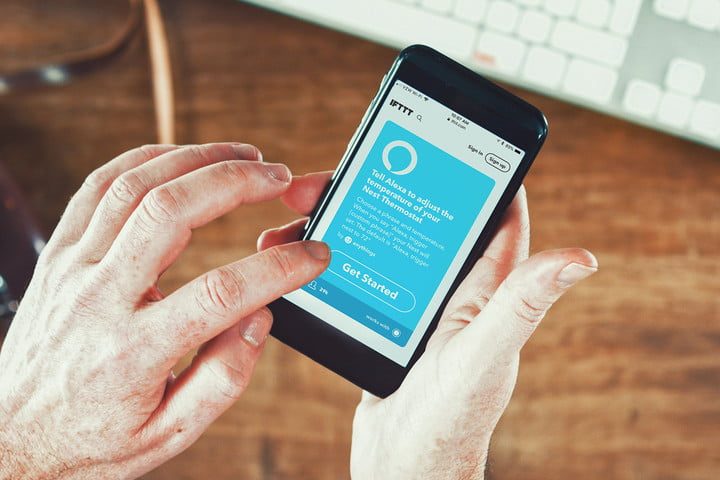
IFTTT works just as its name implies. If “This” trigger happens, then “That” event occurs as a result. This type of automation is common. For example, MacOS features the Automator app that lets you create scripts that’ll resize images, delete files, and so on when triggered. What’s unique about IFTTT is that the trigger and the resulting event can be on two different services. In the example mentioned above, you can use a trigger from Google Voice assistant to add a calendar event that IFTTT will send to the Calendar app on your iPhone or iPad.
Log in to your IFTTT account
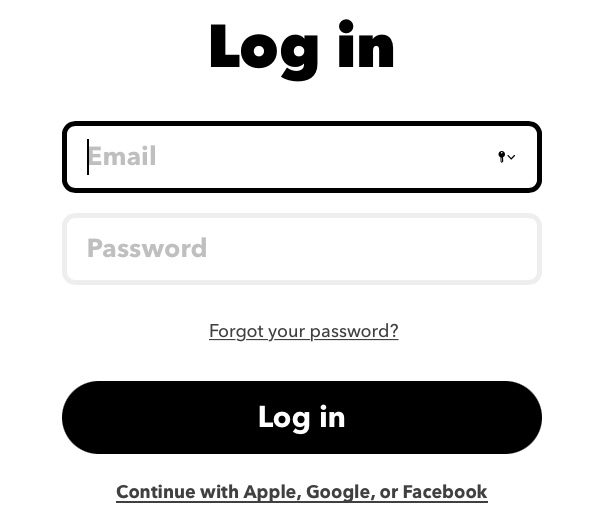
You’ll need to use IFTTT to create and manage all your cross-platform automations, so you must have an IFTTT account. If you have an account, log into the service via the website or the mobile apps (iOS or Android). Those who have never used IFTTT will need to create an account either at IFTTT.com or by downloading one of the mobile apps. Don’t worry about the cost. The basic plan at IFTTT is powerful enough for most casual users and is available for free. Those who want complex or real-time automations can upgrade to the Pro version which costs $40 per year or $4 per month.
Connect services to IFTTT
Once you have logged into your account, you can connect the services you want to use. In this case, we want to use Google Assistant with IFTTT. Google Assistant is the service that you will use to control your Google Home-connected devices. IFTTT makes it easy by listing all the available services to which it connects. Be prepared, there are a lot of them. If you are unable to find your service, use the search bar to locate it quickly.
Use recipes for Google Assistant and Google Home

You can find Google Assistant by typing Google into the search bar. Select the connect button for Google Assistant and follow the prompts to log in to your Google account. You also can log in to the other services you want to use and authorize IFTTT to connect to them on your behalf.
Once you link a few accounts, you can begin to use recipes. Recipes are user-created applets that you can use immediately. Simply select the applet you want to use and turn on the button to enable it (the button will turn green).
Live life and let IFTTT do the work
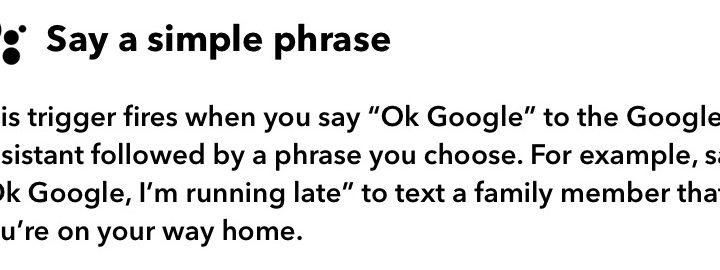
Spend some time choosing recipes or creating your own. Think of the triggers that would be useful for your productivity flow. Then consider the outcome you want. For example, do you want to send a text message to someone or add an item to your To Do list. In no time, you’ll have an arsenal of applets working on your behalf. As the saying goes, “Work smarter, not harder.”


