
The whole point of getting smart lights is so they can activate on their own without you needing to step in. Every smart light comes with its own native application that includes basic automations, like setting a schedule, or turning them off when you leave the house. We’re going to run through some of the ways you can activate these automations with the most popular smart light platforms available.
How to set a light schedule with Philips Hue

Philips Hue is one of the most popular smart lights available, and it has an entire menu within its app for automations. The easiest way to get started with them is to use one of the prebuilt automations (aka recipes). These include recipes for common use cases like waking up with light, going to sleep, and coming home. Here’s how to build an entirely customized schedule.
- Tap the Automations tab at the bottom of the Hue app.
- Tap Create automation.
- Scroll down and tap Custom.
- Select a start time.
- Select an end time.
- Select dates to activate, and tap Next.
- Select which rooms for the schedule to activate in, and tap Next.
- Select which color recipe should activate, and tap Next.
- Type a name for the automation, and tap Done.
- Hue can use your location to determine times for sunrise and sunset. This way the light schedule remains dynamic, and can kick in at relative times, like 15 minutes before sunset.
The Philips Labs has a wide selection of fancier automations that are worth digging into if you want to do something more complicated.
How to set a light schedule with Lifx

LIFX has a similar menu within its app. Here’s how to use it:
- Tap the + icon in the bottom-right corner of the LIFX app.
- Tap New Schedule.
- Pick either New Schedule (user-set times) or Day & Dusk (times set by sunup and sundown).
- Select which lights or groups to activate.
- Select when they’re to activate.
- Select how frequently the schedule repeats, then tap Save.
You can review the entire schedule by tapping the calendar icon in the top-right corner of the app. LIFX and most other smart bulbs plug into If This Then That (IFTTT), which can connect otherwise independent smart home systems. Be sure to dig into what’s possible with IFTTT to set up more advanced triggers and actions.
How to set a light schedule with Wyze
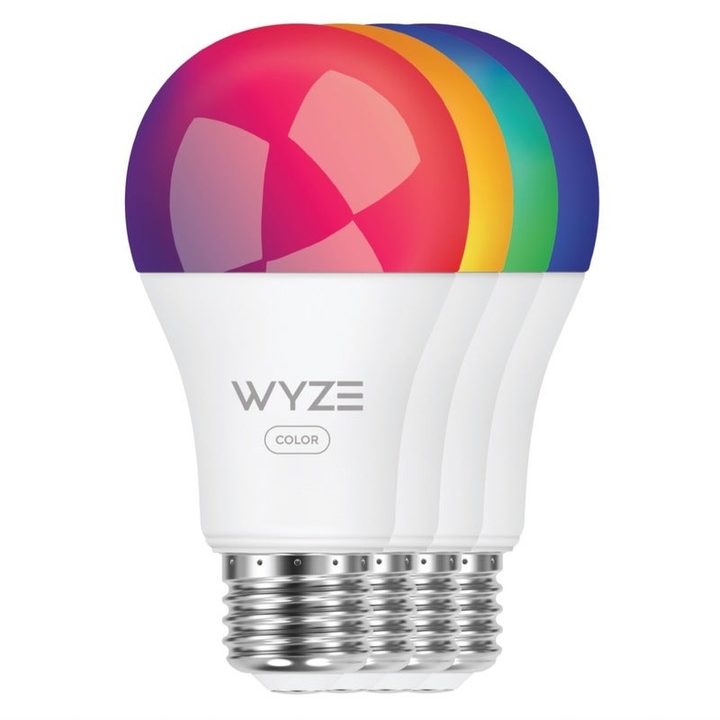
Wyze is a little trickier to set up since its app also houses functions for a wide range of products.
- Tap the menu button in the top-right corner of the app.
- Tap Add/Edit Rules.
- Tap the + button in the top-right corner of the app.
- Select Schedule from the list.
- Select the bulb for your Device action.
- Select the brightness and color for when the bulb turns on, and tap Save.
- Select when you’d like to turn the lights off, if at all, and tap Save.
- Set which days the automation happens.
- Tap Save to complete.
This larger ecosystem can interact seamlessly with one another, so, for example, a light can turn on when the security camera senses motion. Wyze also has a clever “Vacation” mode which turns on random lights while you’re away to give the impression that someone’s home. If you’re looking for more light recipe ideas, these are some of our favorites.
Setting your home lights to a schedule is just the tip of the iceberg when it comes to what you can do. Here are a few other ways in which you can automate your lights in surprising ways.


