People love their Macs, and rightfully so. The MacOS interface is known for being intuitive and familiar, especially if you happen to also use an iPhone or iPad.
The release of its primary rival, Windows, hasn’t changed that, but there’s one new multitasking feature introduced in Windows 11 that MacOS can’t compete with.
Windows 11 Snap Groups
If there’s one thing I love about Windows 11, it’s the way it handles multitasking, which Microsoft calls Snap Groups. With it, you can automatically select, choose, and stack your open windows in up to six different ways.
Just hover over the maximize button, and you’ll see the different options pop up. One of my favorites is “side by side,” where two apps can run next to each other at all times.
There’s also another option where you can open four windows into a square format. On external monitors, this proves useful, as you can find ways to make use of all the space on your screen. Three Microsoft Edge windows side by side in a vertical column? Talk about productivity!
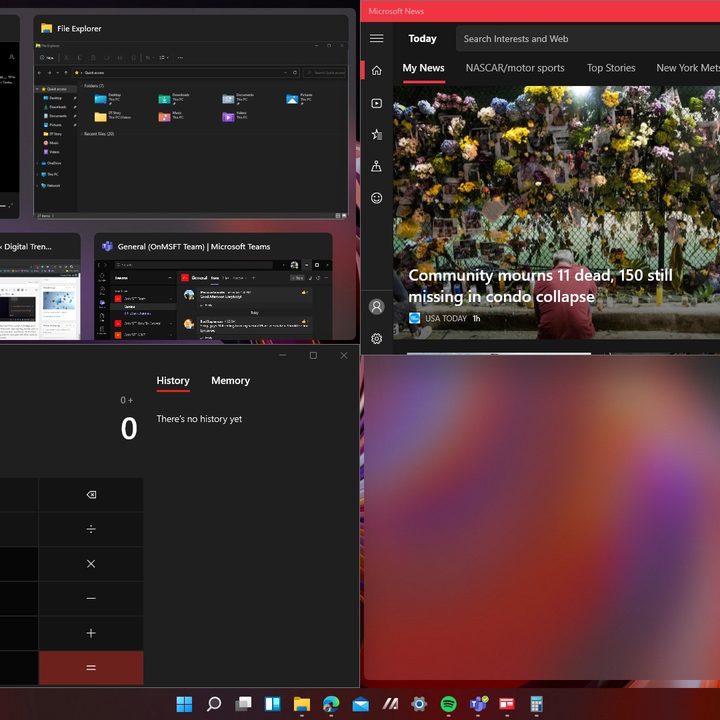
Perhaps the most convenient aspect of this feature is the “snapping” aspect. Just slide a window to any side of the screen, and the system will visually preview where you can snap to. It’s extremely quick and intuitive.
But that’s not all.
With Windows 11, you also can use a keyboard combination to snap and move your windows around. Then there’s Alt + Tab, which is a beautiful experience, showing live previews of your open windows in the background. It all helps you keep focus and open the windows you want when you want them. This is something that MacOS struggles with.
Multitasking on MacOS
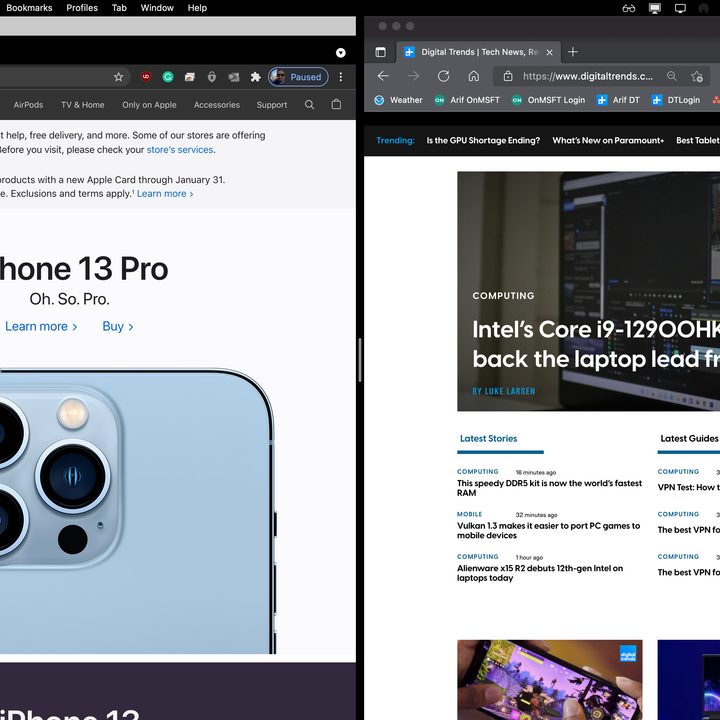
On MacOS, multitasking and productivity are a lot more convoluted. There’s no “snapping” mechanism as there is in Windows. To open Windows side by side or in split-screen, there’s only one way. You need to first hover your mouse over the green maximize button and choose to either tile the window to the left side or the right side of the screen. MacOS will then let you fill that side of the screen with one of your open apps.
But there’s a problem with that. The current mechanism means that you’ll lose visual access to both your dock and menu bar. Unlike Snap Groups in Windows. MacOS takes split-screen apps full screen, and to switch between them, you’ll have to hover again, and choose the Replace tiled window option.
Basically, Macs treat open split-screen windows as separate spaces. It’s a minor annoyance, but during a busy day, the time spent exiting and switching between those apps can be frustrating.
It is true that there are trackpad gestures or Mission Control so you can use to switch between open windows, but it’s not nearly as intuitive as how things work in Windows 11. Multitasking is more upfront in Windows, and a lot more friendly.
Even iPadOS offers more ways to jump in to split-screen. Clearly, multitasking in MacOS has been neglected over the years.
Third-party solutions
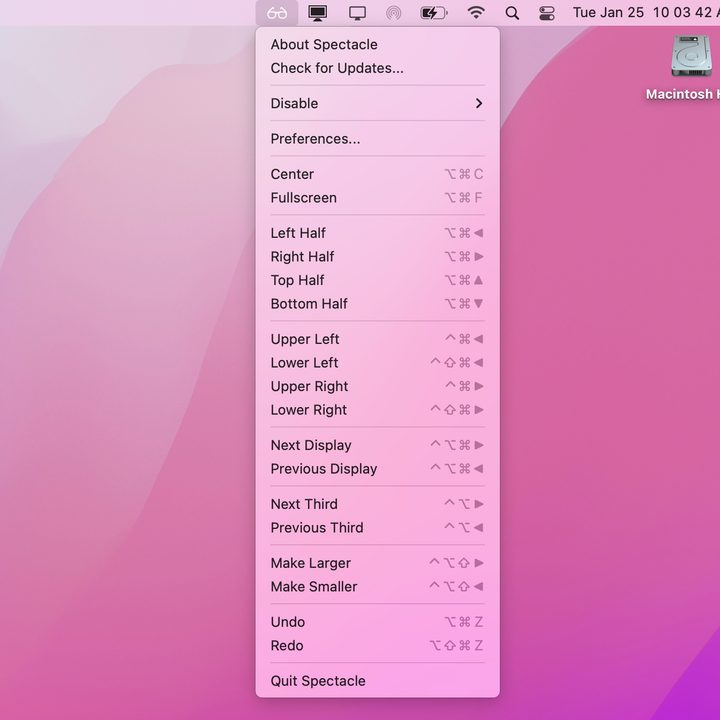
All hope is not lost for MacOS, though. I use a third-party window tiling solution to help with productivity. Like the Snap Assist keyboard combinations in Windows 11, Spectacle is a third-party app that lets you stack open windows side by side. You can use the Option and Command keys, along with the arrow keys to send a window to a certain side of the screen. Spectacle will also live in the menu bar, so it can be triggered from the top of the screen in a similar way to Snap Groups.
Other solutions to solve MacOS’ windowing issues include Moom, Magnet, BetterSnapTool, and BetterTouchTool. Most of these apps are paid, but until Apple adds a native tool like Snap Layouts to MacOS, these might be the way to go for those people making the jump from Windows.