
Everyone’s shiny tech hides a dirty secret: A mess of cables that are as unsightly as they are annoying. Cable management may seem like a daunting task, but with a few of our cable management tips and a little bit of patience, you can keep your tech looking tidy.
Here’s how.
Dealing with long cables

Cable length is a killer. The first step in cable management is to get rid of what you don’t need. Assuming you’ve unplugged all of your excess cables — we have a dedicated cable collection guide to help with that — the next step is to deal with extra cable length that you’re not using.
The main issues here are Ethernet cables, power cables, and USB cables. If you can replace a long cable with a smaller one and still reach an outlet without issues, you should. Excess cable bulk makes all future cable management much more difficult.
For cables you can’t replace, cut down on the length by wrapping the cable on top of itself and securing it with a cable tie. The goal here isn’t to cable manage yet; it’s to get your cables manageable.
One cable to rule them all
I like to start cable managing by routing all of my critical cables through a cable sleeve — sometimes unceremoniously referred to as an umbilical cord. I like to think of it as a master cable, one that splits off with everything you need.
You can find plastic cable tubes, but I’m a fan of loom tubing. It’s easy to wrap around a bundle of cables, really inexpensive, and they allow you to split off cables before the end of the tube.
Your goal isn’t to throw all of your cables into a tube. Instead, you only want to route the cables you are going to always leave plugged in. If you’re cable managing your entertainment center, for example, your HDMI, power, and data cables will go into the master cable. For a PC, your peripheral, data, and display cables would.
Don’t overstuff the tube, and avoid running multiple master cables if you can. Ideally, you’ll group together cables that are a similar length.
Secure power strips

Most cable management tips are focused around what you plug into the power strip, but a stationary source of power goes a long way into cleaning up your cable mess. There are two ways to go about this, depending on where you’re putting your power strip and how much money you want to spend.
The quick and dirty method is to slap on Velcro and secure your power strip that way. This works particularly well for desks, as you can put your power strip on the underside and hide everything. I’ve used double-sided tape in the past, but I prefer Velcro because it leaves less of a mess in case you need to replace the power strip.
The other option, which works well for entertainment centers, is a cable management box. These boxes are about a foot long, and you set your power strip inside and route cables out it. They’re about $20, but you can get away with any box with a few holes that can fit a power strip inside.
Clean runs, clear mind
With your master cable done, it’s time for everything else. To start, find out where your cables are coming from. All of your power cables may be feeding into a power strip, but they’re likely coming from different locations on your desk or media console.
This is where most cable management falls apart. You don’t want to overlap cables in a way that one is preventing you from adjusting another. I like to break up where my cables are coming from into zones and group cables together. So, all of my cables coming from the left of my desk will be one run, for example.
Hide the mess
By now, you should have all of your cables managed, and now it’s just about hiding the mess. There are half a dozen ways to go about this, which will change depending on what area you’re trying to cable manage:
- Wire cable management trays
- Raceway wall covers
- Adhesive cable clips
- In-wall cable covers
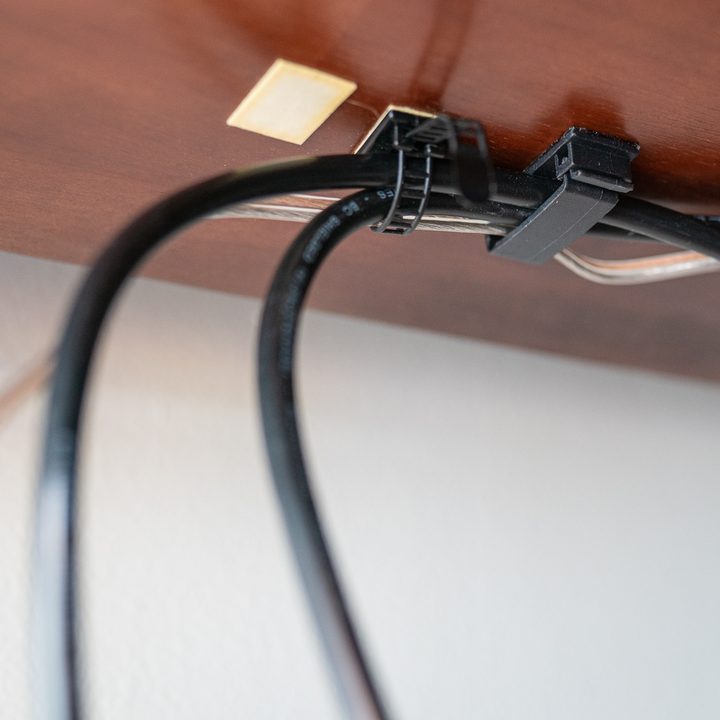
For desks, I like adhesive cable clips. Like a power strip, I mount them under the desk and run cables through the clips to keep them out of sight. Wire cable management trays are great here, too, especially for devices that have their own power brick. These sit under or behind your desk, and you can lay all of your cables inside.
For a TV stand, you have a couple of options depending on how much work you want to do: In-wall cable covers or wall covers. These raceways, as they’re called, are plastic covers that attach to your wall with adhesive. They’re easy to set up, they do a great job hiding cables, and you can paint them to match your walls.
If you have your TV mounted and want an even cleaner look, you can route your cables through the wall. The idea is to cut out a couple of spots in your wall, slot in the cable covers, and run your cables that way. If you go this route, be mindful of power cables that may be in your wall and contact an electrician if you need to.
Go wireless, if you can

Finally, go wireless if you can. Wireless keyboard and mice are fast enough that they feel like you’re using a wire now, and most are inexpensive. If you want to bid farewell to wires, the best way is to get rid of them where possible.


