

Once is often more than enough, particularly when creating a lengthy or comprehensive template. Each template, though differing in format and layout, is essentially a pre-constructed document in which users can input their own information in lieu of repeatedly designing the page themselves. They’re incredibly convenient and time-saving — likely the reason why most versions of Microsoft Word come pre-loaded with a venerable swath of the framed documents — while delivering robust layout options for all manners of copy, whether you’re looking to create that knockout resume, hefty business brochure or real tearjerker of a card reserved for that special someone in your life. Thankfully, the American tech giant has made implementing Word templates a simple, three-click process (though the same can’t always be said for creating and saving them for later use in Word).
Here’s our straightforward guide on how to use document templates in Microsoft Word, regardless of whether you’re simply opening a preexisting document or looking to create your own from scratch. Also, check out our top picks for the best Microsoft Office alternatives if you’re looking for a non-Microsoft workaround. There’s also our guide on how to convert a PDF file to Word if you need a simple means of converting PDF files to a more accessible format on either Windows or Mac OS X.
Skip ahead to creating a Microsoft Word template.
Opening and using a Microsoft Word template
Step 1: Launch Microsoft Word — Open Word from the dock or main Applications folder in Mac OS X or launch the software using the main Taskbar or Start menu in Windows. Alternatively, search and launch the program using either operating system’s search utility, dubbed Spotlight and Windows Search, respectively.

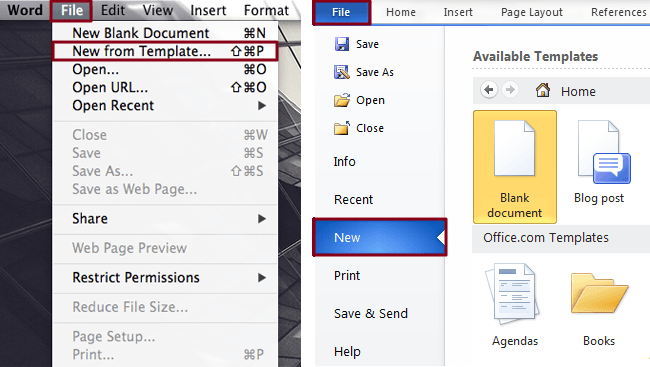
Step 2: Select a template — Depending on which version of Microsoft Word you’re using, you may be presented with a pop-up window presenting the various template choices available at your disposal. If using Mac OS X, click the File menu in the application Taskbar, select New from Template near the top of the resulting drop-down menu, and select your desired template from the resulting list of options prior to clicking the gray Choose button in the bottom-right corner of the window. If using Windows, click the File menu in the application toolbar, select the New panel on the left-hand side and double-click your desire template from the resulting list of options. Regardless of your OS, each version of Word should present a healthy selection of template options culled from assorted categories including Calendars, Stationary, Newsletters, Resumes, Proposals, and the like.
Step 3: Input your own copy — Each individual template serves a different purpose, but almost each one operates as a blank slate within a specified framework. Whether you previously chose a simple resume template, a more elaborate brochure template or a different option entirely, you’ll have the option to edit the content within. Change the images, font, colors, or any other facet of the template, and replace the default placeholder text or instructions with information of your own. Keep in mind the changes will not affect the original template, and when done, name and save the file as you would any other blank Word document.

Creating a Microsoft Word template
Step 1: Launch Microsoft Word — Open Word from the dock or main Applications folder in Mac OS X or launch the software using the main Taskbar or Start menu in Windows. Alternatively, search and launch the program using either operating system’s innate search utility, dubbed Spotlight and Windows Search, respectively.

Step 2: Open a blank document — Open a blank document once Word launches. If using Mac OS X, click the File menu in the application taskbar, select New Blank Document at the top of the resulting drop-down menu. If using Windows, click the File menu in the application toolbar, select the New panel on the left-hand side and double-click Blank document near the top of the resulting section, directly above the slew of available templates.

Step 3: Create the template — There’s no one way to create a Word template. Like the Microsoft-culled templates already available within the software, each template you create will likely serve a different purpose and fit your individual aesthetics. However, whether you’re creating a business newsletter or resume, it’s important you initially format the document so you’ll be able to quickly alter its content for whatever occasion it may warrant. A template should be specifically designed to be void of specifics, while keeping it as generic and clear as possible so you can later add the tailored content in the appropriate spot. For instance, avoid inserting specific dates and addresses as they may frequently change. Instead, stick with something like “[Date]” and “[Street Address],” while incorporating placeholder text to better visualize the template’s overall appearance without delving into the specifics. Remember, it’s intended to be bare bones.

Step 4: Save the template — If using Mac OS X, click the File menu in the application Taskbar and select Save As near the middle of the resulting drop-down menu. If using Windows, click the File menu in the application toolbar and select Save As from the left-hand column. Afterward, appropriately name the file, chose a save location, and select the template format suited best for your particular software suite. Word Template (.dotx) will suffice in most cases, but you may want to consider saving the template as either a Word 97-2003 Document (.dot) or Word 97-2004 Document (.doc) if you plan on utilizing the template on an older system. When finished, click the Save button in the bottom-right corner of the window. The newly-minted template will be available in either the My Templates or Personal sections depending on which incarnation of Word you’re using to open the new document from a template.

What do you think of our simple guide on how to use document templates in Microsoft Word? Still perplexed by any one facet of our article? Let us know in the comments below.


