
Android Auto puts commonly used smartphone apps and features right in your car’s dashboard. It overrides the native infotainment system with a familiar, easy-to-use interface that many motorists prefer. It reduces dangerous distractions, at least according to Google (but not according to AAA), and it makes upgrading an older car with new features a breeze.
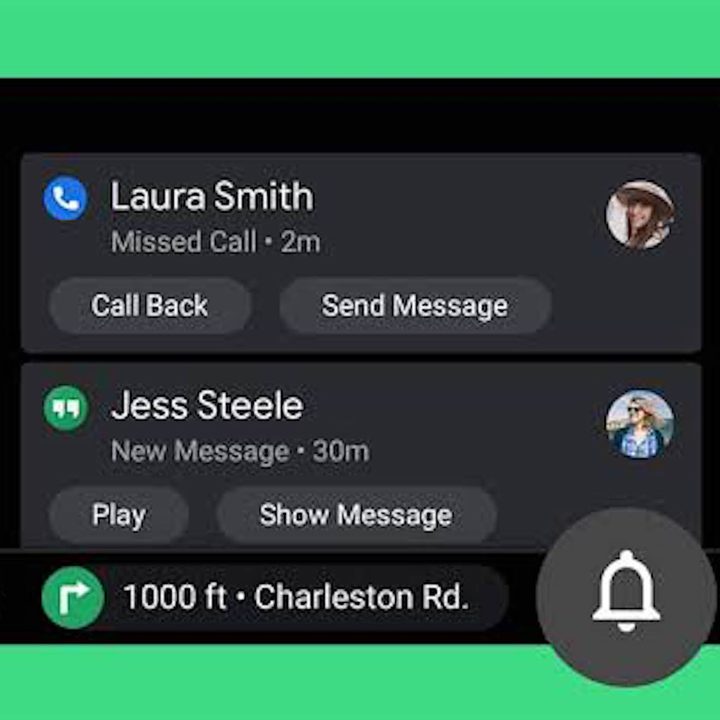
Like most things in our digital lives, Android Auto and smartphones in general have to be updated frequently with the latest software, but the update process here is a bit different than you may think. The important thing to remember when thinking about the best way to update Android Auto is that the images and functions you see on the screen in your dash are a direct projection from your smartphone. That means that the version of Android Auto you’re using is a reflection of the version of Android your phone is running. It may not be possible to run the latest version of the software on older phones, but newer versions of the phone software will allow you to see the latest version of Android Auto as well. Here’s how to update Android Auto.
Further reading
Update Android Operating System
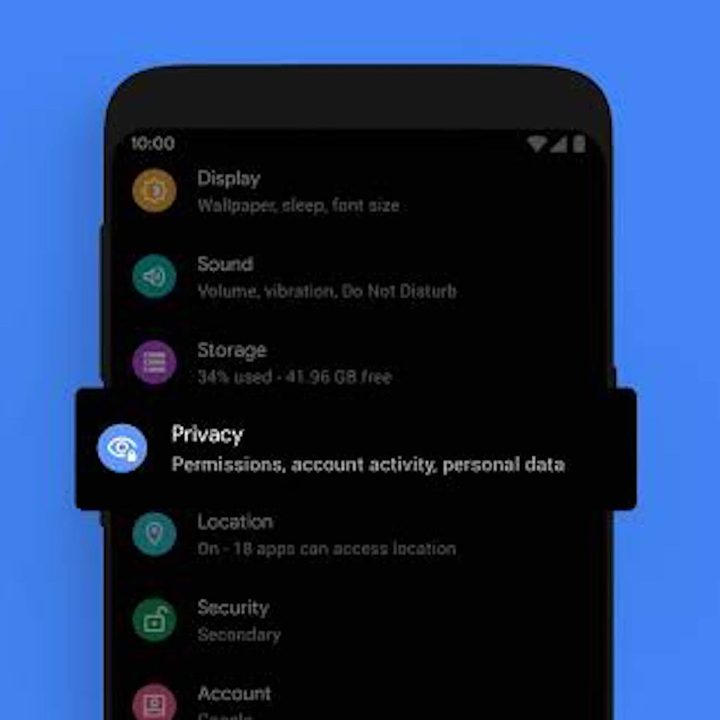
The first thing you’ll need to do is figure out which version of Android your phone is currently running. To do this, open your phone’s Settings app and scroll to the bottom of the menu, where you should see the Advanced option. From there, select System Update, where you will see your current Android version and security patch level. You should receive a notification once a new version of Android is available for your smartphone, but if you do not or if you accidentally clear the notification, you can follow the same steps to actually update the software.
Even after jumping through those hoops, it’s still completely possible to miss an Android Auto update. The app on your smartphone should have a settings option of its own, which will allow you to check for the ability to enable it there. In the Android Auto settings, there is a way to opt in to the new UI and features by selecting Try the new Android Auto option.
Occasionally, Google will add or change Android features and functions without requiring a complete update. Sadly, they don’t send out a detailed list of these changes when these software updates occur. You’re in luck if you own a Pixel phone, as they are the only phones that notify you of new updates. You may miss out if you have a different phone. Individual smartphone companies take additional time to optimize software for their phones, which can cause significant (and irritating) delays in the release of new versions.
Updates for your vehicle
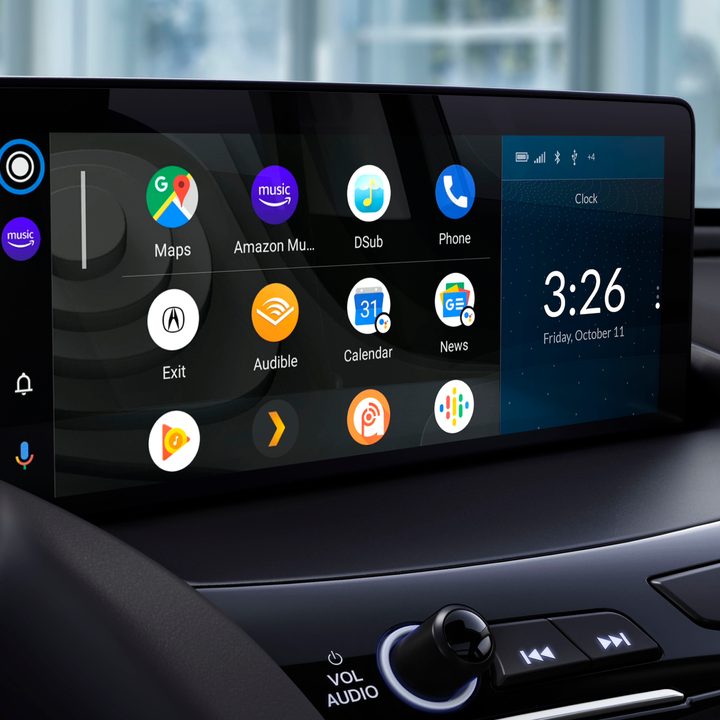
The good news is you’ll barely ever need to run updates through your vehicle for Android Auto. Your phone takes control and manages these updates separately from your car. Unfortunately, those who do not currently have Android Auto will not be able to access it in future updates. If your vehicle does not support Android Auto, it will never be able to for the entirety of its lifespan.
Even though your vehicle doesn’t have much to do with Android Auto updates, it will still need regular maintenance in order to run the latest software or firmware necessary for these platforms. Many times, this means installing over-the-air (OTA) updates from your vehicle’s manufacturer when they are sent out. If you’re not a fan of dealing with these types of technical updates and processes, we advise taking your vehicle to the dealership. One of the technicians can help you by ensuring your infotainment system is working correctly and operating at optimal capacity.


