
You’re more than likely spending more time in your web browser these days. The good news is that, just like the keyboard shortcuts you can use on Windows or on MacOS, there are several shortcuts that can prove useful in the Microsoft Edge web browser.
These shortcuts can spare you from having to move your mouse around inside the web browser. There are a total of six that we really like, including editing the URL, getting to the settings menu, closing tabs, and so much more. Here’s a deeper look at the six shortcuts you really need to try.
Alt + D to edit the URL

At the top of our list is a shortcut to edit the URL. This is the most common task in a web browser, and for some, the most painful. Depending on where you are on a specific webpage, you need to scroll all the way to the top of Microsoft Edge to change the URL or paste a new one in.
Well, if you hit the Alt + D keyboard shortcut, you’ll be able to select the URL in the address bar for editing. Once selected, you can type in the URL you want to go to and hit Enter. No mousing over required!
Alt +E to get to the Edge Settings menu

Next up is a shortcut for another commonly accessed part of Microsoft Edge — the settings menu. Typically, you’d need to mouse over to the “. . .” menu next to your profile picture to check your history, bookmarks, and other items. It’s not always convenient, but with the Alt + E shortcut, you can summon this menu at any time, on any webpage. You can then use the arrow buttons on your keyboard to navigate the settings menu, without even touching your mouse. Of course, once Edge opens the settings page, you’ll need the mouse for additional tasks, but this is a quick way to jump into settings.
Ctrl + Tab to switch between open tabs

Have a lot of tabs open in Microsoft Edge? You’d think that you might have to mouse over those tabs to see the content you’re looking for, but don’t touch that mouse! There are several keyboard shortcuts for tab navigation in Microsoft Edge.
The first of those is Crtl + Tab, which will let you switch between the next tab in Microsoft Edge sitting next to your current tab. That ties in with Ctrl + Shift + Tab, which lets you switch to a previous tab. There’s also Ctrl + 1, 2, 3, which can be used to switch to a specific tab in Microsoft Edge. The last of those is Crtl + 9, which will take you to your last Microsoft Edge tab.
Our deep dive into switching tabs with your keyboard explores this further.
Ctrl + M to mute a tab
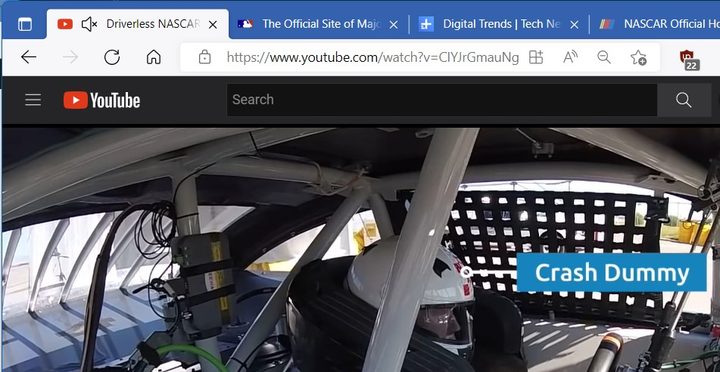
If you’re playing a video in the background while working or doing something else, you might want to mute it at one point. It could be to continue a conversation or just silence sounds for better focus. Well, typically you can right-click on a Microsoft Edge tab to mute it, but there’s a better way! Just tap the Ctrl and M keys on your keyboard, and audio playing from a tab will be silenced. No extra clicks are necessary.
Ctrl + J to open downloads
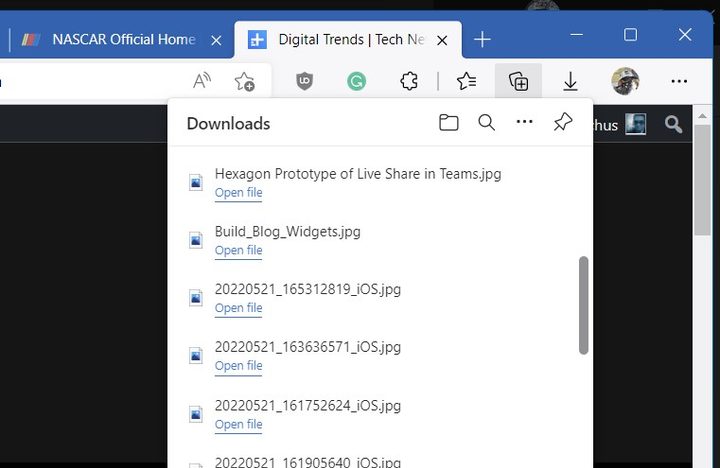
Need to find that file you downloaded? Typically, when Edge downloads a file, you’ll see the downloads icon at the top of the browser. But if you want to save time and not have to click all the way up there, tap the Ctrl and J buttons on your keyboard. This opens up the in-browser fly-out downloads menu. You can even navigate using your keyboard, where clicking Enter will take you to that specific file in the list.
Ctrl + Shift + M to switch profiles
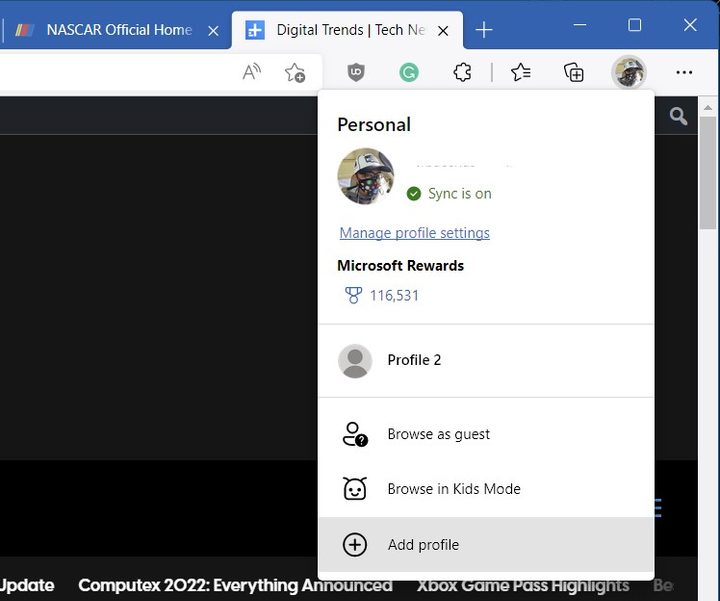
Last on our list is a shortcut for switching profiles in Microsoft Edge. Profiles are a useful way to separate your work and your school lives in the web browser, and you can typically switch between profiles by tapping on your profile icon. Well, with the Ctrl + Shift + M shortcut, you no longer need to go there. Just hit those keys on your keyboard, and use the arrow keys to select a profile, and you’re good to go.
Shortcuts for Mac, and more
We’ve focused on shortcuts for the Windows version of Microsoft Edge, but there are also shortcuts available for Mac OS, too. In most cases, it is just swapped to the Command key instead of Alt. Anyway, Microsoft dives into these and has a full list of Microsoft Edge keyboard shortcuts on its website.
If you run into trouble with the browser, check our list of Microsoft Edge problems and fixes.


