When Apple took to the stage at WWDC 2025 a few weeks ago, I was expecting some key improvements to Safari. Instead, what the company served was a redesign and the promise of faster performance. Now, Safari isn’t a devastating laggard. For a lot of users in the Apple ecosystem, it gets the job done.
But over the past few years, rivals — both established and upstarts — have come up with features that make Safari feel as if it were stuck in the past. When Arc came out, it reimagined what a browser can offer, despite being built atop the same engine as Chrome. Of particular interest was its intuitive tab management system.
Safari’s take on how tabs are managed beyond syncing across devices remains stagnant. Over the past few months, I’ve tried a host of browsers, especially underrated gems like Opera and new-age AI-powered options such as Dia, which reimagine how you interact with browser tabs. Here’s a list of the most innovative tab tricks that Safari must draw a few inspirations from:
Talk with tabs

Dia is an AI-focused browser, but it’s not exactly stuffing it down every user’s throat. It serves a meaningful kind of tab action powered by AI. Let’s say you are scrolling a webpage and select a word or passage. As soon as you do it, the text as well as the entire tab content is automatically copied to the AI assistant’s chat feed.
You just go ahead and type in your query to get the answer without any copy-paste chore or even opening another tab. For example, if I merely highlight a technical term such as “10GBE Ethernet” on a webpage, all I need to type in the sidebar is “Explain” and hit enter. The AI will crawl the web, find answers from reliable sources, and present them in a well-formatted structure.
Alternatively, you can just chat about the webpage without ever highlighting a word, passage, or image. It’s a low-friction, high-reward tactic for getting work done without opening a dedicated tab each time you need some background info.
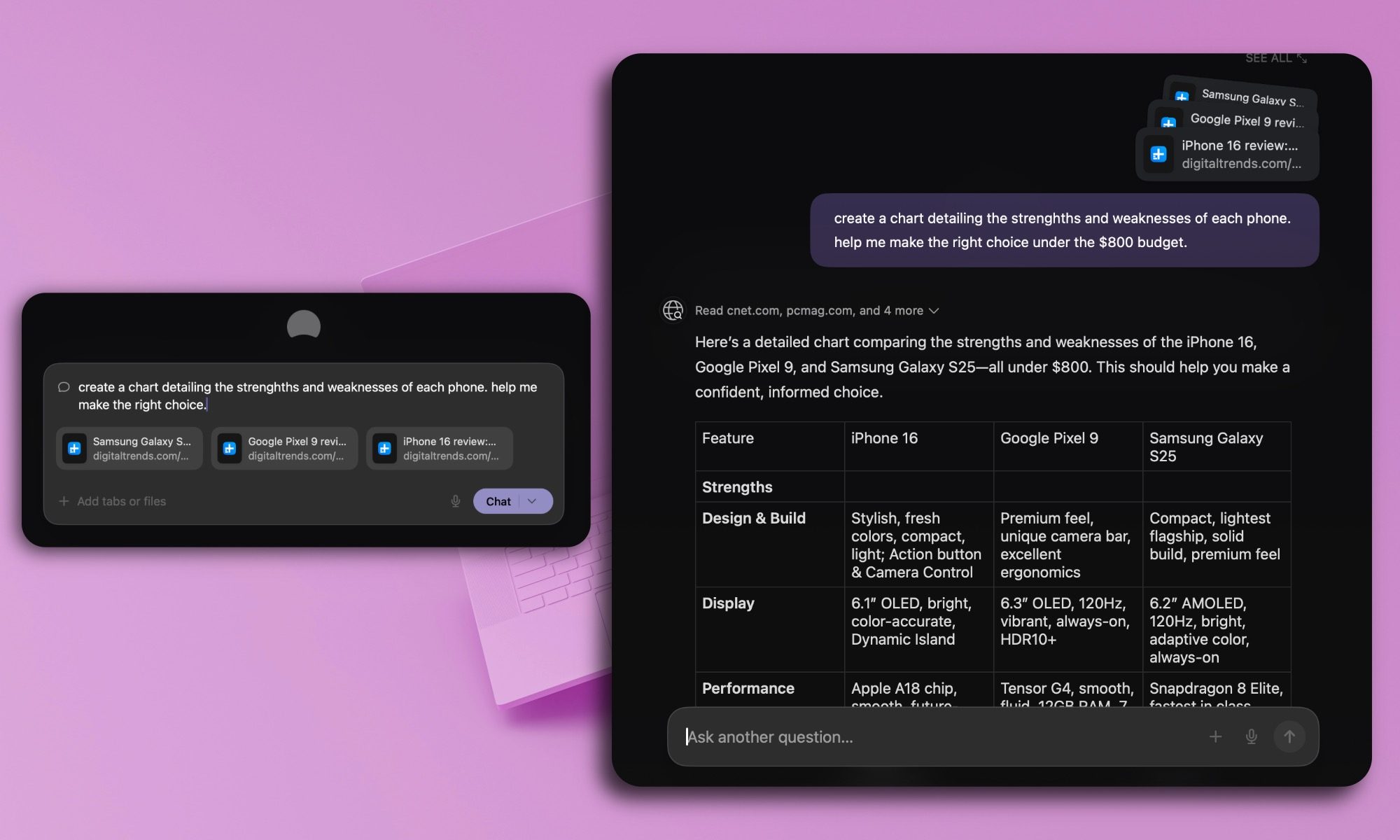
On a similar note, Dia lets you pull information from across multiple tabs and pull a report out of it. For example, if you have opened eight shopping tabs for earbuds on Amazon, you can simply use the “@” command in the search box, type the tab name (the letters you see on the tab card) or pick them from the drop-down list, and type your query, like:
“Compare these sweaters, create a table with their pros and cons, and their price in a sorted manner.”
Doing so will pull information from all the tabs in the background, and it will be neatly presented to you as a table detailing everything you asked for. It’s like pulling intelligence from across multiple tabs, without doing the manual back and forth.
Tab control made easy

Opera browser offers one of the most forward-looking approaches to tab management. It sticks with the traditional route of handling tabs with cursor movement or keyboard shortcuts, but for users who want an extra dash of convenience, it offers a chat-like system, as well. Think of it as talking to Siri or Gemini to handle your basic browser chores.
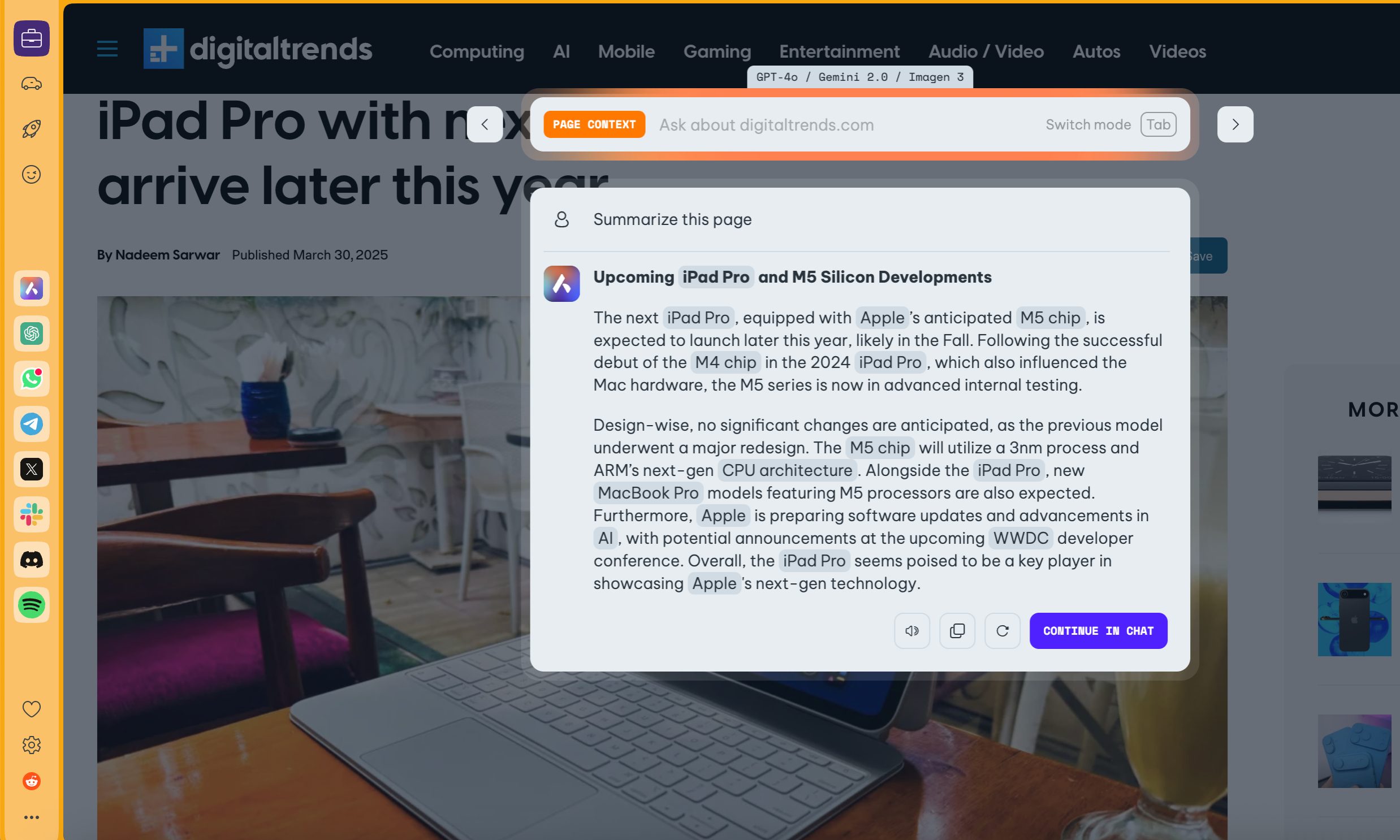
Opera browser comes with an assistant that can understand your natural language commands for handling tabs. For example, you can ask it to perform chores such as “put all my IEEE tabs in a group,” “close all the background tabs,” “bookmark my Reuters and MIT tabs,” and more.
Just like Dia, Opera’s assistant can also handle in-tab chores, such as summarizing an article or asking queries about content on the page, even if it requires web research in the background. It works flawlessly, and as a journalist, it saves me a lot of time while doing research and keeping things in order.
All of it is paired with the thoughtfully designed tab island system in Opera, which is color-coded, collapsible, and supports drag/drop gestures. Furthermore, thanks to workspaces, all your tabs and tab groups can be neatly arranged across different browsing profiles without any overlap.
Saving and sharing tabs
There can only be so many tabs you can keep active at a time before the browser starts slowing things down. But more than just keeping tabs alive, one needs a system where they can be saved, like a neat digital notebook — in a presentable fashion and a shareable format, as well. Unfortunately, Safari doesn’t deliver on this promise.

On the other hand, Microsoft and Opera offer a fantastic solution. In Opera, you get Pinboards. Think of it as Pinterest, but for your web browser. You can create and organize as many pinboards as you want, and save your browser notes, complete with an active web preview and personal notes, custom images, and wallpapers.
Pinboards let you play with how the tab previews look, like a notebook or a vertically-scrolling social media-inspired content feed. And when you share it, the pinboard is tuned into a URL that opens in the same format as you created it. For the recipient, there is no log-in hassle or Opera browser requirement.

Similar to Opera, Microsoft’s Edge browser has also offered a similar system called Collections. It also lives in the sidebar, lets you add custom notes, and assign a name to each tab cluster. With a single click, you can copy all the contents of a collection to the clipboard and share it.
The sharing system for Edge Collections is not as elegant as Opera Pinboards, but it gets the job done. I just hope Apple pays attention to these meaningful tab interactions that rivals have adopted and delivers its own take in Safari down the road. I am hopeful, but at the moment, I am sticking to browsers that do it better.