
GoTo Meeting is a great option for hosting meetings remotely, but like any other videoconferencing app, it still has issues that need troubleshooting. For this guide, we found four common problems GoTo Meeting users may encounter and the solutions to each of them. From audio issues to connectivity problems, let’s look at these difficulties and the best ways to solve them.
Note: The following sections only reflect the interface of the latest version of the GoTo Meeting desktop app.
Annoying sound effects when people enter or leave meetings
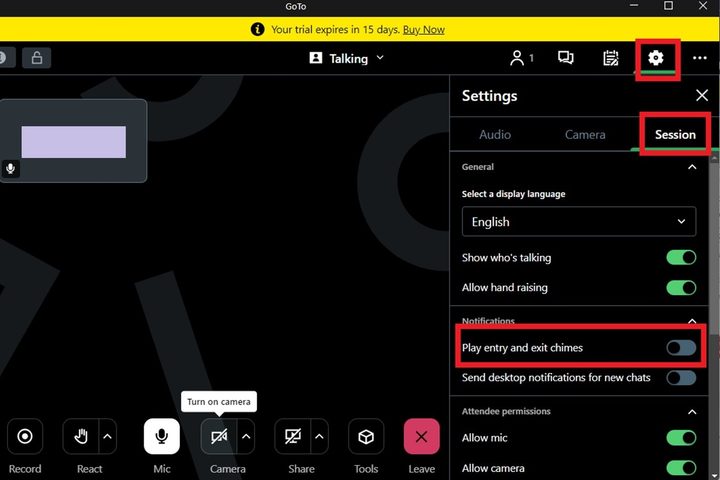
With GoTo Meeting, you’re probably familiar with the various sound effects that occur when your attendees join or leave your meetings (entry/exit chimes). If you’re tired of hearing those noises, you can actually turn them off.
Here’s how to do it in the desktop app:
- When you’re in a meeting, select the Settings gear icon on the right side of the screen.
- At the top of the Settings menu that appears, choose Session.
- Then look for the Play entry and exit chimes option. Select the toggle next to it to turn these chimes on or off.
Can’t hear other attendees speaking
The GoTo Meeting help webpage actually goes into quite a few scenarios that could explain why you can’t hear the other attendees speaking during the meeting. One of these scenarios stood out the most to us — the wrong audio mode could have been selected.
The “wrong audio mode” scenario is an issue with the GoTo Meeting app. In this scenario, you’re unable to hear anything because your GoTo Meeting audio settings for that meeting are set to the wrong audio mode. If you want to use your computer’s setup (microphone and speakers), your audio mode needs to be set to Computer mode. If you’re using a phone, you need to select Phone call mode. Using the wrong mode can cause you to not hear the meeting. To check and adjust your mode in the desktop app:
- In the meeting screen, click on the Settings gear icon.
- Then under the Audio tab, select the mode you want to use: Computer, Phone call, or No audio.
- If you chose Computer, choose the microphone and speaker outputs you want to use.
- If you chose Phone call, follow the on-screen directions to dial in to your meeting.
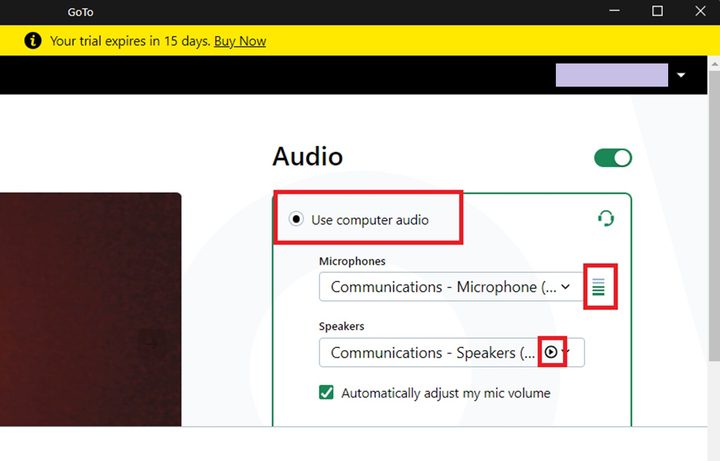
You can also check your computer’s audio setup just before you join your meeting by testing your speakers and microphone via the GoTo Meeting desktop app’s audio tests. Here’s how:
- On the Camera Preview screen that appears just before you join or start a meeting, select the Use computer audio option.
- To test your microphone, just begin speaking. If your microphone is working, green bars should appear next to Microphone drop down menu.
- To test your speakers, select the small Play button within the Speakers drop-down menu. If your speakers are working you should hear a test sound play.
Having trouble connecting to GoTo Meeting
According to GoTo Meeting, there are three main reasons why you’re having trouble connecting to your meeting: No internet connection, a firewall is preventing you from connecting, or GoTo Meeting is having an outage.
- If it’s your internet connection, you’ll want to reset your connection and then try to connect to your meeting again.
- If you think it’s your computer’s or your anti-virus software’s firewall that’s blocking the connection, GoTo Meeting actually has pretty detailed instructions on how to handle that. Basically, the gist is this: You need to configure your firewall’s settings to allow GoTo Meeting to connect you to your meetings.
- If GoTo Meeting is having an outage, you will have to wait for GoTo Meeting to resolve that. You can check if GoTo Meeting is having an outage by checking its status on its official status page.
The other attendees can’t hear me
If the other people at your meeting can’t hear you, here are some of the issues that could be going on: Your microphone might be muted, you’re set to the wrong audio mode, or if you’re using the web app version, you’ll need to make sure you gave permission for microphone access.
If your microphone’s muted, you can unmute yourself in the desktop app:
- Look for the Mic button at the bottom of your screen.
- If you’re muted, the Mic button will be black with a line through it.
- Select the Mic button to unmute yourself — the button should turn white and the line should disappear.
Just like having the wrong audio mode set can affect your ability to hear your co-workers during the meeting, it also affects your ability to be heard by them. This is how to adjust your audio mode in the desktop app:
- In the meeting screen, select the Settings gear icon > the Audio tab.
- For Computer mode: Select Computer and choose your microphone.
- For Phone call mode: Select Phone call and follow the directions listed to dial-in.
And lastly, if you’re using GoTo Meeting’s web app version, you need to give the web app access to your microphone, if you want to be heard. Usually, when you first join a meeting via the web app, you’ll be prompted to give that access. But if you didn’t grant access then, you’ll need to do it during the meeting. To do so, you’ll need to find the permissions button or icon in the address bar of your browser. For example, in Microsoft Edge, you can access and adjust the permissions by right-clicking on the Lock icon in the address bar. From there you can grant permissions to the GoTo Meeting web app.


