
Trying to work early in the morning with a bright computer screen can often feel like a shock to the system. Even if you have the brightness level turned down, some laptops just feel too bright for certain times of the day. This is where dark mode comes in.
Besides giving your eyes a break, enabling dark mode on a system such as Windows 11 can also potentially help preserve the life of your battery. These steps also work on Windows 10.
Turning on Windows dark mode
In both Windows 10 and Windows 11, the dark theme includes all parts of operating system unless a specific app has an override. The result is a vibrant desktop experience with dark mode enabled. Here’s how you can enable it in Windows 10 and 11.
Step 1: Go to Settings. You can either type it into the Windows search bar or click the Gear icon in the Start menu. Or use the Windows + I keyboard shortcut.
Step 2: Head to Personalization, which features an icon of a paintbrush over a computer monitor.
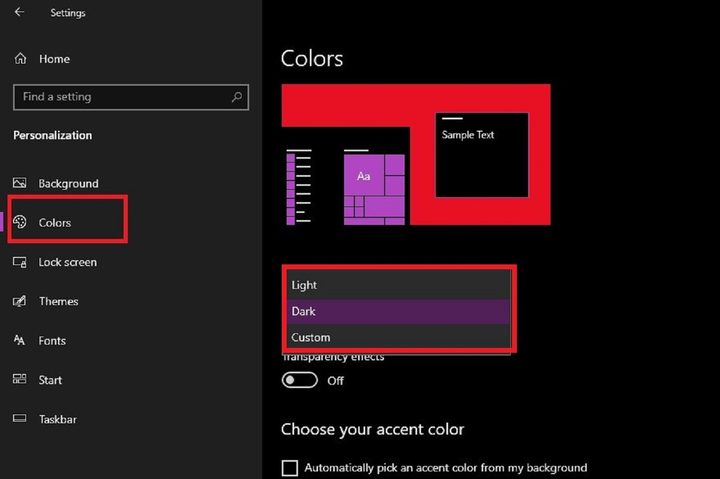
Step 3: When the window opens, click Colors.
Step 4: Under the heading Choose Your Color, click on the drop-down menu. This menu offers three theme options: Light, Dark, and Custom. For dark mode, select Dark. In contrast, the Light option will turn your menus and windows to a bright shade of white. Selecting the Custom option will trigger two more options to appear: Choose Your Default Windows Mode and Choose Your Default App Mode.
For these options, you will be prompted to choose either Light or Dark, for each option. And so, this way, with the Custom option, choosing Light or Dark doesn’t have to mean it will apply to the whole system at once. It can mean just choosing dark mode for certain situations.
Step 5: This step is optional, but the Colors section of the Settings menu also allows you to further customize your dark mode (or other modes) with accent color options. If enabled, accent colors can show up in things like menu icons, the Start menu, or the taskbar. The accent color options are located under the heading Choose Your Accent Color.
If you want Windows to automatically choose an accent color to match your wallpaper, tick the box next to the phrase Automatically Pick an Accent Color From My Background.
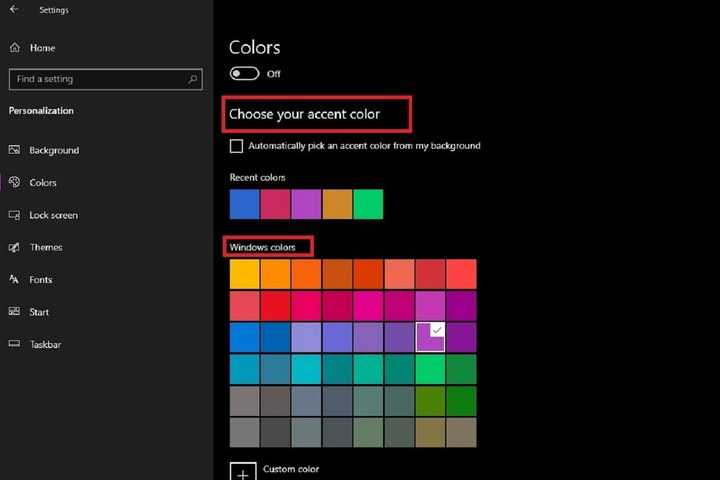
Your Windows OS should come with a preset collection of 48 accent colors from which to select that you can access by navigating to the heading Windows Colors. You can also choose a custom color by clicking on the Plus Sign icon next to the phrase Custom Color.
Lastly, you can also control where these colors show up.
In Windows 10, tick the box next to either or both of these phrases: Start, Taskbar, and Action Center or Title Bars and Window Borders. Both of those options are available for Dark and Custom modes, but not for Light mode. Light mode only offers the Title Bars and Window Borders option. These last two options should be located in the Colors menu under the heading Show Accent Color on the Following Surfaces.
For Windows 11, you have the option to enable Transparency effects, and opt to Show accent color on Start and taskbar and Show accent color on title bars and window borders. Both are disabled by default.
Bonus tip: Activate dark mode in Microsoft Office to match system settings
If you’ve already set Windows to dark mode, you might also want to do the same with your Microsoft 365 apps, like Microsoft Word. The latest version of Office allows for the application of dark mode, having added the option to apply the visuals you’ve set up for your current setting background to the app. Here’s how:
Step 1: Set Windows 10 on your device to dark mode using the steps outlined earlier in this guide.
Step 2: Open a Microsoft 365 app like Word. Then choose Account from the lower-left corner of your screen.
Step 3: Under the heading Office Theme, click to view all of the drop-down menu options.
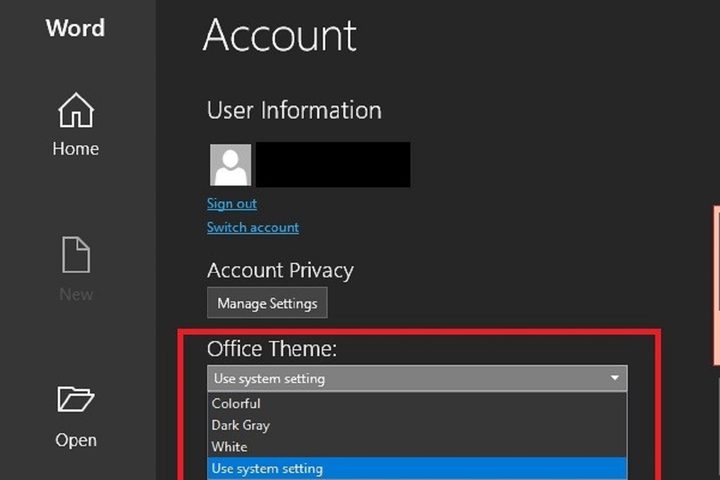
Step 4: Choose Use System Setting from the drop-down menu. If you already had your system setting on dark mode, your Microsoft 365 apps should immediately darken and turn black.
Note: If you’re trying to use dark mode across all of your Office apps, you should know that Use System Setting might not work for every app. This option doesn’t exist in certain Office app menus, and if you don’t have a paid subscription to Microsoft Office or Microsoft 365, you’ll find even more limitations. If you don’t have full access to the software, you might not be able to use dark mode or the Black option for every app.
If you’re looking for more desktop tweaks, learn how to adjust the screen resolution in Windows for improved visuals.



