
The Windows 10 product key — a 25-digit code included with every copy — acts as proof of an authorized purchase. You can download and use much of Windows 10 without one, but to fully unlock all Windows 10 features, you need your product key (Microsoft also accepts digital licenses in some versions of Windows 10). You can find this activation option at any time in the Update & Security section of your settings. Windows 10 also regularly reminds you of this.
If you’re ready to active your Windows 10 device and fully unlock everything that Windows 10 can do — or you’re reinstalling Windows after some major hardware changes — then you’ll need that product key on hand. Finding it can be a little tricky, however: If you aren’t sure where to look, here’s how to find the necessary key, and what to do if you think you may have permanently lost it.
Option 1: Consult your documentation
If you bought an authorized copy of Windows 10, you will have received documentation that included your product key. The issue is that this product key can come in many different forms, depending on how you bought Windows. Let’s break it down into the most common methods of purchasing Windows 10, and where you should look for the product key in each case.
You bought a PC with Windows 10 already downloaded: This is fairly common, and in these cases the packaging and manuals are particularly important. Typically, the product key is included on the Certificate of Authenticity, usually a sticker directly on the PC itself, or sometimes on the back of the manual. Keep all the documents that came with your PC and don’t take off any stickers that have the product key until you’ve used it.
You purchased directly from Microsoft’s site: Microsoft will send you a confirmation email after you purchase, and the product key should be in that email. If the email is unavailable, you can log into your account and head to your history of Microsoft purchases here, and the product key should be available upon selecting your Windows 10 purchase.
You purchased a digital copy from Amazon: Amazon will have kept a record of your purchase under your account, in Your Digital Items. Look for a section called Downloads and Codes. Find your Windows 10 purchase, and the product key should be directly below it.
Keep in mind, this refers to copies bought directly from Amazon, not third-party sellers on Amazon’s site. If you purchase from a third-party seller, your copy of Windows 10 may not have been legitimate, and if the seller doesn’t provide a product key there’s not really anything you can do.
You bought a physical copy at a store: The product key will be on a label on the box (it should clearly say product key, and may be next to a bar code), or it will be on a separate card or label inside the box. Don’t throw anything away until you’ve found it!
You chose a free upgrade from an older version of Windows: No need to worry in this case; Microsoft grants a digital license for the upgrade, and a product key is not required.
You bought from the Windows 10 Store App on your computer: This is another case where you should have received a digital license instead of a product key, and you will not need a product key for activation.
Option 2: Use Command Prompt
If worse comes to worst, then none of the above methods may work in your particular situation. However, if you still have access to your Windows 10 computer, you can force the issue using Command Prompt and the right command. Here’s what to do.
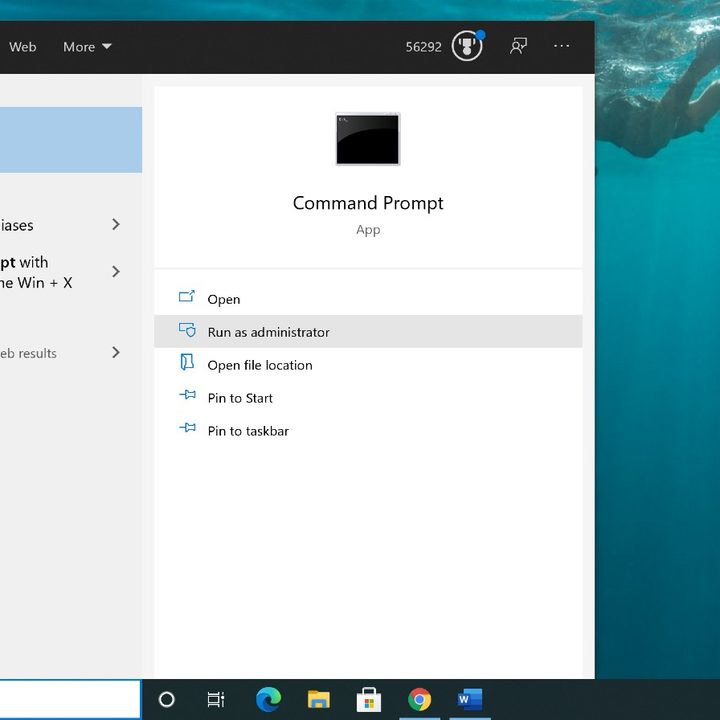
Step 1: Open the Command Prompt app. It’s easiest to simply type “command prompt” in the search bar and wait for the results to come up. When you see the app, select Run as Administrator to make sure you have all the permissions that you need for this process. Confirm that you want to allow the app to make changes if necessary.
Step 2: Enter the right command to view your product code. Enter this exact, case-sensitive code to proceed — copying and pasting is easiest. There is no need to enter the command; it should initiate automatically:
wmic path SoftwareLicensingService get OA3xOriginalProductKey
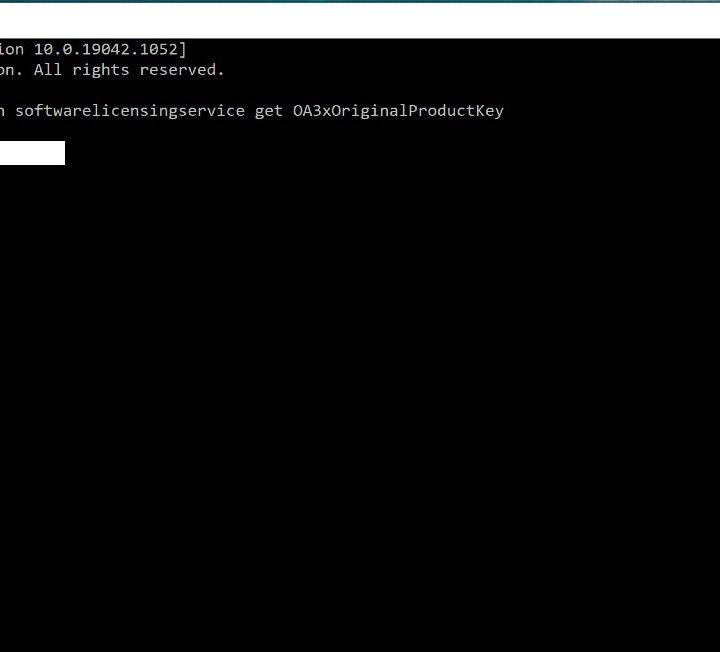
Step 3: Your code should now appear at the bottom of the returned results. Take this opportunity to copy it down or grab a screenshot so you won’t need to do this again.
You may also want to check out what to expect from Windows 11 and how it compares to Windows 10.



