
Folding@Home is a fantastic crowd-sourced computing project that has been helping to find cures for cancer, Alzheimer’s, and Ebola for years. But now it’s being used to fight the coronavirus pandemic, and you can help by donating your PC’s power. All you need to do to take part is download and install a simple piece of software.
Note: Folding@Home does put extra stress on your system. While you can limit it to a “light” load if you want to, know that it will use extra power and generate extra heat. Consider optimizing your PC before getting started.
For more up-to-date information and how-to guides relating to the coronavirus and working from home, here’s all of Digital Trends’ coverage.
Step 1: Download and install the client
The first step in helping fight coronavirus with your home PC or laptop is to download the Folding@Home client. To do so, navigate to the Folding@Home download page, here. Select the correct download for your particular operating system, and approve it if necessary. When the installer is downloaded, run it and install it like you would any other program or application.
Step 2: Create an identity and join a team (if you want)

You don’t necessarily have to complete these step, as you are more than entitled to fold proteins anonymously. You’ll still contribute, you just won’t be able to track your progress or throw your weight behind any of the established or new teams, to make this a little competitive. Just for fun.
Whichever route you want to go down, launch the Folding@Home client and a new browser window will appear. If you want to stay anonymous, select the appropriate option and skip to Step 3. If you want to track your progress, select Set up an identity then Start Folding.
In the Change identity window, type in your name, and your team number if you have one. If you’d like to join Digital Trends’ burgeoning team, the number is 256439. Alternatively, you can find a list of team names and numbers here.
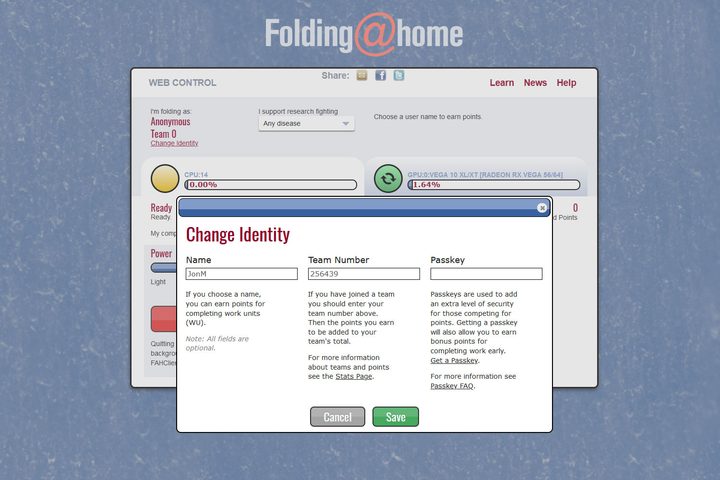
If you want to make sure that no one impersonates you or adds to your score, it’s also a good idea to add a passcode. This makes sure that your name remains unique to you, so that there’s never any confusion. Select Get a Passkey under the Passkey section, and follow the onscreen prompts.

Step 3: Start folding
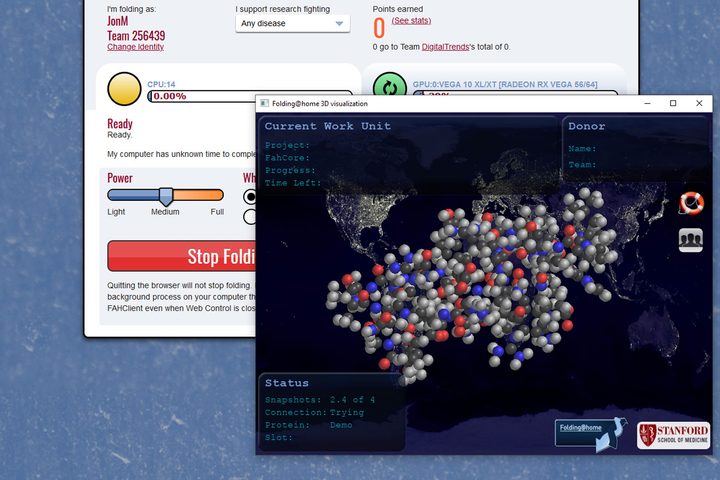
The next step is to actually start folding. Select the Start Folding button to give your PC’s CPU and graphics card over to the Folding@Home projects. You can customize what it is you’re folding to help fight using the dropdown menu under I Support research fighting. You can leave it to select a project for you, or you can choose from a number of noble causes.
At the time of writing, all the COVID-19 related projects have been exhausted due to massive interest in helping. That’s a good problem to have! The Folding@Home developers have pledged to get more projects up and running, but it may take some time. That said, new projects are cropping up all the time, and simply selecting “Any disease” as your preference will lead to occasional coronavirus-related projects popping up.
They’ll look like this:

Customizing your folding efforts

Folding@Home is designed to be easy to set up and run whether you consider yourself a technology expert or not. But that doesn’t mean you can’t tweak the experience and your own system’s input once you’ve got the hang of things. If you right-click the Folding@Home icon in your taskbar and select Advanced Control, you’ll open up a window with some in-depth information about your folding efforts and a number of tweakable options.
On the main screen you’ll find information about your current folding target, as well as offline options for pausing the project you’re on at that time, and changing the intensity with which your system works on it. There’s also data on the work queue, the specific server you’re grabbing projects from, and how many points you can expect to earn in a day if you left your system running constantly at its current intensity.
If you look through the configuration and preferences tabs, you’ll also find options for changing your team information, the network IP and port of your local machine, and even the ability to set up remote access for servers and PCs you don’t have real-world access to on a regular basis.


