
If you want to ensure your graphics card runs as fast as possible with all the latest features, it’s important to install the latest GPU drivers. Graphics drivers optimize new games and fix bugs, and staying up to date with them can squeeze extra performance out of your card. In this guide, we have a simple two-step process for how to install and upgrade your GPU drivers in Windows 10.
We have steps below for the best graphics cards from Nvidia and AMD.
Before getting started: Identify your GPU

Before you can install or upgrade your GPU drivers, you need to know your GPU model. If you built your own computer or otherwise know what graphics card you have, you can skip down to the steps below. If you don’t know what card you have, don’t worry. It’s easy to find out which GPU you have.
Press Windows Key + S and enter System Information. Select the top result to pull up a window with everything you need to know about your computer. In the left menu, expand the Components option and select Display. The main window will refresh with some information about your display and graphics card. You can find your graphics card model under the Name item.
You can also find your GPU driver version in this window if you want to manually check if you have the right version. You don’t need to, though. AMD and Nvidia offer software that can automatically detect if your driver is out of date.
Step 1: Install graphics card driver software
Nvidia and AMD have graphics driver software that can auto-detect your card and notify you of the latest updates. As far as these types of applications go, they’re unobtrusive, so we recommend installing them so you can easily upgrade your GPU drivers in the future.
Nvidia GeForce Experience
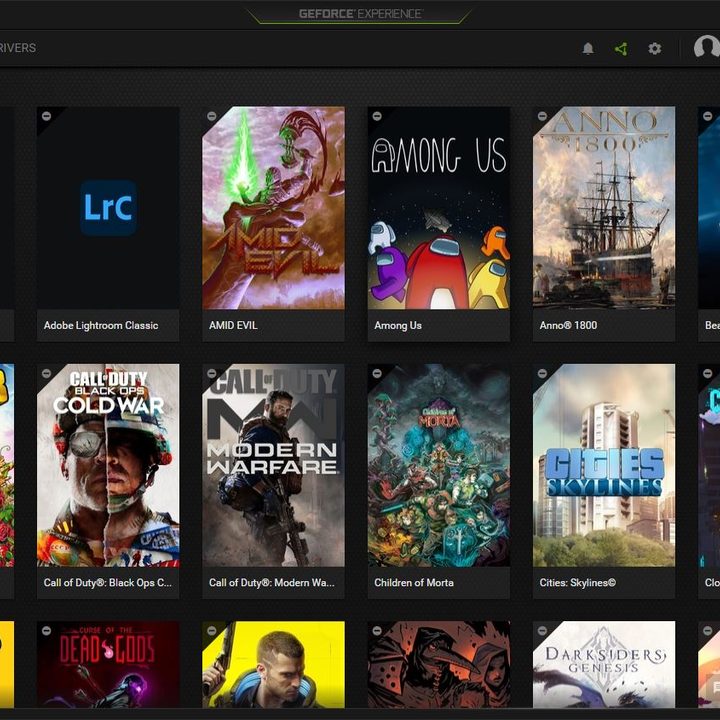
Nvidia’s graphics card drivers come from GeForce Experience, which also includes game capture through ShadowPlay and automatic game optimizations in supported titles. Download GeForce Experience from Nvidia’s website and follow the steps in the installer. Once it’s done, GeForce Experience will automatically open and attempt to detect the games installed on your PC.
If you don’t want GeForce Experience, you can update your graphics driver manually. You can use Nvidia’s product search page to find your graphics card. The search function speaks for itself, but make sure Download Type is set to Game Ready Driver (GRD) and Operating System is set to Windows 10. Otherwise, you just need to know your product series and the card you have (see above).
Run the installer for the latest driver, and you’re all set. During the installation, Nvidia will ask if you want to install GeForce Experience, but you can install the driver by itself if you want.
AMD Radeon Software

AMD’s drivers come from Radeon Software, which includes a bunch of useful features for AMD graphics cards. In addition to updating your driver, the software lets you monitor temperature and performance inside your computer, set up a livestream scene, and use features like Radeon Chill and Radeon Anti-Lag. Download the latest version of Radeon Software from AMD and follow the steps in the installer.
Alternatively, you can find your card manually, but you’ll need to still install the driver through Radeon Software. You can search for your card using AMD’s product search tool, which is easier to use than Nvidia’s. Just make sure to select Graphics as your category, then select the product series and the card you have.
On the next screen, expand the Windows 10 – 64-bit Edition dropdown to reveal the available drivers. Under the Revision Number, look for the driver with the Recommended tag. You’ll also see an option for an Optional driver, which includes upcoming features but may carry bugs or other issues. Click Download, follow the installer, and you’re good to go.
Step 2: Install the GPU driver
With the software installed, you can easily update your GPU driver. You don’t need to know what graphics card you have or what driver it needs. Both pieces of software will automatically detect your system and recommend the most recent driver.
Nvidia GeForce Experience

Open up GeForce Experience after it’s done installing and head to the Drivers tab. You should see the most recent driver available, which you can download. Just to make sure you’re getting what you need, though, click the three dots in the upper right corner and select Game Ready Driver, then select Check for Updates. Nvidia also offers studio drivers that are optimized for creative apps. You can have one or the other, not both. For most people, we recommend the Game Ready Driver.
After you’ve checked for updates, click the big green Download button. Installation only takes a few minutes, during which your screen will temporarily go black and your sound will cut out. Both will come back after the installation is done. When it’s finished, restart your computer and you’re all set.
Whenever there’s a new update, you’ll be able to see it by opening GeForce Experience from the taskbar.
AMD Radeon Software

AMD’s Radeon Software has a lot more going on, but it’s still easy to find the drivers you need. Even better, Radeon Software allows you to automatically install new updates, so you should only have to go through the process manually once.
Open the software and click the Settings icon in the right corner. Ensure you’re on the System tab on the next page and look under the Software & Driver section. Select Check for Updates to see if there’s a new driver available. If you’re installing a driver for the first time, Radeon Software will automatically detect your card and download the latest driver during the installation process.
Below this area, you can set up automatic installs. First, toggle the switch next to the Check for Updates section, which will automatically check for new driver versions. This option is enabled by default. Below that, you can toggle on Download Drivers & Software, which will install the latest driver and software versions automatically. Finally, make sure Preferred Software Version is set to Recommended.
Using Intel graphics?
As you will have noticed, this guide is aimed at Nvidia and AMD graphics card users. If you have integrated graphics from Intel, you can find the most recent graphics drivers on Intel’s software download page.


