
Keeping your PC healthy should be a major priority. Without our desktops and laptops, we can’t shoot demons in 4K, edit high-resolution videos, or create a million-dollar presentation. Mobile devices are great, but they simply lack sufficient multitasking power.
To keep that spring in your PC’s step, making sure that everything remains updated is of the utmost importance. This is how to update drivers in Windows 11 (these steps also work on Windows 10) so that your PC still feels young and vibrant years after you pulled it out of the box — or built it from scratch.
Use Windows Update

Not only do updates patch flaws in Windows 11, but they also install new drivers for components like audio, Bluetooth, the connected display, and more. This is the quickest and easiest way to update drivers.
Step 1: Select the search box on the taskbar and type “Updates.” This will bring up an option called Check for Updates. Select this to begin.
Step 2: The Windows Update section will appear with any information on missing updates or other required actions. You can choose Check for updates to refresh the search for new options. If an update is available here, close your other apps and start the update. Even if you have automatic updates turned on, check to make sure that you don’t need to restart to fully complete an important update.
In 2020, Microsoft separated driver updates from broader operating system updates for Windows in an attempt to reduce update bugs. That means that, while driver updates still happen, they are no longer connected to big Windows updates in the same way. That’s why it’s always a good idea to check for separate updates even after you’ve downloaded the latest OS upgrade.
Use the OEM’s proprietary software

Many pre-built desktop computers and laptops include a proprietary desktop program that downloads and installs driver updates. On the Start menu, they’re typically listed under the OEM’s (original equipment manufacture) name, like Dell or HP, or under the PC’s brand, like Alienware. Run this program to see if the manufacturer provides new updates, including BIOS upgrades.
What’s important to note here is that these drivers are optimized for your specific system. You’ll see updates to your PC’s BIOS, networking components, onboard graphics (and other hardware), and more. While you can go to a component manufacturer’s website and download newer drivers, using drivers issued through your PC’s manufacturer is a more streamlined process.
The only exception in this scenario is for discrete graphics built by AMD and Nvidia. You can safely grab the latest driver directly through them, which we go over below.
Use Device Manager
Another way to update device drivers is through the Device Manager. Here, we need to split this section into two parts: Microsoft and Manufacturer. While Microsoft may offer a recent driver that’s fully compatible with Windows 11, it may not be the latest issued for that component, like a hotfix or a beta driver.
Microsoft

Step 1: Right-click on the Start button. Go to Device Manager.
Step 2: Click the Arrow next to the hardware category you want to update, like Bluetooth or Storage Controllers. This action expands the category to list the component(s) you want to update.
Step 3: Right-click on the component and select Update Driver on the pop-up menu.
Step 4: Select the Search Automatically for Updated Driver Software option on the following window.
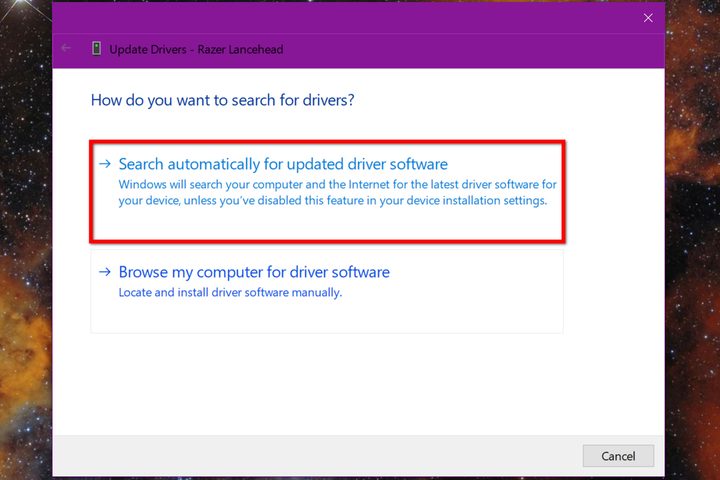
Windows will scan Microsoft’s current driver stash to see if the component has a newer driver. If not, you’ll see a message reading, “The best drivers for your device are already installed.”
Manufacturer
Step 1: Right-click on the Start button. Go to Device Manager.
Step 2: Click the Arrow next to the hardware category you want to update, like Bluetooth or Storage Controllers. This action expands the category to list the component(s) you want to update.
Step 3: Right-click on the component and select Update Driver on the pop-up menu.
Step 4: Select the Browse My Computer for Driver Software option on the following screen.

Step 5: Click the Browse button to open File Explorer and find the driver you downloaded. Be sure the Include Subfolders option is checked so that Windows 11 finds the correct INF file. It helps to know the file’s exact name when searching — may even want to create a specific path with a folder set aside for driver updates so you know where to look if necessary.
Step 6: Click the Next button to start the update.

Updating graphics

AMD and Nvidia
If you use a dedicated graphics card for your PC, you should keep tabs on when new driver updates are released. Check which graphics card type you use, then familiarise yourself either on how to update AMD drivers, or how to update Nvidia drivers.
Intel
Intel currently doesn’t offer discrete graphics on desktop. Instead, GPU cores are integrated into the CPU. However, you can manually update the drivers using the company’s Intel Driver & Support Assistant tool.
After you install your product, click the blue Launch button to check for driver updates. The application will scan your system and open a browser window. It will then list the latest drivers available for your PC. If there are no newer versions available, the message reads, “Your Intel drivers and software are up to date.”
Note that if you’re running a pre-built system, you’ll run into issues here. The tool can’t update customized OEM drivers. You’ll need to load the PC manufacturer’s proprietary update tool to receive an update.
Warning! Don’t use third-party update clients
Whatever you do, never try to overhaul your drivers using any third-party update software options. No matter how many credentials or testimonials the company appears to have, there’s no guarantee that their software is safe. It could be corrupt or malicious. Unless you’re an expert in software security, it’s just not worth the risk.
Downloading drivers should never cost a penny since manufacturers’ drivers are always free for download. That’s one of the quickest ways to spot a third-party website; no one should charge you to download drivers, ever.
The methods listed above are generally your safest ways to upgrade your computer’s drivers. If you have questions or feel unsure about a decision, check out your manufacturer’s website. Many of them have a phone number or online chat portal where you can get your questions answered.
One last thing: when you update hardware drivers, this can have an effect on software, especially specialist tools. Ensure you keep your Windows apps updated when prompted.


