
Searching for a free desktop alternative to Microsoft Office? Look no further than LibreOffice and OpenOffice. These two open-source productivity suites are both great choices if you’re looking to replace Microsoft’s software or even Google Docs.
But you might be having trouble choosing between the two. If you are, be sure to read our comparison guide below to see how they match up to each other. We take a look at factors such as platform availability, ease of use, their respective features, and supported file formats.
Note: The following comparisons are based on the latest versions of LibreOffice and OpenOffice: LibreOffice 6.4.7 and OpenOffice 4.1.8. Technically, the latest released version of LibreOffice is 7.0.3, but this version hasn’t been tested as long as version 6.4.7 has and is generally for early adopters.
Platform availability and price
Let’s get the pricing info out of the way first.
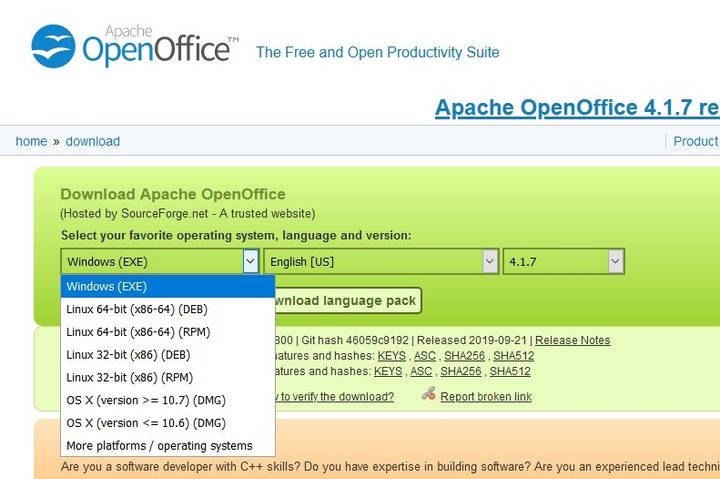
LibreOffice and OpenOffice are both free to download and use. Both are comparable alternatives to Microsoft’s premium Office suite but without the associated cost.
For platform availability, both are available on Windows, Linux, and MacOS.
OpenOffice, however, has a slight edge over LibreOffice. The OpenOffice website provides links to additional third-party ports and distributions that are not endorsed or maintained by the Apache Software Foundation. One notable port is AndrOpen Office, which is the Android port of OpenOffice. However, be careful when downloading or using these unofficial ports and distributions.
Winner: OpenOffice by just a hair.
User interface and ease of use
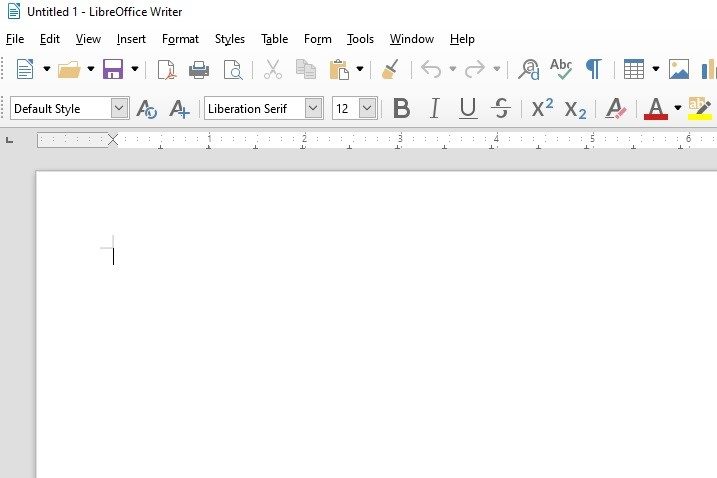
Neither LibreOffice nor OpenOffice have interfaces that are too unfamiliar or difficult to use. That said, your personal preference for either one may come down to one factor: Are you a Google Docs person or a Microsoft Office person?
LibreOffice looks very much like a Microsoft Office app, down to the menu ribbon of buttons and options that line the top of your screen. The ribbon icons are rather large, and the overall look is brighter and much more colorful. The large icons also make scanning the menu ribbon to find what you need even easier.
In contrast, OpenOffice is a bit drab and gray-looking and has smaller menu icons that line the top of its windows. But it does resemble Google Docs, so if you prefer the minimalist look of Google Docs and its straightforward menus, OpenOffice might be the best choice for you.
In addition, OpenOffice offers what it calls a Sidebar Deck, which is a series of sidebar menus that appear on the right side of your screen. It’s filled with many of the same tools and options you can find at the top of your screen, but in a handy menu that’s easier to get to and features easier-to-see buttons and icons.
LibreOffice also has a Sidebar Deck, but it’s not opened by default like it is in OpenOffice. To access this sidebar in LibreOffice, select View and then choose Sidebar from the menu that pops up.
Winner: A draw. Both feature interfaces that are simple, familiar, and easy to use. It really does come down to just deciding if you want to use something that looks like a Microsoft product or a suite that looks like a Google product.
Features and capabilities

Both LibreOffice and OpenOffice have six different kinds of documents you can create: A text document, a spreadsheet, a presentation, a drawing, a formula, or a database.
Both office suites offer document templates, but LibreOffice provides more built-in, ready-to-use templates than OpenOffice. Moreover, if you want to use templates in OpenOffice, you’ll first need to search through the online collection stored on the OpenOffice website and then download the templates you want. That said, both productivity app suites allow their users to add new extensions and features to their software to enhance functionality.
LibreOffice and OpenOffice include Wizards that can help you create unique templates for letters and more. However, the LibreOffice Wizards appear to be easier to use, while OpenOffice may require you to download and install a Java runtime environment first.
Winner: LibreOffice wins because features such as templates and Wizards appear to be easier to use and access. Overall, however, both have many of the same features and capabilities.
File format compatibility
While both office suites allow you to save documents in a wide variety of formats, LibreOffice has the edge in this category. It offers more modern format options for saving your documents, including ODF, Unified Office Format, Word 2007- 365, Word 97- 2003, and Rich Text. It also allows you to export your document as a PDF, EPUB, or XHTML.
OpenOffice, on the other hand, tends to skew toward older file formats when it comes to giving you Save As… options, including ODF, Microsoft Word 97/2000/XP, Microsoft Word 95, and Rich Text. If you choose to export your document, your choices are further limited to only PDF and XHTML.
Winner: LibreOffice due to its more modern file format range.
LibreOffice is the clear winner, but which one works for you?
It’s obvious that the winner is LibreOffice. The interface design makes it easy to use, and it provides access to various templates and Wizards. Since you’re able to import and save as modern file formats, this software will be intuitive for even the most basic word processor user.
Your needs may differ, so what we deem the winner might not be the most efficient software for your work. Be sure to determine your needs and prioritize accordingly before purchasing any software.
If you’re used to working in Microsoft Office and taking advantage of their ready-made templates, you’ll love the similar features LibreOffice has to offer.
On the other hand, fans of Google Docs might prefer working in OpenOffice since it’s a more logical transition.


