
There are many areas where Macs outdo Windows PCs, but managing windows is not one of them.
Almost unbelievably, you still cannot quickly snap a window or app to the sides of your display in MacOS, and Split View is hardly a replacement. That functionality has been in Windows since the birth of Windows 7 in 2009, and yet here we are, more than a decade later, and Apple still has not caught up.
There are plenty of Mac window-management apps out there, but most of them miss the point by putting the focus on dragging and dropping windows. Swish ($5) from independent developer Christian Renninger, on the other hand, is all about powering up your MacOS trackpad gestures in a simple, intuitive way.
That gives it a serious advantage over rival apps. Not only is it a much quicker way of managing your windows, but it feels far more natural, like a feature that has always come with MacOS. Take note, Apple.
Taking a swipe at bad shortcuts
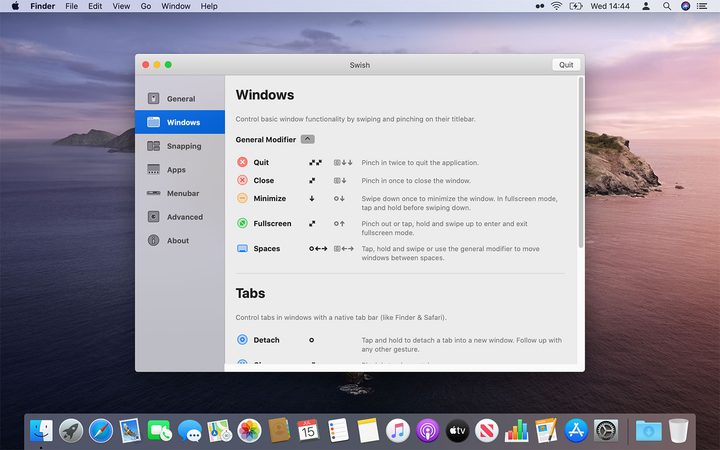
The idea behind Swish is to use trackpad gestures to quickly snap windows or applications side by side. That’s it.
Move your cursor to any app’s title bar (located at the top), and perform a two-finger swipe to the right. You will see a small tool tip appear showing a half-filled rectangle; lift your fingers off the trackpad and the app window fills the right-hand portion of your screen. It’s that easy.
You can two-finger swipe to a bottom corner for a four-screen split. Or swipe down to minimize the app, then move them up on the Dock icon to restore it. Pinch inwards to close the app’s window, and pinch a little further in to quit the app entirely. Or spread your fingers apart to maximize the app. That sounds like a lot, but it’s all extremely intuitive.
There is a lot to learn, but Swish has unrivaled flexibility.
The title bar gestures are great in themselves, but Swish’s solution is far more robust. It uses the location of your cursor to determine which of its gestures can be activated. For example, a gesture when you are hovering over an app’s title bar may behave differently than when your pointer is over its Dock icon, for example. This means there is a lot to learn, but also gives Swish unrivaled flexibility.
As for Dock gestures, you can perform all the same actions as with an app’s menu bar, plus a few more. If you have multiple windows of one app, for instance, a quick left or right swipe on the app’s Dock icon switches between these windows. If your hand is already on your trackpad, it is a much more efficient shortcut than the default Command-` keyboard shortcut that comes with MacOS.
My favorite gesture, though, has to be the app switcher. Apple’s solution to scrolling through open apps is pressing Command-Tab, which is fine. But to go backwards through the list of apps, you have to add the Shift key to the keyboard combo, which requires some awkward finger stretching on the user’s part.
Swish’s solution? Tap and hold two fingers on the menu bar and up pops the app switcher. Slide your fingers left or right to quickly scan through open apps. It’s so much quicker and easier than Apple’s mediocre keyboard shortcut.
A gesture of respect
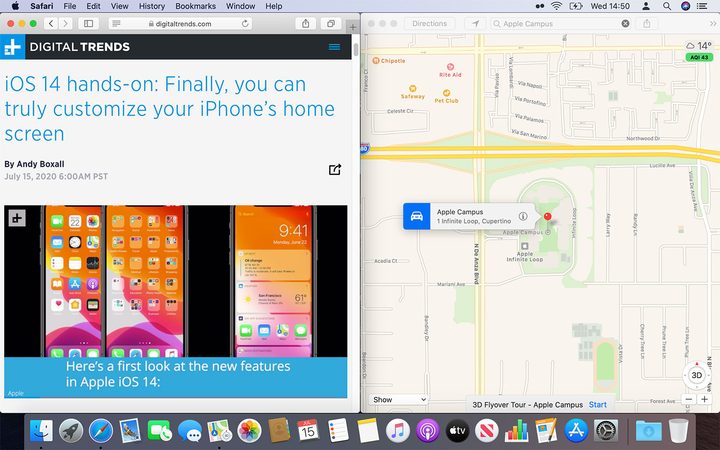
There are a lot of small, additional touches that make Swish even better, like its fluid support for multiple desktop spaces and multiple monitors. One of its best features is its use of haptic feedback.
Place two fingers on your trackpad as you start a gesture and you will feel a gentle tap, signifying Swish is ready for instructions. Perform a gesture and hold your fingers in place for a split second and you will feel another tap (although it is not necessary to wait for this tap to carry out the gesture itself).
Swish is an app that understands a key problem of MacOS.
I also love the built-in modifier keys. If you find it a little tricky to perform a certain gesture, in many cases it will have an alternative that you invoke by holding a key (such as Command or Control) to then perform a simpler gesture. Even better, there is a “super modifier” key (Fn by default) that lets you do a gesture anywhere in an app window, not just on its title bar or Dock icon.
Combined with its exceptionally clever gestures, these features reveal Swish to be an excellent Mac citizen, an app that not only understands a key problem of MacOS, but also knows exactly how to fix it in a way that feels very natural. It’s a joy to use and deserves a place in every Mac user’s setup.


