
Eventually, even the best PS5 controllers can succumb to the dreaded joystick drift. When this happens, it becomes a nightmare to play the best PS5 games since you will be constantly fighting for control. This mainly applies to the PS5’s DualSense controllers, but drift can also appear in PS4 controllers. A controller with a drifting joystick essentially renders your games unplayable, and getting it repaired or replaced can leave you with no way to enjoy your console for days. Before going through any of that, here’s how to fix controller drift on your PlayStation’s joysticks.
If you’re willing to pay a little extra, fixing this issue with Sony’s DualSense Edge controller is a breeze thanks to it having a modular design that allows you to swap out the control sticks. If you’re rocking an original DualSense, or older PS4 controller, the following steps are your best bet.
What is joystick drift?

Joystick drift is when your controller behaves as if you’re pressing one or both of the joysticks in a specific direction even when you are not touching the controller. It is also known as ‘controller drift’. In-game, it can manifest as your character spinning or walking in one direction constantly, or cycling through menu options out of your control. This happens with DualSense controllers because the sensors underneath the stick are either being triggered by something or are failing on a software or mechanical level. The former two you may be able to solve on your own with these tips, while the latter you cannot.
What not to do
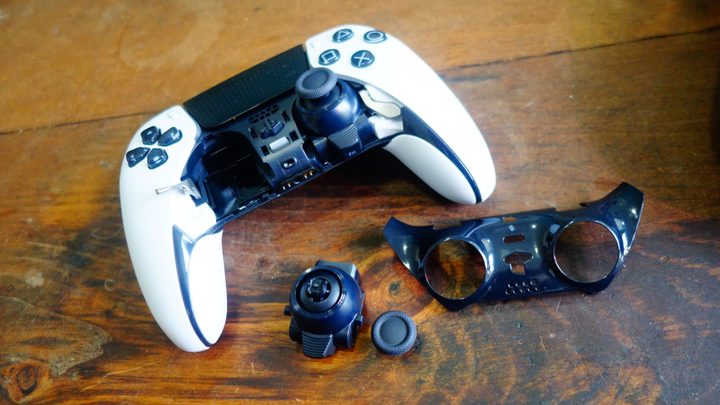
First off, do not attempt to open up your DualSense controller. Even if you do so as carefully as possible, opening it up will void your warranty, meaning that if none of the other fixes here work, you won’t even be able to return it for a new one. There’s also no reason to get inside unless the problem is mechanical, in which case you wouldn’t have the parts to fix it anyway, so set your screwdriver aside for now.
Also, we’ll mention it again when we get to the cleaning section, but make sure to clean your controller properly. By that we mean don’t saturate it with water, or get it wet at all really. This is an electronic device, after all, and you can easily end up doing more damage this way. Rubbing alcohol in small quantities, properly applied, is more than enough.
Finally, and this is a good rule to follow no matter what, be kind to your controller. We all have moments of gamer rage sometimes but never take it out on your controller. One bad toss or drop can permanently damage the interior or exterior. Even being too rough with the sticks can cause issues to crop up faster.
Reset your DualSense
Let’s start out with the easier fixes to hopefully solve the joystick drift issue quickly and easily. Resetting and syncing your PS5 controller isn’t done by turning it off and on; there is actually a hidden reset button that will completely refresh your controller. Look on the back of your DualSense for a small hole where the reset button is hidden. You will need something like a paperclip to gently insert and hold down the button for five seconds. After it has restarted, wire your controller back into the PS5 and see if the drift is still present.
Reset your Bluetooth
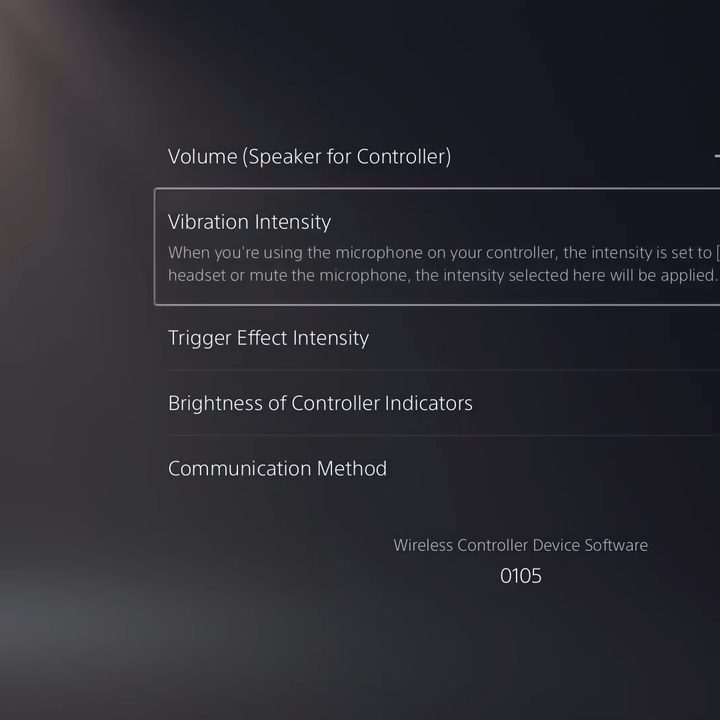
If resetting the controller doesn’t work, you can try cycling the Bluetooth on and off. This is less likely to be the cause of drift but is still worth a try just in case there is some interference. To turn off your Bluetooth, go into Settings > Accessories > Controllers > Communication Method and then hit Turn Off Bluetooth. Once the connection is disabled, wait a few moments and then turn it back on and test it out.
Update your PS5 and controller
Consoles are updated most frequently close to launch to fix issues and bugs just like this, so it is possible your controller or console may have missed one that will remove the drift. Your controller will prompt you to update if you hardwire it into your PS5. To make sure your PS5 itself is on the current patch, go into Settings > System > System Software Update and Settings > Update System Software and choose Update Using Internet. Your console will then check to see if it has the latest update and apply it if it does not. If you do get an update, wait for it to install, reboot your console, and see if the drift is gone.
Clean your joysticks
Cleaning your controller regularly should be a normal part of your routine to make sure it stays functional, but considering how new the system is you may not have done so yet. It is all too easy for dust, grime, and oils from our hands to seep in and cause havoc inside our controllers in a short amount of time. If the wrong-sized piece of debris ends up in the wrong place under your thumbstick, it can easily cause it to drift.
The best, and safest, way to clean your controller is with a cotton swab, some rubbing alcohol, and compressed air. Before you get into cleaning it, just make sure your controller is turned off. Give it a once over with the compressed air, spraying in short bursts as you spin the thumbstick in a full circle. Next, use your cotton swab and just a dab of alcohol and run it along the edges of your analog stick’s base. Let it dry off for a few minutes and then give it a shot.
Adjust the dead zone
This isn’t so much a complete solution as it is a minor, and conditional, remedy. Some games allow you to set what is called a “dead zone” in the controller settings. This is the range of motion you can move the stick where the game won’t register any movement. If the drift is not too extreme, you could fix it in specific games by adjusting the dead zone so that the amount the controller is naturally drifting isn’t picked up by the game. The downside is that this is going to go on a case-by-case basis depending on the game. Not all games offer it, and unfortunately, you can’t adjust the dead zone on the PS5 itself to apply to all games.
Return it or send it in for repairs
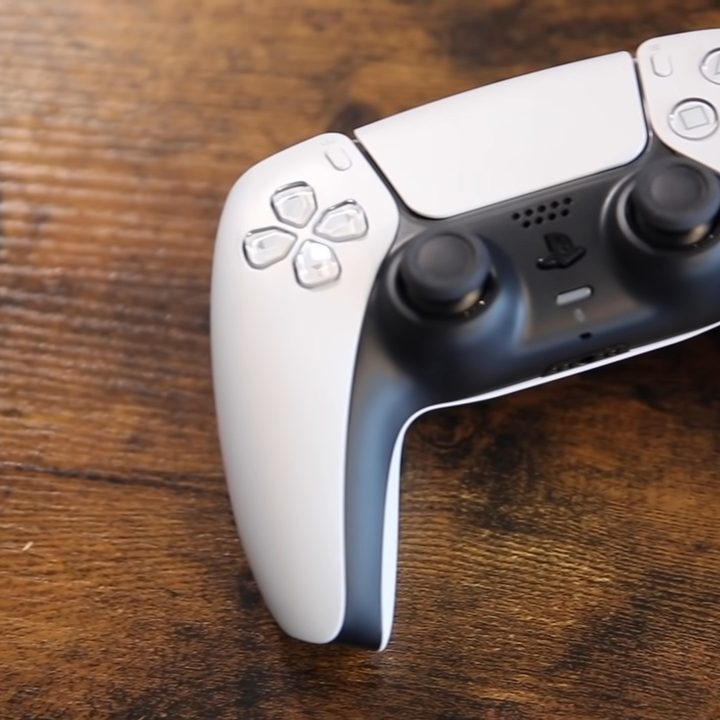
If all else fails, you’re left with no choice but to either replace or repair your controller. Depending on the retailer you purchased your controller or console from, or if you did or did not purchase any kind of warranty, your best option is to try and get a replacement from that same retailer. If all is in order, you should be able to bring it in and get a replacement on the spot.
If you can’t get a replacement from the retailer, or you purchased it directly from Sony, then you will need to go to the official PlayStation Fix and Replace site. Sony offers a one-year warranty on the DualSense, but it does have a few drawbacks. After confirming that you have attempted to resolve the issue with the troubleshooting steps they provide, which we covered in this guide as well, you will need to pay to box and ship your faulty controller to them. Once they receive it, Sony estimates a 7- to 10-business-day timeframe for them to repair it, and then there’s the wait for it to actually get back to you as well. All in all, you could be without your DualSense for over two weeks, but it will be repaired and is cheaper than buying a replacement yourself.


