
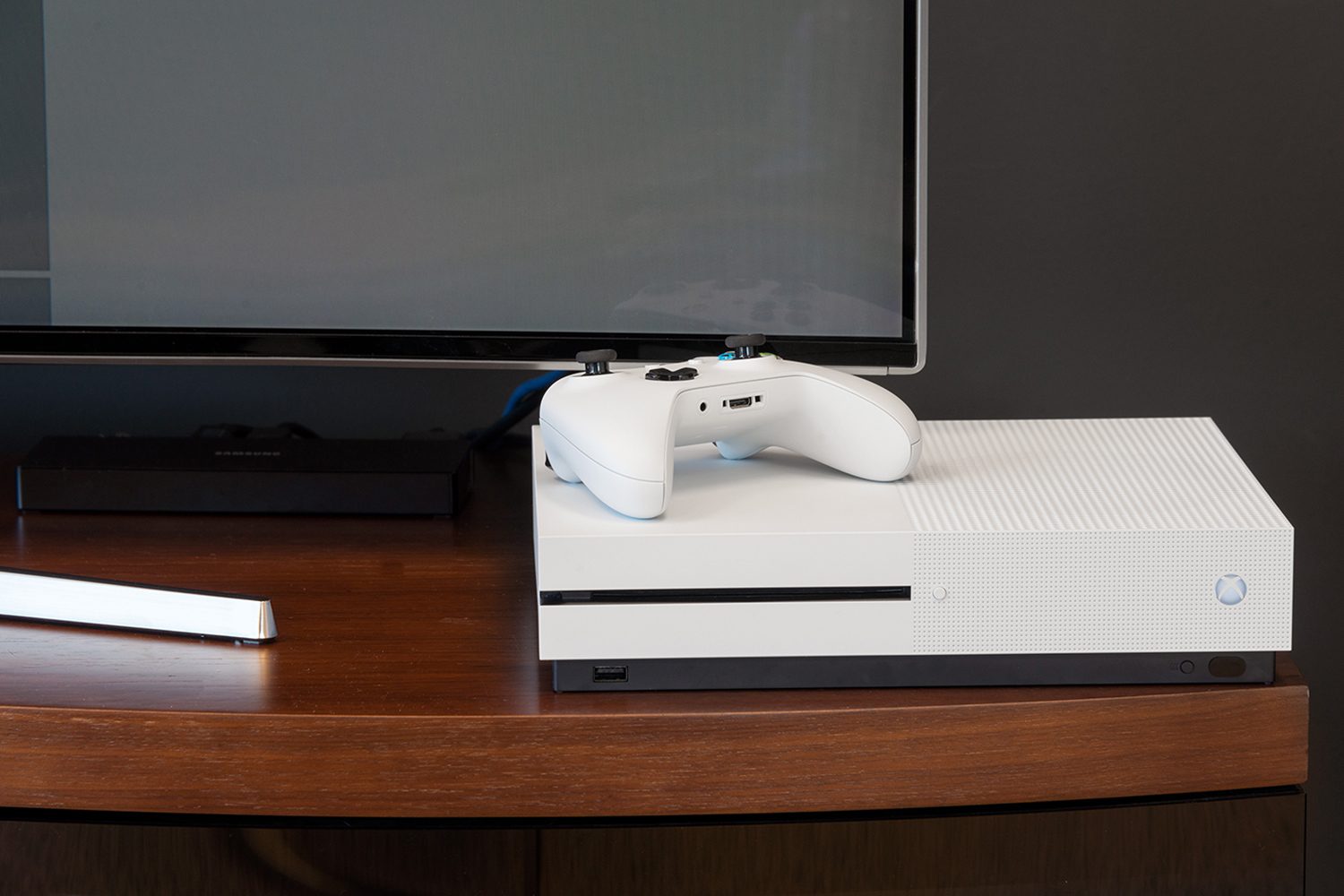
You probably picked up an Xbox One S or Xbox One X for the visual enhancements these consoles bring to your games, but they also pull double-duty as Blu-ray and 4K Blu-ray disc players, complete with support for high-dynamic range (HDR), making them well-suited to be a centerpiece of your entertainment system. We even chose the Xbox One S to include on our list of the best Blu-ray players you can buy.
However, it isn’t as simple as just popping the disc in and pressing play, which is why we put together this guide for how to watch Blu-rays and 4K HDR Blu-ray discs on the Xbox One S and Xbox One X. While the overall process is simple, there are still some extra steps involved, but don’t worry: Our guide will take you step-by-step through the process.
Before we begin, we strongly recommend you enable HDR on your Xbox One S or X if you’re watching on a 4K TV that supports it. It will push the visual quality to striking levels of color and vibrancy when watching 4K HDR Blu-rays. For a more in-depth explanation of what HDR is and its benefits, check out our in-depth guide to high-dynamic range. With that out of the way, on to the task at hand.
Downloading the app
Unlike dedicated Blu-ray players or the Blu-ray/DVD drives on older gaming consoles like the PlayStation 3 and Xbox 360, the Xbox One requires a dedicated Blu-ray and DVD player app you must download first. Here’s how:
- Begin by turning on the console.
- Press the Xbox button to open the guide.
- Select Home, and then scroll over to the Store tab.
- The quickest way to find the app is to search Blu-ray in the search bar.
- The Blu-ray app should appear. Select it to open the store page.
- You can begin the download by selecting Free or Install.
You can also install it by simply inserting a Blu-ray or DVD into the disc tray. This process is incredibly easy, but we’ll list out each step nonetheless.
- Begin by inserting your Blu-ray or DVD into your Xbox One console.
- The Blu-ray disc app will appear on the menu; select it to open the app page (if you haven’t downloaded it already).
- You can begin the download by selecting Free or Install.
Should you run into any issues, be sure to consult Microsoft’s official page for watching Blu-rays on the Xbox One. Your Xbox One is now equipped to watch Blu-rays. If you’re in need of something to watch, check our recommendations for the best-looking 4K Blu-rays out there.
Messing with the settings
Technically, once you have downloaded the app, you can immediately begin watching, but there are some settings you can change, including language and playback options.
To get to these settings:
- Press the Xbox button on the controller to open the guide.
- In the guide window, select Settings, then All Settings.
- In this window, select Disc & Blu-ray, and finally Disc settings.
In the settings screen, you’ll find the following settings. Here’s what they do:
Play disc automatically: Self-explanatory — your disc will play immediately once inserted, no menu prompts necessary.
Resume playback: Enabling this setting means your playback will be bookmarked whenever you press pause or close the app, and will resume from that spot when you resume watching.
Dolby Digital dynamic range control: You can select this to have the audio levels change dynamically to remain consistent during playback.
Enable BD Live to improve Blu-ray playback: This setting will enable extra features on some select Blu-rays.
Persistent storage: Here you can delete temporary data for the Blu-ray app stored on the hard drive.
Preferred language settings: Change the universal language settings that will apply to all Blu-rays (where applicable), including movie menus, audio tracks, and subtitles.
A more detailed breakdown of these settings can be found on Microsoft’s help page.


