
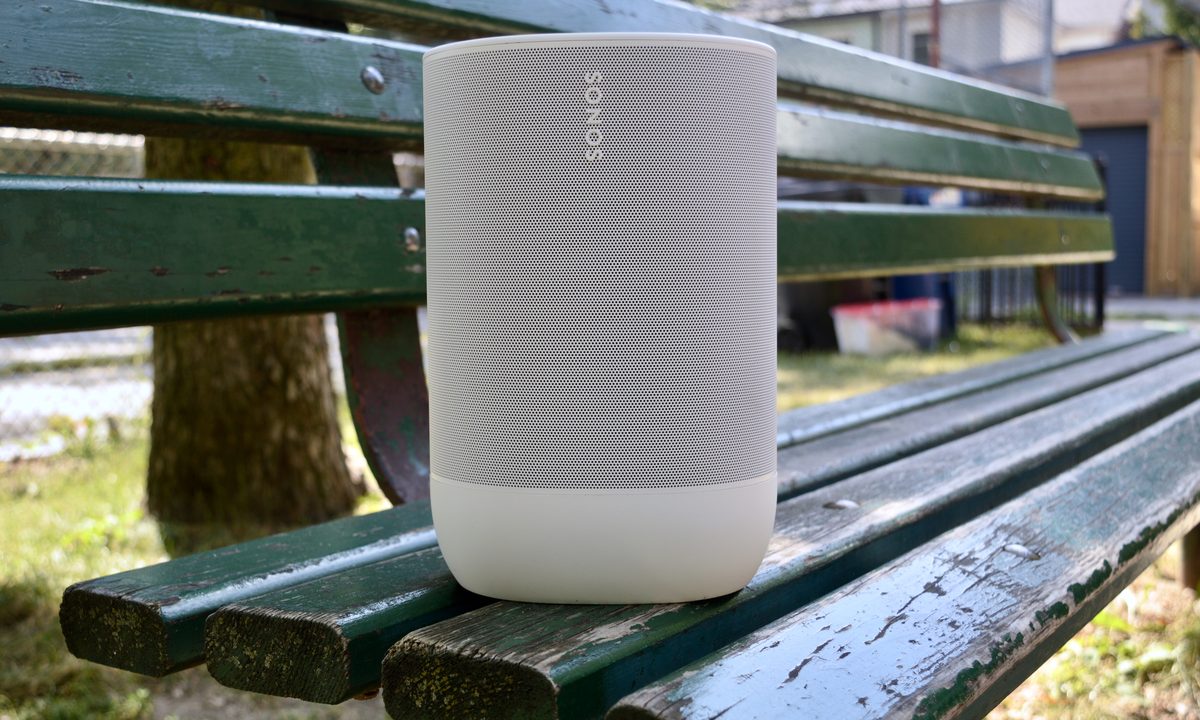
Sonos is an excellent multi-room wireless sound system that offers a wide range of speakers to suit various needs, all controlled by the Sonos app. Whether you’re looking for a Wi-Fi-connected single speaker like the Era 100 or Era 300, or a surround sound system like the Sonos Arc, Sonos has you covered. Additionally, portable speakers such as the Sonos Roam 2 and Move 2, can meet just about any requirement.
The Sonos system is an ideal choice for music lovers who want to enjoy their favorite tunes throughout their home. It can also be configured with multiple Sonos products to create a Dolby Atmos-capable surround sound system for your TV. Furthermore, the system can be customized to connect with your existing analog equipment, making it a perfect fit for your requirements. Sonos speakers are among the best in the market and offer great value for money.
One of our favorite aspects of Sonos speakers is the wide array of features they offer. However, new users might not always be aware of their full capabilities. To help you maximize your experience, we’re sharing some of our favorite tips and tricks for using Sonos speakers. Take a look and discover what you can do!
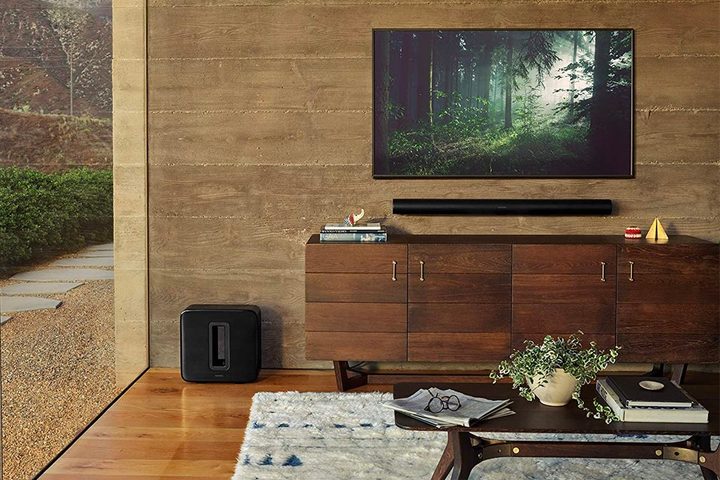
Link your Sonos speakers together
Whether you’re bringing multiple Sonos speakers into your home or adding an additional Sonos device, they are very easy to link together. The Sonos app natively supports linking Sonos brand speakers together, and most are compatible with one another. Head into the Sonos app and add your new speaker to enable linking capabilities. This is useful for multiroom sound, stereo sound with two speakers, and other arrangements where your speakers can play simultaneously.
Trueplay tuning
Trueplay tuning is Sonos’ proprietary system that allows you to use your smartphone and the Sonos app to tune your Sonos speaker setup by listening to the sound in the room and adjusting the audio for the best effect in the space.
It’s available on several Sonos speakers, old and new. Sonos may suggest doing this during setup, but you can tune it at any time with the Sonos app.

To do this, go to Settings > System and select the speaker you want to tune. Next, for speakers that don’t include Auto Trueplay (more on this below), find Trueplay and then Trueplay Tuning to start the process. This may be useful if you move your Sonos speaker to a different position or a new room.
Portable Sonos speakers with microphones, such as the Move, Move 2, and Roam, as well as the new Era 100 and Era 300 models, all have Automatic Trueplay that use the devices’ built-in mics. All you have to do is go into each speaker’s settings in the Sonos app and ensure that Auto Trueplay tuning is turned on. The Era 100 and 300 can also be tuned manually in what Sonos calls “Advanced Tuning” for more precision.
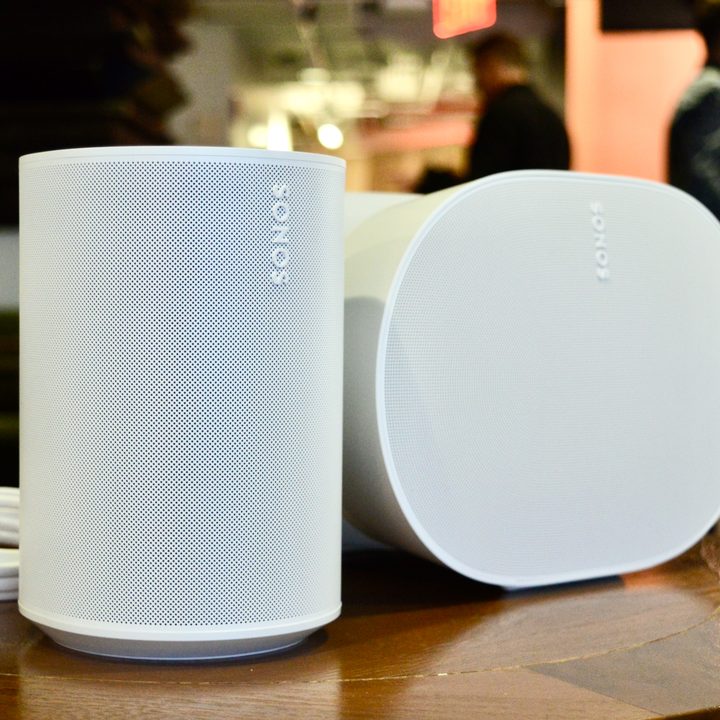
Create volume limits
Do you want to keep your speaker from exceeding a certain volume to avoid annoying the neighbors or preventing little ones from accidentally cranking things up? Sonos speakers allow you to set a volume limit for each room that you have set up.
To do this, go to Settings, select System, select the name of the room or speaker you want to modify, and go to Volume Limit. This will allow you to set an upper threshold for the volume so things don’t get too crazy for that particular room.

Set up rear speakers in a surround sound system
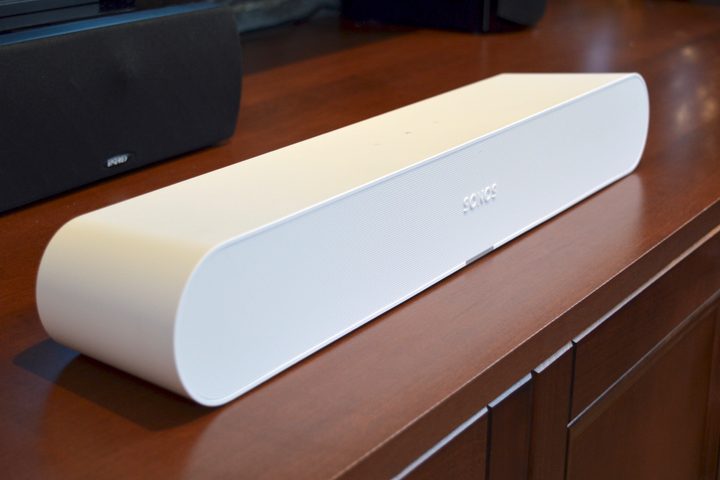
If you have two of the same kind of Sonos speaker, like two Era 100s (or even the older discontinued Sonos Ones, if you have them), you can set them as rear wireless speakers in a Sonos-based surround sound setup. For example, if you have a Sonos soundbar, like an Arc Ultra, Beam, or Ray, plus a Sonos Sub or Sub Mini, you can add them to the group for amazing sound.
But the game here is changing a bit with the addition of the new Sonos Era 300 speakers, which are unlike any other Sonos speaker to date. With six drivers, including two side-firing woofers, two side-firing mid-tweeters, one forward-firing mid-tweeter, and an up-firing driver, the Era 300 is a Dolby Atmos speaker that, when used as rear-surrounds in a surround setup with the Dolby Atmos-capable Arc/Ultra or Beam (Gen 2), what you get is a system with up to 7.1.4-channel surround sound.
Connect your preferred streaming services
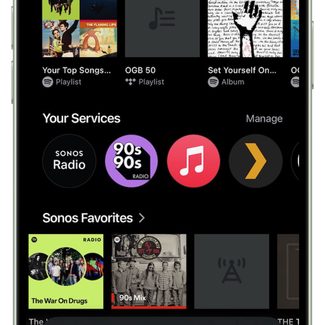
Sonos offers some of the best compatibility with other services we’ve seen, so connecting your preferred music services is vital to setting up. However, we suggest connecting all your music services if possible.

Sonos works with Amazon Music, Apple Music, Spotify, Tidal, Deezer, Qobuz, and more. Once you have all your services on the Sonos app, you can build playlists by pulling songs from any of them into one list managed by Sonos, combining music from different sources as you want. If you have a subscription that supports hi-res music on a service such as Tidal, Apple Music, Qobuz, or Amazon Music, then your Sonos speaker may be compatible with high-res audio, too.
Turn off the status indicator light
Many Sonos speakers come with an LED indicator light to let you know it’s on and working. If this light becomes annoying at night (or attracts too much attention from pets or toddlers), you can easily turn it off. Head into the Settings on your Sonos app, choose your speaker and look for the section that says Status Light. There should be an option here to turn it on or off.
Connect apps to your Sonos system

Sonos is compatible with a wide range of popular music streaming services, audiobooks, podcasts, and more. You can find a list of supported services in the Sonos app or on the Sonos website.
In the Sonos app, services are now managed directly from the home screen in the Your Services section, while voice settings are handled within the settings for each compatible speaker by going through Settings > selecting the speaker > and scrolling dow to Voice to add or adjust either Alexa, Sonos Voice Control, or Google Assistant on supported speakers (not all do).
You also have the option to add multiple accounts from the same service, allowing various family members to use different Spotify accounts, for example.
At any time, you can manage your connected services by returning to the services or voice menus within the Sonos app.
Set the Sleep function before bed and the Alarm function to wake up
If your Sonos speaker serves multiple purposes as a digital assistant, music player, and alarm clock, consider using the sleep mode feature to enhance its functionality. The Sonos app offers a Sleep Timer option that will automatically turn off the music after a set duration.
You can access these settings through the Now Playing feature for each speaker.
If you enjoy falling asleep to music, simply activate the Sleep Timer and choose your desired duration. Additionally, visit the Alarm section to set your morning alarm. This way, you can manage your entire sleep schedule from one convenient location!
Explore Sonos Radio
Sonos Radio is a free internet radio service built into the Sonos app, offering various listening options. You can tune in to over 60,000 global broadcast stations, explore curated music stations by genre and mood, and even listen to artist-curated stations with exclusive commentary. Sonos Radio also features original programming you won’t find anywhere else. You can subscribe to Sonos Radio HD for ad-free listening, higher audio quality, and even more content. It’s a great way to discover new music and enjoy your favorite radio shows all within the Sonos ecosystem.
Listen to vinyl through your Sonos system

So you just started collecting vinyl and got a sweet new turntable to spin records. But you also have a Sonos speaker system, and you’d rather not spend the extra cash on a receiver and speakers and all that. You can easily connect a turntable to your Sonos speaker.
First, you need a turntable with a built-in or external phono preamp. Then, you have some connectivity options. The Sonos Five, Era 100, Era 300, and Move 2 speakers, all have line inputs you can use (3.5mm for the Five and USB-C for the rest) and you will need the appropriate Sonos Llne-in adapter and an RCA to 3.5 mm cable. You can also use a Buy at Amazon to connect to your Sonos system. You then just have to use the Sonos app to select the line source.
Use Night Sound
Sonos Night Sound is a feature that improves late-night TV viewing by using dynamic range compression to even out volume levels. It reduces loud sounds, like explosions, while enhancing quieter sounds, such as dialogue. This allows you to enjoy shows without disturbing others or constantly adjusting the volume.
It’s especially helpful for action movies and soft-dialogue shows and can be enabled through the “Now Playing” screen in the Sonos app. Note that it’s available only on Sonos home theater speakers like the Arc, Beam, and Playbar for TV audio.
Perform regular updates
Keeping your Sonos app and speakers updated is essential for the best listening experience. Updates to the app (given the disaster of the latest redesign) often includes new features, bug fixes, performance enhancements, and security improvements, ensuring access to the latest functionalities and a smooth, reliable app experience.
Similarly, speaker updates can bring improved sound quality, new features, and system optimizations that enhance performance and stability. Think of it like maintaining a car – regular updates are like tune-ups that keep your Sonos system running smoothly and at its best.


