Over a decade after the release of the first 4K TVs, live TV has remained almost entirely limited to 1080p (or lower) resolution. But where major cable networks have dropped the ball, major streamers have tried to pick up the slack. YouTube TV leads the charge to offer live 4K television. Some of it, at least.
The basic fact is that it takes a lot of bandwidth to stream video — and that’s even more difficult with linear TV (especially if it’s screening a live event). So it’s not much of a surprise to learn that most live channels stream at 720p — or 1080p if you’re lucky.
For the most part, 4K resolution — we’re talking 2160p — is pretty tough to come by. FuboTV has had some in the past, and YouTube TV has joined the party with a 4K Plus add-on. And it’s a big deal. When you look at YouTube TV versus Hulu + Live TV — its biggest competitor — you’ll see that live 4K is something the latter lacks.
The YouTube TV 4K Plus add-on actually gets you three major features, and they definitely help justify the price. They are:
- 4K resolution on some content.
- The ability to watch as many streams on your home network as you want.
- The ability to watch recorded shows and movies offline on mobile devices.
Those are the big points — and 4K is but one feature in the bag of YouTube TV tips and tricks — so let’s break it down a bit. Here’s everything you need to know about 4K streaming on YouTube TV.

YouTube TV 4K price and how to add it
First things first: You’ll need an existing YouTube TV subscription to watch anything in 4K. That runs $83 a month (as of December 2025), plus tax. The 4K Plus add-on costs another $10 per month, bringing the monthly total to $93.
To add the 4K Plus add-on, go into your YouTube TV account from a web browser. (Click your avatar in the top right corner, then choose Settings, and then Membership. Or this link should take you right there.) Look for the 4K Plus add-on, then add it. That’s also where you can cancel the 4K Plus add-on.
NFL Sunday Ticket and YouTube TV in 4K
We hate to be the bearer of bad news, but buying the 4K Plus add-on doesn’t automatically get you everything in 4K. That includes NFL Sunday Ticket, which is available exclusively on YouTube and YouTube TV.
There’s also some worse news. Some NFL games might be limited to 720p or 1080p, depending on the network. While that’s not great, broadcasts are streamed at 60 frames per second, an absolute must for live sports.
While 4K would be great with live sports, it’s not a deal-breaker. Apple has shown with MLS Season Pass how a great 1080p stream can be perfectly capable, and in many ways, it can actually be better.
But for now, no NFL Sunday Ticket in 4K on YouTube TV.
What can you watch in 4K on YouTube TV?
Adding the 4K Plus add-on doesn’t magically upscale everything on YouTube TV to a higher resolution. You’ll still need the content itself to be available in 4K to make use of the add-on. (We’ll repeat, again, that it’s really just one-third of what you get, though it’s definitely the most important third.)
You can split what’s available in 4K resolution into two categories: On-demand and live. You’ll find a bunch of shows available on-demand from Discovery, FX, Tastemade, and Nat Geo, and they look great in 4K.
4K content really shines when it comes to live events. And by that, we really mean sports. On that front, you’ll find live games and events from ESPN, Fox Sports, and NBC Sports. What’s available is seasonal, of course. In the fall, you’ll find college football and the English Premier League, for example.
Sports in 4K are still pretty few and far between. The best way to find out what’s coming up is to hit the Home tab on YouTube TV and then the 4K filter.
This is the part where someone will stand up and yell, “But it’s not true 4K!” And they’re almost certainly right. When it comes to sports, what you’re almost certainly watching is some sort of upscaled feed. That is, it’s shot in either 720p or 1080p (probably the latter), then upscaled to 4K, and then streamed by YouTube TV.
Yes, native 4K would be a lot better. That’s what you get when you’re watching a movie or show on Netflix or Prime Video. But moving that much data in real time to as many people watching a live sporting event is really hard. So for now, we still have to contend with upscaling.
But here’s the thing: Sports in 4K look better. A lot better.

What devices support YouTube TV in 4K?
This is where things get a little tricky. Not every piece of hardware supports 4K resolution, and your TV will also need a 4K panel. Here’s the official list of devices that support YouTube TV in 4K:
- 4K smart TVs running Android TV
- Smart TVs from Samsung, LG, and Hisense (2016 or newer)
- Chromecast with Google TV
- 4K Roku streaming players
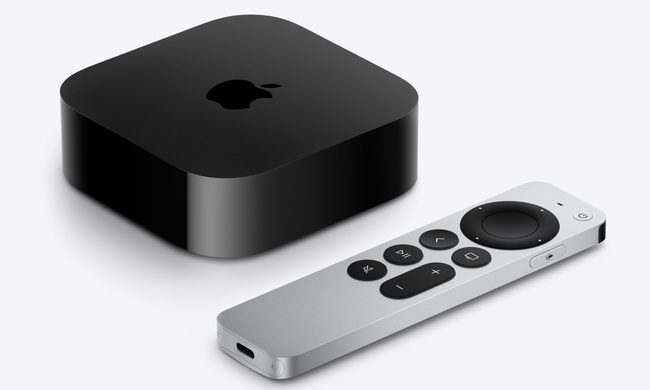
- Apple TV 4K (2021 or newer)
- PlayStation 4 Pro
- Playstation 5
- Xbox Series X/S
- Amazon Fire TV Stick 4K, 4K Max, and Fire TV Cube
- Nvidia Shield
Obviously missing from that list are web browsers, even though you can find a fairly affordable 4K monitor these days. YouTube TV tops out there at 1080p.
The 2017 model of Apple TV 4K is also missing from that list, but we’ve seen some content available on that older model in the full 3480 x 2160 resolution.
What else do you get with YouTube TV 4K?
You can download recorded shows to a mobile device for offline viewing. Just hit the download button (it looks like an arrow pointing down) for the show. If the button is grayed out, the content isn’t available for download.
You’re limited to one device at a time for downloaded content. You won’t be able to watch that show on another device until you delete the downloaded version.
But with the 4K Plus add-on, you can watch on as many devices at once, as long as you’re doing so on your home network. That feature works for family members under the same account, too.
If you’re outside your home network, you’ll still be limited to three streams at once.