Roombas are indispensable once you’re used to them, making it a breeze to keep your home’s floors clean and tidy. But as with any piece of technology, they can experience some issues over time. If you’ve run into a problem then you can fix many issues with a Roomba by either rebooting or reseting it. Here we’ll show you how to do either of these maneuvers to keep your Roomba working as good as new.
Two different types of reset for Roomba
Rebooting your Roomba will power it down and then re-power it. If you’re finding your Roomba isn’t connecting to Wi-Fi, or there’s some other type of glitch, that’s a good time to reboot it. With a reboot, all of your Roomba’s companion app data (logins, saved maps, user preferences) will still be available once your robot vacuum returns to life.
If you’re looking to get rid of your Roomba or are having some deeper-seated issues that a simple reboot can’t remedy, you may need to perform a full factory reset of your bot. This step will essentially return your Roomba to its out-of-the-box defaults and remove all user data from both the bot and the companion app.
Depending on your Roomba model, the process to perform both reboots and factory resets will vary. Here’s a guide on how to reset each Roomba model type.
Rebooting your Roomba
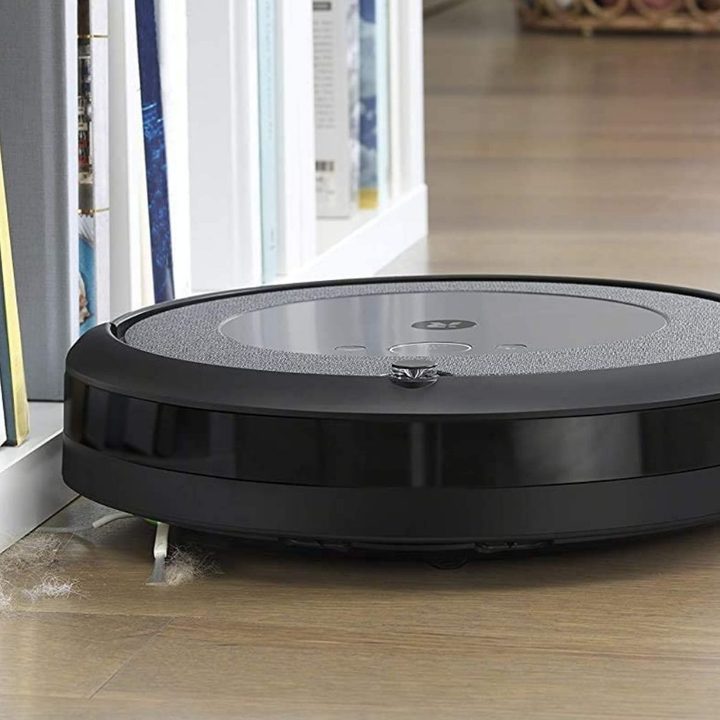
The method for rebooting your Roomba depends on which model you have. If you have a Wi-Fi connected model and you use the app to control your Roomba, then you can reset from here. If you have a different model then you will have to reset by working on the robot directly.
Wi-Fi connected Roombas
Open up the app and go to Product Settings then Reboot Roomba and the confirm with Reboot Roomba.
Alternatively, you can also reboot from the robot itself. To do this, press and hold the Clean button on the Roomba for about 20 seconds. The exact amount of time can vary by model. After you release the button, the light ring around the bin lid will begin to glow white, and you’ll hear a tune indicating the reset was successful. The actual reboot process is only complete once the light ring stops glowing, which may take up to a full minute and a half.
Non Wi-Fi connected Roombas (500, 600, and 700 series and Roomba® e Series)
Press and hold both the Home and Spot buttons for 10 seconds. Once you release both buttons, you’ll hear a chime, indicating the reset is complete.
For the 600 Series, you’ll have to remove the robot’s bin and look for a green dot located on the underside. If yours has a green dot, you’ll need to remove the battery to reboot the Roomba. If yours doesn’t have a green dot, you can follow the regular instructions above.
Factory resetting your Roomba

If you’ve tried rebooting your Roomba, also called a soft reset, and that hasn’t fixed the problem then it’s time to try another approach. You can also perform a factory reset, also called a hard reset. While a soft reset will reboot the Roomba but keep all of your settings, like turning it off and on again, and hard reset will return your Roomba to how it was when it first left the factory.
That means you’ll have to re-add all of your logins, maps, and settings, so it’s more of a hassle. However, a hard reset is a reliable way to fix any annoying persistent issues with your vacuum. You can save some data like your customized smart maps to your account which is stored in the cloud, so these can easily be re-added after you’ve performed the reset.
How to perform a factory reset
The easiest way to perform a factory reset is to use the Roomba app. Open the app, go to Product settings then About (your robot name) and then to Remove Device from Account. Now you’ll get an option to save your customized smart maps, which we suggest you use to save time. Hit the Save maps during factory reset toggle to do this. Now you can select Factory Reset (your robot name) to perform the reset.
For other models which you don’t control with the app, go to the robot and press and hold the Home and Spot Clean buttons together until the white ring around the Clean button swirls. This starts the reset.