  1. Home
  2. Smart Home
  3. Evergreens

How to set up Voice Match on your Google Home device

Add as a preferred source on Google

Just because you share your Google Home or Nest device with your family members doesn’t mean Google has to feel like a shared assistant. Thanks to a feature called Voice Match, the Google Assistant on your Google Home devices can respond with personalized information based on the voice giving the command or asking the question. For example, Google Assistant can give you and your partner different estimated commute times based on the addresses you have listed as your workplace.

Do you like CNN but your partner is all about NPR? You can customize your daily news briefings, so you can get news reports catered specifically to you, while your roommate gets specific reports for them. To enjoy Voice Match, you’ll have to go through a short series of steps. Every person who uses Voice Match — up to six individuals total — must link a Google Account and voice to your Google Home device. Here’s what you’ll need to do to get Voice Match set up on your Google Home.

Google Home Mini vs Amazon Echo Dot audio output
Dan Baker/Digital Trends

1. Open the Google Home App

To get started, open up the Google Home app on your phone or tablet and sign in if necessary. Be sure you’ve updated the app to the latest available version for the set-up to work properly. Then, double-check that your phone or tablet is on the same Wi-Fi network as the Google Home, as this will ensure the devices will be able to communicate effectively.

Recommended Videos

2. Go to your account and Assistant Settings

Image used with permission by copyright holder

In the home screen of the app, look at the upper right corner and you should see your Google account profile pic. Select this to continue. It’s important that you’re signed into your personal account for this process, otherwise Voice Match doesn’t do much good.

When the account window opens up, choose Assistant Settings.

3. Choose Voice Match

Image used with permission by copyright holder

Scroll down through Assistant Settings until you find the section called Voice Match, and select it.

4. Select Devices

Image used with permission by copyright holder

Now choose the option to Add a Device. This will list all devices attached to your Google Account as long as they are connected to Wi-Fi and detectable (set up any new devices you have before doing this). Choose any Home or Nest smart speakers you are currently using, and then select Next. Google will let you know the process does require keeping some personal information, so select I Agree if you want to move on.

5. Train Your Voice

Image used with permission by copyright holder

If this is your first time setting up Voice Match, you’ll need to say a few words so that Home/Nest can learn to recognize the sound of your voice. The app will give you some word prompts that you should follow, such as saying “OK Google” twice and “Hey Google” twice. You may have to repeat phrases.

If you’ve already set up Voice Match recently, you will be able to skip this step, but you also have the option of retraining the Google Home (voices can change, as can the location of Home/Nest devices).

6. Turn on Personal Results

Throughout the Voice Match method, Google will also question if you would like to enable Personal results. This particular mode makes everything in Voice Match function properly, selecting customized information that pairs the voice with the account. If you fail to switch this on, Voice Match won’t really work correctly. So, double-check that you’ve enabled it. You can always turn it off from your settings menu if you ever decide to stop using Voice Match.

7. Invite Others to Set Up Voice Match

Google

Perhaps your other friends and family members want to start using Voice Match as well. Thankfully, you can easily invite other people to set up their own voices on Voice Match. All you’ll need to do is click Invite and pick a method of communication. You’ll also have the opportunity to skip this step if you so choose. 

If other people establish their own Voice Matches, they will also have to connect their own default music settings, video services, and other customized options to their Google accounts. If they don’t, Google will continue using your account information regardless of who is saying the voice commands.

Gia Liu
Former Contributor
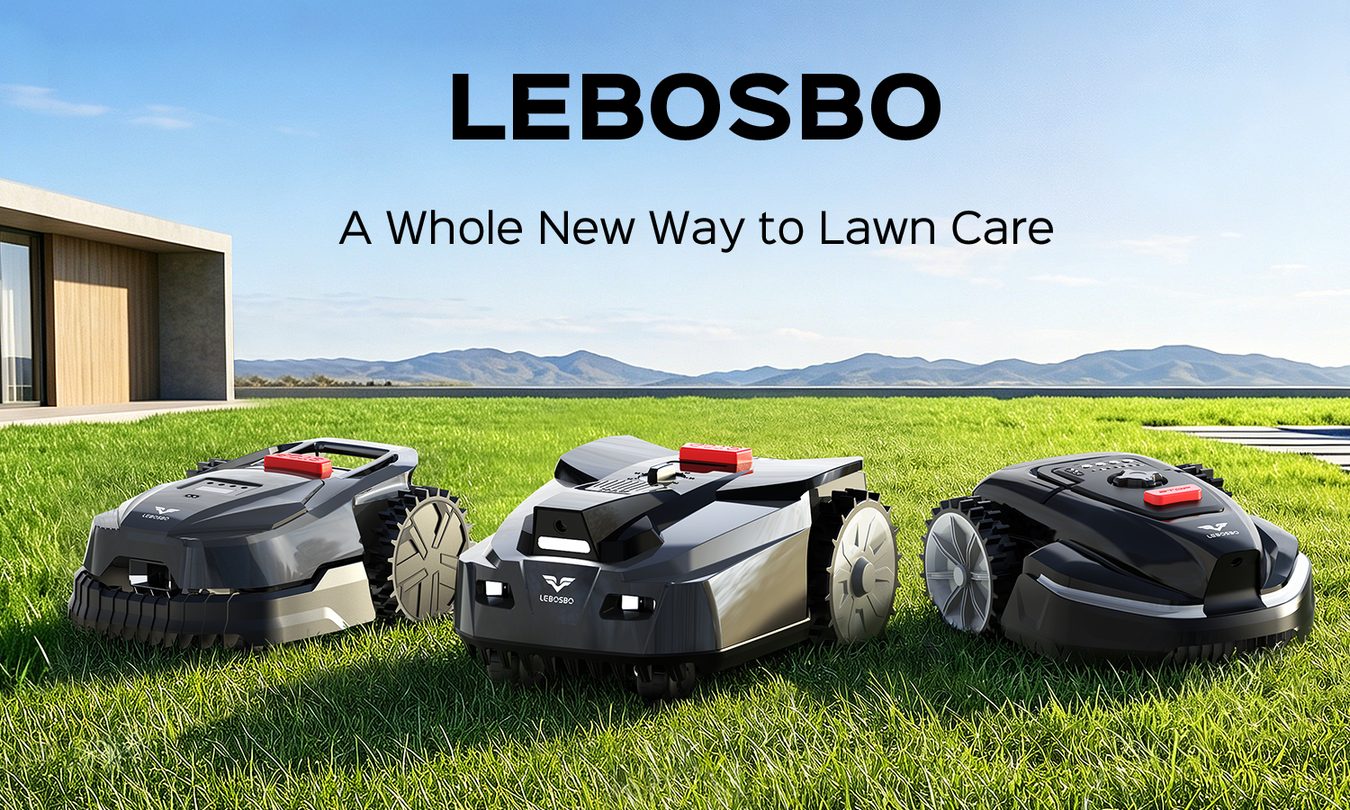
My Lawn Used to be a Never-Ending Weekend Job Until the LEBOSBO V3 Took Over
The revolutionized yard care solution that acts less like a machine and more like a helping hand
Grass, Lawn, Plant

I used to think tedious lawn maintenance was simply one of those unwritten rules of homeownership, a chore you quietly accept and force yourself to deal with every weekend. I would promise myself I’d quickly get it done, only for it to spiral into hours of work. Instead of enjoying slow summer weekends outdoors, I often found myself dragging a mower through the heat, edging borders, bagging endless clippings, and dealing with equipment that somehow always demanded more effort than expected. Even after sacrificing an entire Saturday morning, the yard rarely stayed looking sharp for more than a few days.

That frustration eventually pushed me toward smarter lawn care solutions. The problem was that most robotic lawn mowers I came across did not feel all that smart. Between burying messy perimeter wires, dealing with bulky installations, and watching machines bounce around the yard like confused pinballs, the entire setup often looked more exhausting than the mowing itself. I direly sought some respite, and that's exactly why LEBOSBO stood out to me.

Read more
YEEDI S20 Infinity Ultra: redefining what robot vacuums should actually clean
The real problem with robot vacuums is not navigation anymore
Electronics, Speaker

YEEDI S20 Infinity Ultra enters a category that has already refined navigation, mapping, and basic automation to a point where daily dust cleaning is predictable and reliable. The expectation from a robot vacuum today is no longer about whether it can move efficiently through a home, but whether it can handle the kind of mess that defines real, everyday use. Floors accumulate dried spills, sticky residue, and layered grime that cannot be removed through suction or light mopping alone, and these conditions continue to expose a limitation that has persisted across the category. Users still find themselves stepping in before or after a cleaning cycle, either by manually scrubbing problem areas or by running multiple passes to reach an acceptable result, which defeats the purpose of automation in the first place.

This is the gap YEEDI S20 Infinity Ultra is designed to address, approaching robotic cleaning through stain treatment and surface recovery rather than simply increasing suction or expanding coverage. The product’s focus on solving persistent real-world cleaning limitations has also earned it the Digital Spotlight Award, reinforcing its positioning within a category that is increasingly shifting towards more intelligent and outcome-driven automation.

Read more
Narwal Freo Z10 Turbo Delivers Flagship Features Without the Flagship Price
Experience 25,000 Pa suction and pro-level carpet care with $300 off
Home Decor, Adult, Female

Robot vacuums have reached a point where expectations are no longer limited to basic cleaning. Users now expect strong suction, reliable carpet performance, and minimal maintenance, but getting all of that typically means stepping into premium pricing. The Narwal Freo Z10 Turbo is built to challenge that trade-off by bringing flagship-level cleaning technologies into a more accessible category without compromising on real-world performance.

As Narwal’s first major mid-range release of 2026, the Freo Z10 Turbo is positioned to bridge the gap between affordability and high-end capability. Priced $599 after a $300 launch discount, it combines 25,000 Pa suction, CarpetFocus technology, and DualFlow Tangle-Free System into a single platform designed to handle mixed surfaces, pet hair, and everyday mess without requiring constant intervention.

Read more