
Smart thermostats are praised for making scheduling easier, saving on monthly power bills, and encouraging owners to look for more ways to save. They can also learn from your at-home habits to make adjustments, provide important information on the weather, make it easier to set vacation modes, and more.
All these thermostat features really do help you save and improve performance — trust us, we’ve seen them work! But when you install a smart thermostat, it can be difficult to tell if it’s performing well or making a difference. This guide will show you what to look at to see how well your smart thermostat is doing and track what changed over time.
Wait for several billing cycles
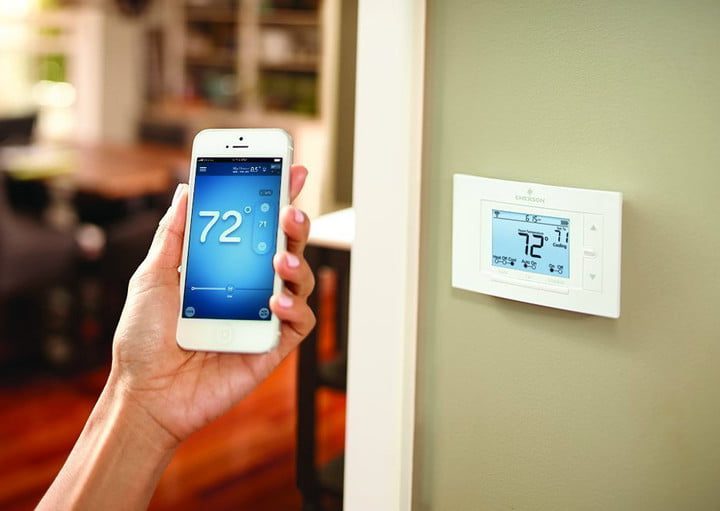
Smart thermostats promise to save, but how do you know they work? One of the most direct ways is to get your smart thermostat operational, set a schedule in accordance with suggested guidelines, and wait a few months. That will give you several cycles of energy bills to compare with your other bills.
Studies on Nest smart thermostats have indicated that users save at least 10% to 12% on their heating bills and 15% on cooling bills, assuming average usage. It’s important to know your specific results and wait a little while for smart thermostats to start implementing what they’ve learned. The Nest thermostats from Google, for example, can detect when people are moving around the room: When placed in a central location, it will be able to make more efficient heating/cooling decisions after a few months of data.
When comparing your new bills to your old bills, don’t just compare it to bills right before you got the smart thermostat. Instead, compare it to last year’s bills in the same timeframe, to account for the weather and the seasons. If you aren’t sure what your bills looked like last year, log into your utility company’s website and sign in with your account: They typically keep searchable records on hand. Since the HVAC system is the biggest user of electricity in most buildings, differences should start to be noticeable.
One final point: savings are great, but they work best when following temperature guidelines. If you’ve been setting temperatures higher than usual using the smart thermostat app, then your energy bills may be higher, even though the thermostat is performing just fine. There are a lot of recommendations, but setting your winter (heating) temps for around 68 – 65 degrees Fahrenheit and summer (cooling) temps for around 75 to 78 degrees Fahrenheit is a common suggestion…with more leeway at night when everyone is sleeping.
Read your monthly reports
Smart thermostats provide monthly reports that show how your thermostat is operating, with helpful efficiency data. If you’re willing to dig into the details, you can glean a lot of info about your thermostat’s behavior. Let’s take a look at an average Nest monthly report.
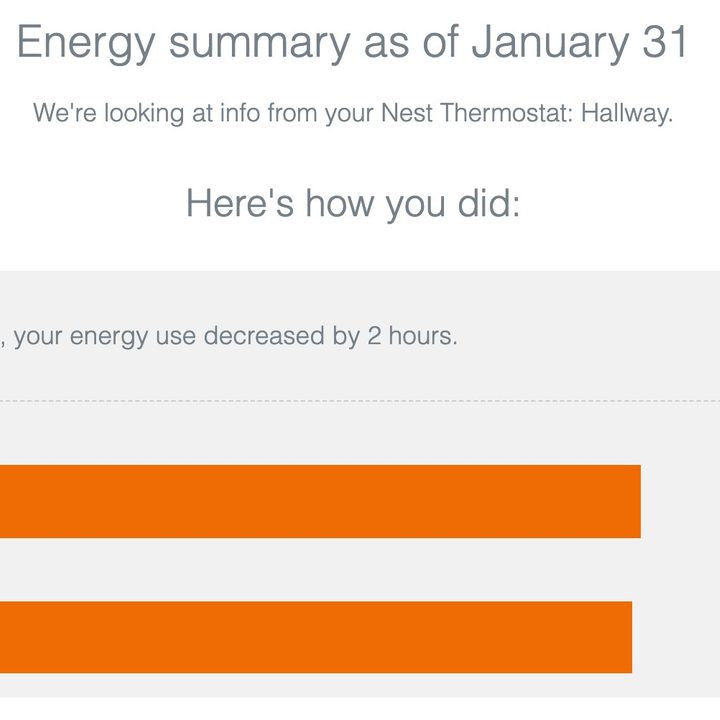
Energy summary: This section provides a specific breakdown of how often your thermostat was on and in this case, how often it was heating. Watch for decreases in usage hours over time as you use eco mode and your thermostat learns your habits.
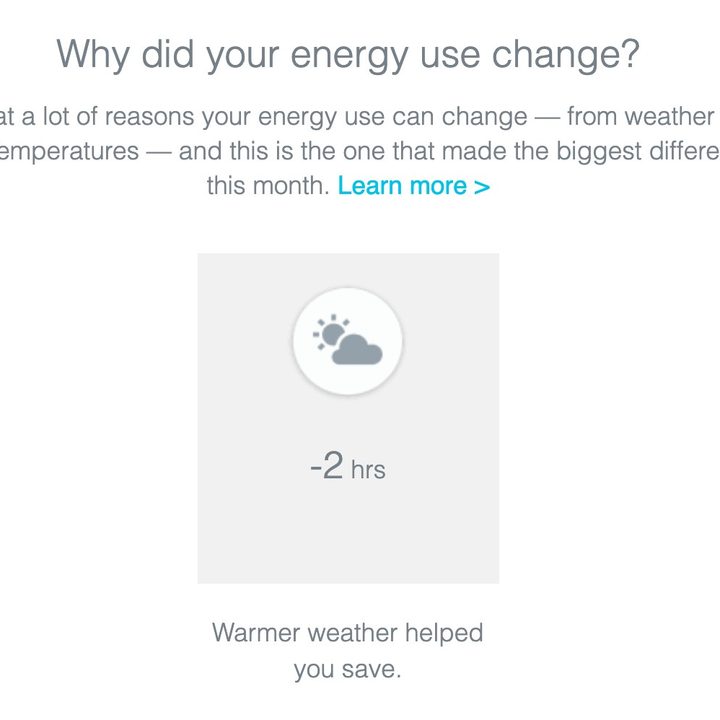
Why did energy use change? Here, Nest goes over the key factors in last month’s activity. You can see that it decided warmer weather in January was responsible for the savings. A number of different cards can show up here. You may see an icon for saving because you adjusted the temperature. You will also see icons that show if you used more energy by adjusting things like Away/Home settings.
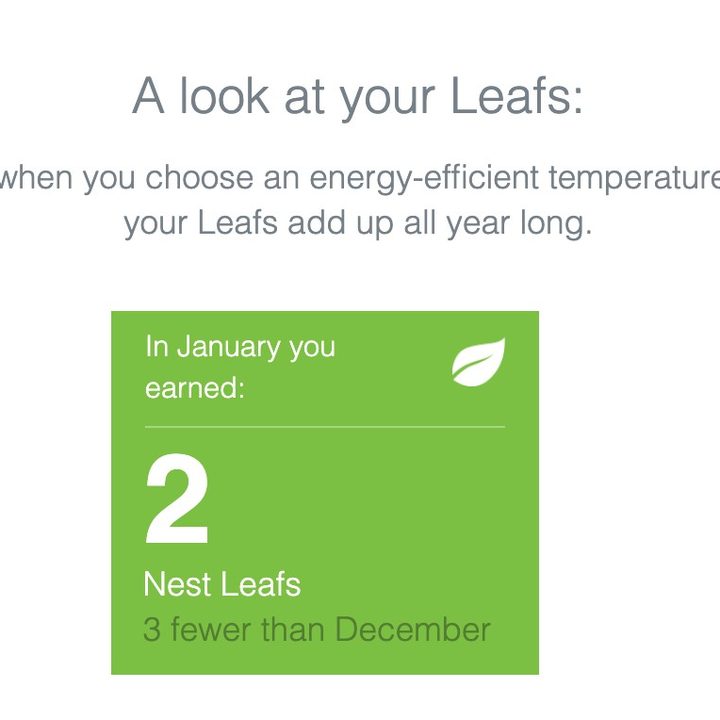
Leafs: Nest assigns “Leafs” based on how much energy you saved in the month, taking into account things like using Eco mode. These can be affected by how much time you spent at home, how often your thermostat is working, and more. Earning Leafs is an easy way to see that you’re making a difference.
Of course, not all smart thermostats use this system, but their reports are all useful in their own way. Ecobee, for example, uses a report that shows how much your runtime is each month, and how efficient you are compared to the rest of Ecobee thermostat users.
Watch for warning signs
Sometimes your smart thermostat will provide indicators that something’s not working quite right. This could be a sign that the thermostat is having operational problems, but more often it’s an indicator that components in the HVAC system are malfunctioning. Either way, it may be time to take a closer look. Watch for warning signs like:
- Messages that say “Delayed” or “Starts in” a certain number of minutes: If these messages are popping up on your thermostat, that’s a sign of communication issues or HVAC units that are seriously overworked and need to shut down to protect themselves.
- Short cycles that quickly turn on and off: You can set heating/cooling cycle behavior on many smart thermostats, but only broadly. When cycles start and stop quickly, that’s a sign something is wrong. It could mean that a unit is overworked — this was a common issue during the latest heatwave, for example.
- Your thermostat is switching back and forth between “Eco” mode constantly: Smart thermostats usually have eco or green modes that automatically try to save more energy, especially when no one is home. If a thermostat keeps switching to and from its eco mode, especially when people are home, that indicates something is wrong. The same is true if the thermostat refuses to go into its eco mode, or takes a long time to go out (indicating a sensor problem). That means it’s time for some troubleshooting.



