
 It’s good to clean up at least once a year and get rid of the clutter in your house, but there’s no reason you shouldn’t apply the same rule to your digital life. Cleaning up your smartphone isn’t just about scraping the gunk out of your case and regaining that sparkly new look (though you should do that); it’s also about sweeping away the junk onboard and potentially enjoying a performance boost.
Whether you’re rocking an Android, an iPhone, or something else, these tips should help you reclaim your smartphone and put a fresh spring (pun intended) in its step. Here is our guide to backing up, speeding up, and cleaning up your iPhone or Android device.
Backing up your files
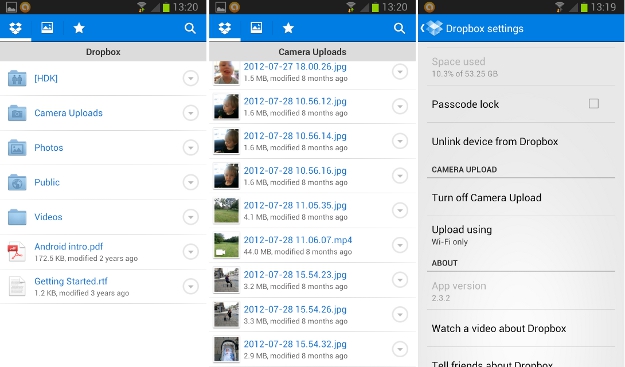
We’ll start with this vital piece of housekeeping because you don’t want to lose anything important during the clear out. Smartphone cameras have improved, photography apps have really taken off, and it’s super easy to share photos from your phone. Most of us have hundreds of photos and several videos on our smartphones. Make sure that you back them up on a regular basis. Use a cloud service like Dropbox for easy sharing across devices, post directly to your social media accounts, or just download them all on to a computer or laptop.
We would advise using some cloud storage so that you have an external backup, and also so that you can access them and add to the collection from any device. You’ll probably uncover memories that you’d forgotten about and it’s good to organize them into albums and share them with your friends and family. You may also consider backing up your settings, contacts, and precious text messages.
Free up some storage
Storage is a limited commodity on a smartphone. You should be careful about what you allow to clog up that precious space. If you don’t have enough free space then your smartphone’s performance can decline noticeably. Before we begin, make sure that you have backed up anything that’s important to you.
Photos, music, and videos
If you’ve synced your photos and videos, and have them safely stowed away elsewhere, then you should really delete some of them from your smartphone. Go through and just keep the special ones that you like to have with you. You’ll free up loads of space by doing this.
You should also check on the entertainment that you’re storing locally. Movies and TV shows are huge. If you’ve watched it, then get rid of it. Keep your music collection small, but perfectly formed.
Apps and data
Now check your app drawer and see what’s lurking in there that you haven’t touched for months. If you aren’t using it, then it’s probably best to uninstall it. Remember, you can always re-install apps if you need them again in the future.
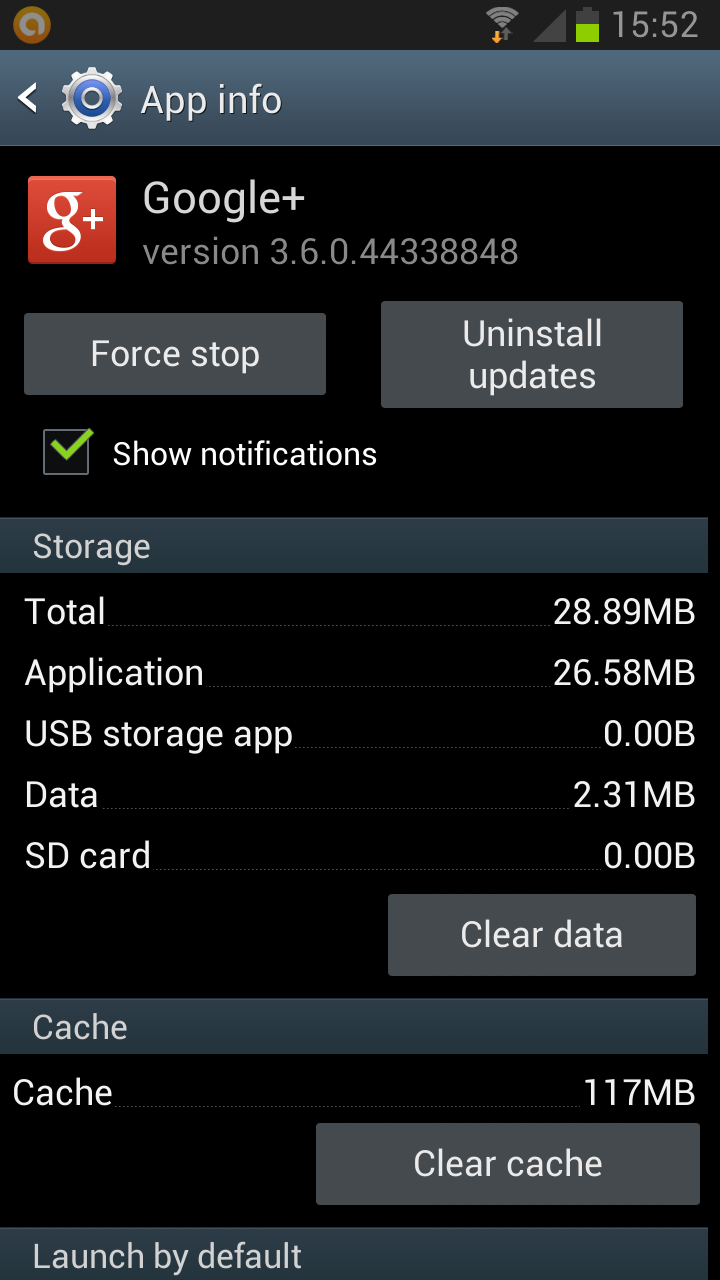 Over time, many of your apps will also eat up more and more of your storage. On Android, go into Settings > Applications > Manage applications and you can see how much space each app is using. Go into the individual app screen and you’ll find options to Clear data and Clear cache. If you clear the cache then you can get rid of temporary files (the app and your settings will remain intact), if you clear the data then the app will be like a fresh install (with none of your settings). You may also have the option to Move to SD card, which is a good way of freeing up internal storage so that your phone runs at top speed.
On iOS, go into Settings > General > Usage and you’ll see how much storage each app is using. If you want to delete the app data you will probably need to uninstall the app and reinstall it, which will also delete your settings.
If you check the settings menu within some individual apps, you might find options to clear the cache or to limit the amount of data the app stores.
Browser cache
Generally speaking the cache stored in your Web browser is there to speed things up. By remembering what you searched for before, or keeping images from a website your visited, your smartphone can load what you want faster the next time. However, sometimes you might want to clear that cache out and free up some space.
On Android, your Web browser is listed alongside the other apps, so go into Settings > Applications > Manage applications as before, and find your browser (the default browser will be called Internet), then tap Clear cache. With iOS and Safari, go into Settings > Advanced > Website Data and tap Remove All.
Update everything
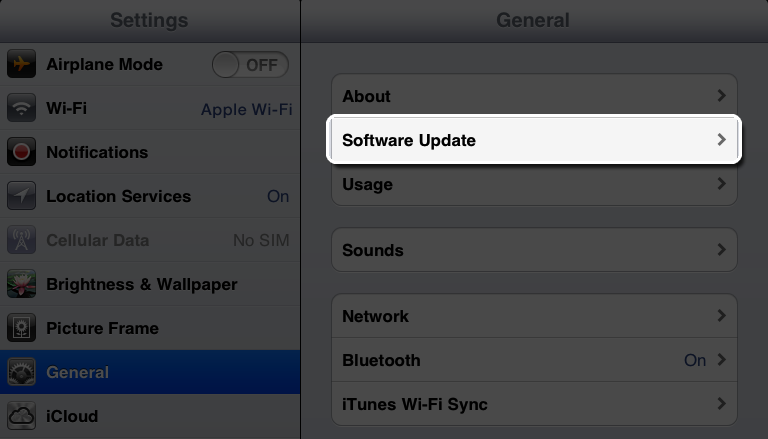
Make sure that you are totally up to date. Most smartphones will get platform updates OTA nowadays, but it’s worth checking that you’re up to date. You can check on iOS by going to Settings > General > Software Update, and on Android by going to Settings > About device > Software update.
You should also make sure the apps that you use are up to date. You can do this on iOS by opening the App Store, tapping the Updates icon at the bottom, and then tapping Update All. To do it on Android, open the Play Store and tap the Menu button then choose My Apps and tap Update (the number next to the Update option tells you how many apps there are updates for).
Keeping your software and apps up to date will generally result in your smartphone running more smoothly.
Install some spring cleaning apps
For owners of an Android smartphone, rooted or not, we recommend ES File Explorer File Manager as a good way to delve into the guts of your device and delete anything that’s not needed.
If you have a lot of apps, going through each one to delete the cache could be seriously time consuming and a little tedious. You can save yourself the hassle by downloading Clean Master. This free app presents you with a list of caches and data that you might want to delete. You can also use it to perform bulk uninstalls, and schedule reminders to clear your cache again based on time or file size.
You won’t find any recommended apps to do this on iOS, but you might want to try PhoneClean. It runs on Windows or Mac OS and you plug your iPhone in to get a list of potential junk files that you can delete. This includes app caches, corrupt files, cookies, and more files that you may want rid of. It’s free and simple to use. After scanning your iPhone, it gives you a list of what can be deleted, so you can uncheck anything that you want to keep.
Going off-road
If you want access to edit more of your files, tweak settings, or find alternative apps and launchers, then consider breaking out of your platform’s confines. You might want to think about rooting your Android or jailbreaking your iPhone. You’ll need to research carefully to ensure that you get the maximum benefits, but it is possible to tidy up your device further and even to improve its performance. Rooting on Android will also enable you to get rid of bloatware, which almost makes it worth doing in itself.
A spot of spring cleaning for your smartphone is well worth the time it takes. Have a go and see how much space you can set free.


