
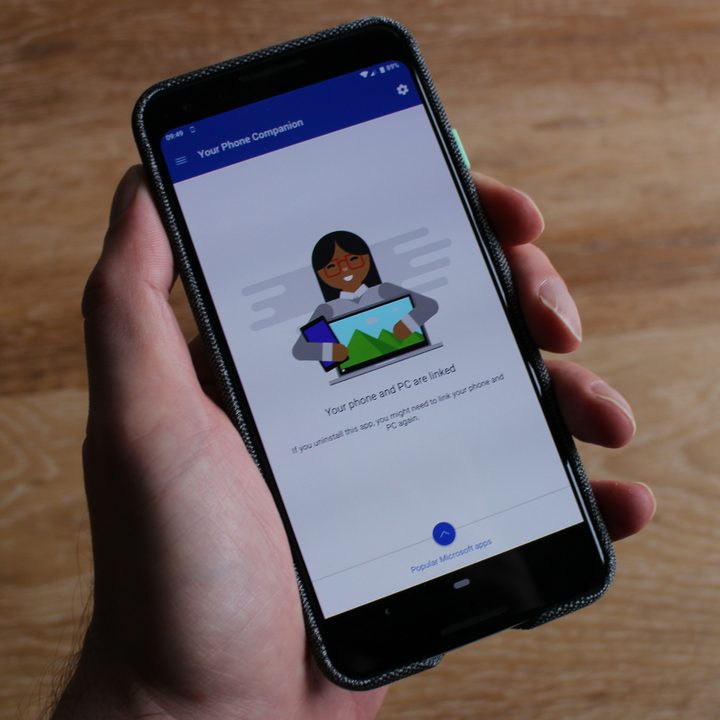
Do you ever email yourself a photo or screenshot to get it from your phone to your computer? Maybe you upload pictures to a service like Google Photos or Dropbox and then download them onto your PC. With Microsoft’s Your Phone app, you can link your Android phone to your Windows PC or laptop directly and simply drag and drop photos or screenshots. The app also allows you to receive and send text messages from your phone on your computer. We’ll show you how to set it up, what it can do, and where it falls short in this guide.
How to set up Microsoft’s Your Phone
If you have a PC or laptop running Windows 10 April 2018 Update (Version 1803) or later, and an Android phone running Android 7.0 Nougat or later, then you can use Microsoft’s Your Phone. Both devices must be connected to the same Wi-Fi network.
Note: Support for iOS is supposed to be coming, but there’s no sign of it yet at the time of writing this guide.
You can download and install the Your Phone app for Windows 10 from Microsoft.
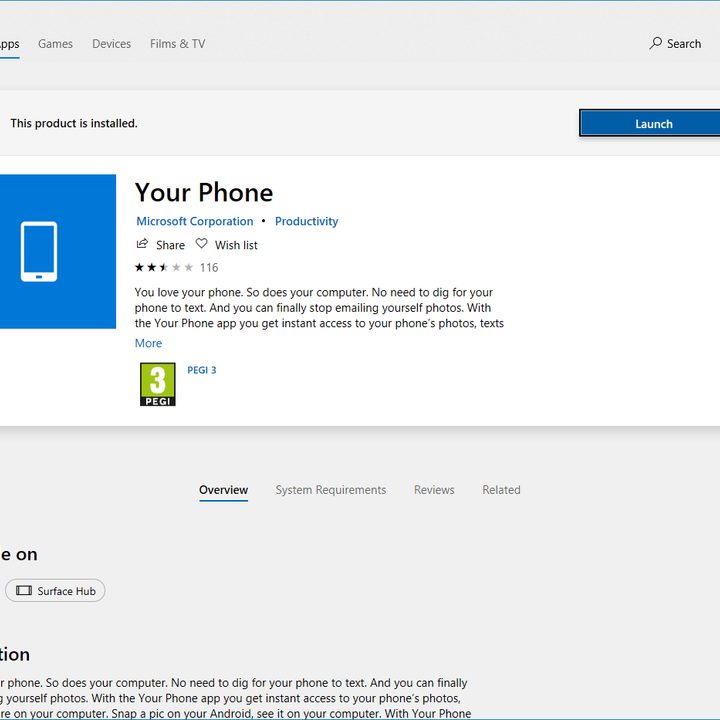
You can also find it by typing “Your Phone” in the search bar, or by clicking the Start button at the bottom left and scrolling down to launch Microsoft Store. When you find the Your Phone page, click on Get and follow the instructions to install the app.
When it’s done, you can launch the app and it will prompt you to install a counterpart on your Android phone. The easiest way to do this is to put your number in and the link to install the app will be sent via text message. Alternatively, you can visit the Google Play Store and type “Your Phone Companion” into the search bar. Install the app on your Android phone.
The two apps should sync up and you will be asked to grant various permissions on your Android phone to link the devices and give access to your photos, texts, calls, and contacts.


Once you have granted access, you will see your phone appear in the Windows Your Phone app on your computer. You can click to access recent Photos or Messages and there is a Settings page.


The Photos section includes the last 25 photos or screenshots you captured on your Android phone. You can click on them to share or edit, or you can simply drag and drop them to copy them onto your desktop or into folders.
The Messages section includes your last 15 conversations and it allows you to type and send new text messages using your desktop or laptop keyboard.


Limitations of the Your Phone app
As we just mentioned, photos and screenshots are limited to the last 25 captured. When you take a new one you can tap refresh to get the updated list.
Messages are limited to the last 15 conversations, but we have been unable to get them to display in the desktop app. We’ve been testing Your Phone with a Google Pixel 3 and despite running through the troubleshooting tips, it simply won’t sync up existing messages. We were able to send new text messages from the computer and new incoming messages that we received while the Pixel 3 was linked came through correctly in the Your Phone app on our desktop PC — also popping up at the bottom right of the screen, just like other notifications.
A quick glance at the reviews of the app in the Microsoft Store and Google Play Store makes it clear that the issues we’ve encountered are not unusual.
Microsoft suggests that you leave the Your Phone app running constantly, so your phone and your computer are connected, but also acknowledges that this will impact on battery life. For us, the ability to transfer photos and screenshots without having to find and plug in a cable is the big attraction and there’s no need to leave the app running for that — you can just load it up when you’re transferring an image.


