
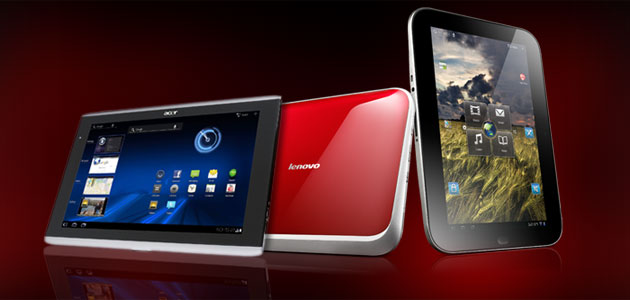
So you were just given (or just bought) a kingly new gift: an Android tablet. You’re probably excited, and a bit scared. It’s thin; it has a giant touchscreen; but it isn’t quite like a PC or smartphone. Well, fear not. We can’t hold your hand, but we can guide you through some of the basics of Android tablet ownership.
Every Android tablet has different physical features, comes pre-loaded with different apps, and has its own tweaks and quirks. This is because every Android tablet manufacturer is allowed to mess with the operating system however it sees fit. This guide is for tablets that run Android 3.0 (Honeycomb). Owners of tablets like the Kindle Fire, HTC Flyer, and original Samsung Galaxy Tab, you’re not covered here, unfortunately. For those with an HP TouchPad or BlackBerry PlayBook, well, I’m sorry. The rest of you may step right this way.
Setting up your account
The first thing you need to do is register your device with a Google account, which means you need a Gmail account, if you don’t have one yet. We recommend that you use your standard Google profile, but if this is a device for multiple people, keep in mind that Google will often automatically pull in your personal email, your commonly used apps from other Android devices with that email address, and other things like common Wi-Fi passwords and such. You cannot download apps or use a lot of services without a Google account linked to your tablet, so make sure to do this at setup.
If you screw up or fail to do it, you can find the Accounts tab inside Settings, which will let you add a Google account anytime.
Modifying your Homescreens
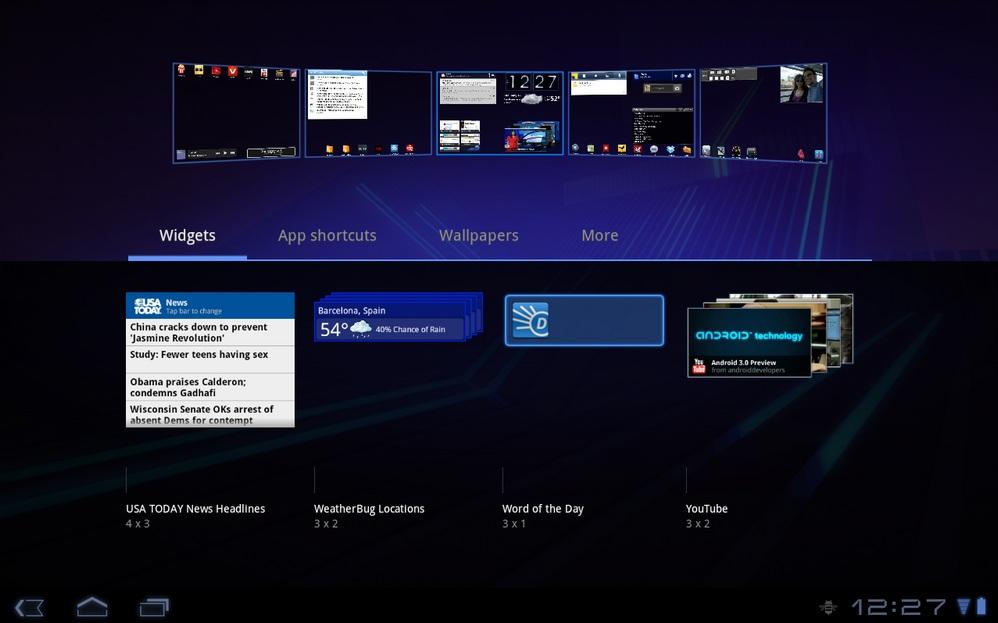
Most Android tablets come with five homescreens. Find out how many yours has by swiping your finger from left to right or right to left, just like you would on an iPhone or Android phone. This space is yours to use as you please. You probably won’t need it all, but it’s yours.
Entering the modification screen: Touch and hold a blank area of one of your homescreens (or press the + sign in the upper right of the screen) to bring up the Customization Control Center. This will pull up a page showing a zoomed-out look at all of your homescreens, listings of widgets (interactive icons), wallpapers, and app shortcuts (icons that open an app). Touch and hold on one of the widgets or app shortcuts to drag it to the homescreen of your choice and before you know it, your desktop will be as crowded and cluttered as you always imagined.
Another way to place app shortcuts: To place a link to an App anywhere on your desktop homescreens, press the “Apps” button in the upper right of the screen to enter the apps menu. Touch and hold on the app you want to drag it to the homescreen of your choice.
Notifications and Navigation
 The bottom of your screen has a dark bar with three navigation buttons on the left and a clock on the right. Many of you (Lenovo users especially) will have other buttons mashed up in there. You’ll have to explore those on your own.
Navigation: The three buttons on the left are Back, Home, and Multitasking. The Back button will do its darndest to take you back to the last thing you just did on your tablet. The Home button will take you back to your default homescreen (the middle one) no matter where you are or what you’re doing. Finally, the Multitasking button brings up a list of the apps you’ve recently used. Click on any of these to re-enter that app.
Notifications: On the bottom right of the screen is a digital clock. When you’re running certain apps or install new apps, often little icons will appear to the left of this. You can attempt to tap on these tiny icons or you can tap on the entire clock to bring up a complete list of notifications. Exit or enter whatever notifications you want by clicking on them or hitting the X button on the right side of them.
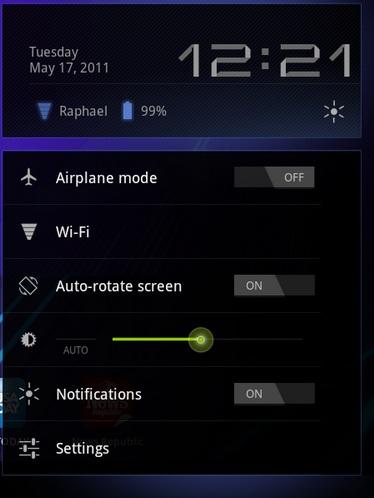
Settings: You can enter settings through the Apps list or through the Clock. Tap the clock once to expand it and then tap on the larger clock again to bring up a list of basic settings. Here you can easily turn on and off things like locking screen orientation (if you don’t want your screen to flip around with your tablet), Wi-Fi, Airplane mode, notifications, screen brightness, and there is a link to Settings there as well. Entering Settings brings up a larger list of tabbed options. You can find anything you need to mess with here. It’s no where near as complicated as the Control Panel on a Windows PC, so feel free to look around a bit. If something confuses you, you can ask a question here or Google for an answer. There is an Applications menu in here that will let you delete apps you don’t want as well.
Discovering the Android Market
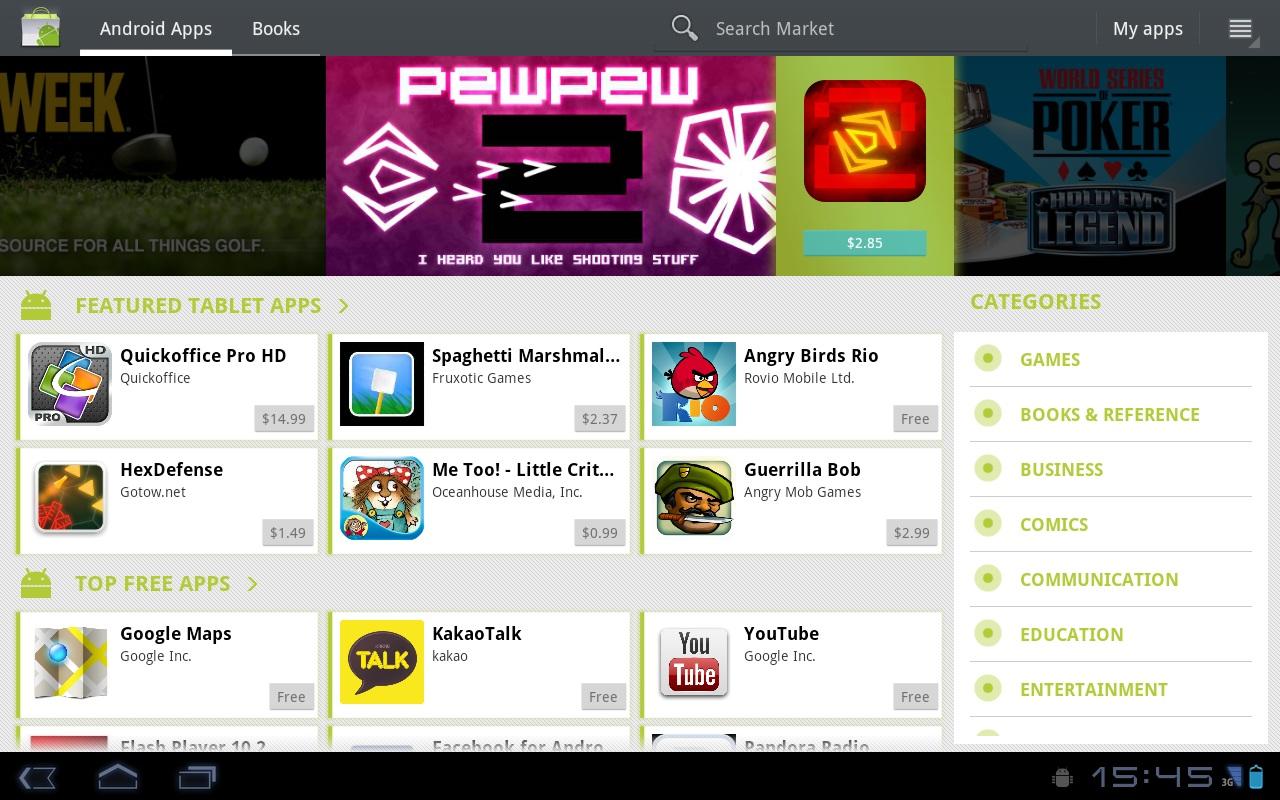
Once you are familiar with how to navigate the tablet and you’ve explored some of the pre-installed apps (if you’re interested), look for the Android Market link in your apps list. It looks like a Green shopping bag. Once you’ve entered the Android Market, you can explore to your heart’s content. There are plenty of apps and games to choose from. At first, we recommend you stick to apps that have a high star ratting (4 stars or above), have a lot of reviews, are cheap or free, and have a lot of downloads. Be sure to check out the user reviews and screenshots of each app before you download it. We have no idea what you’re searching for, but we’ve compiled lists of our favorite Android apps and favorite Android games in multiple categories. Check them out for a good starter guide. And if you find an app that’s particularly wonderful, let us know in the comments here or in those articles.
There’s so much more…
We hope that this serves as a good launching point for you, but there are plenty more things you can do with your tablet. It’s likely that it has cameras and many other features like streaming, Bluetooth, and other things. It’s really all about finding the right apps for doing the things you want like playing music, watching movies (Netflix), and whatnot. Like a Windows PC, Android apps are released every day that enable you to do new things that you’ve never done before.


