Google’s Wear OS puts everything from notifications to fitness tracking data on your wrist, and though smartwatches — like any new piece of tech — have a learning curve, it’s more accessible and useful than ever before. However, everyone needs a starting point, so here are some essential Wear OS tips to get the most out of your smartwatch, whether you want to listen to music offline, dim the display, or change the watch face.
Listen to music offline

One of the best features of Wear OS is the chance to stream music from the watch to a pair of connected Bluetooth headphones. It means you can leave your phone behind when at the gym or out for a run. It’s a little limited though, and you’ll have to sync songs or playlist to your smartwatch from Google Play Music to listen offline. Ensure your watch is connected to Wi-Fi, then open Play Music and tap the little Download icon next to your chosen song or playlist. It takes a while to sync, so have patience, and don’t do it five minutes before you leave the house.
Install new watch faces

The watch face is the most important part of a smartwatch, and you’ll want to choose one that matches your own style, and the style of the watch. All Wear OS watches come with different watch faces installed, many of which will be branded by the watchmaker, or you can download and install many different third-party ones from Google Play.
Google has a catalog of hand-picked watch faces in the Google Play Store, and you can even access a “Featured Watch Faces” section in the Wear Play Store on your watch. All you need to do is download the app from your phone or watch and it’ll appear as a choice when you’re switching watch faces.
Switch between watch faces

You can change the watch face really easily on your watch. Once watch faces are installed, it’s extremely easy to switch between them. Hold down the main screen to show the watch face carousel, then swipe from the left or right to navigate between all of them. If you want to get rid of a watch face, swipe it up or down in this screen. Scroll all the way to the right and you’ll see a plus icon that allows you to add more watch faces — tap this to find and add any new watch faces you recently downloaded.
Edit your watch face and personalize your device

In Wear OS, if the watch face supports it, you can customize available subdials or “Complications” on your watch face so you can see information like your fitness goals or upcoming calendar events at a glance. You can also change design aspects, such as the color of the face, hands, or the font for the numbers. To see if you can edit the face, press down on the main screen and look for a Settings cog under the selected face in the menu that appears. You’ll then be presented with a few options, including “Styles,” and “Data,” depending on the face.
- Hit “Data” or “Layout” to customize your complications. You’ll be presented with a view of the complications you have installed, and you can tap one to change it. Complications vary depending on the apps you have installed, and you can also opt to have none.
- Hit “Styles” to change the color scheme of your watch face.
If your Android smartwatch has more than one button, you can customize what app you want the second button to open. Swipe down from the watch face and tap the gear icon. Scroll down to Personalization, and tap Customize hardware buttons. Here you can choose what app you want each button to open.
Install apps on your watch

With Wear OS, you can install stand-alone apps on your watch with the pre-installed Wear Google Play Store. To access all your installed apps, press your watch’s main button, or crown. All apps appear in a scrollable list. To install new ones, scroll to the Google Play Store, and when you tap on it you can scroll through categories and install apps.
Check and manage battery life

Checking the battery life is a cinch. Simply swipe down to see a quick summary of your battery life. If you need more information, go to the Wear OS app on your phone and choose Settings > Watch Battery. From here you can see how much juice you’ve got left, which apps are burning the most battery, and enable power saving features like dimming and theater mode.
You can still have your phone ring and not your watch

If you’re not impressed by Wear OS’s vibrating notifications you can always mute watch notifications by swiping from the top to the bottom of the watch face. Touch the “do not disturb” icon to mute your watch.
Use Theater Mode to mute and silence notifications

Made for the theater so your watch’s screen won’t light up during the movie, Theater Mode can be helpful in other situations too. We’ve used it in the car when driving at night, for example. Swipe down from the top of the watch face, and depending on your device, you’ll see a watch with a diagonal line over it (Theater Mode) or a brightness indicator. Tap the brightness indicator and you’ll be able to access the same watch indicator — tap on it to trigger Theater Mode. Even if you move your wrist, the screen will not light up now, and you won’t see notifications. To deactivate Theater Mode, press your watch’s main button or crown.
Install a web browser
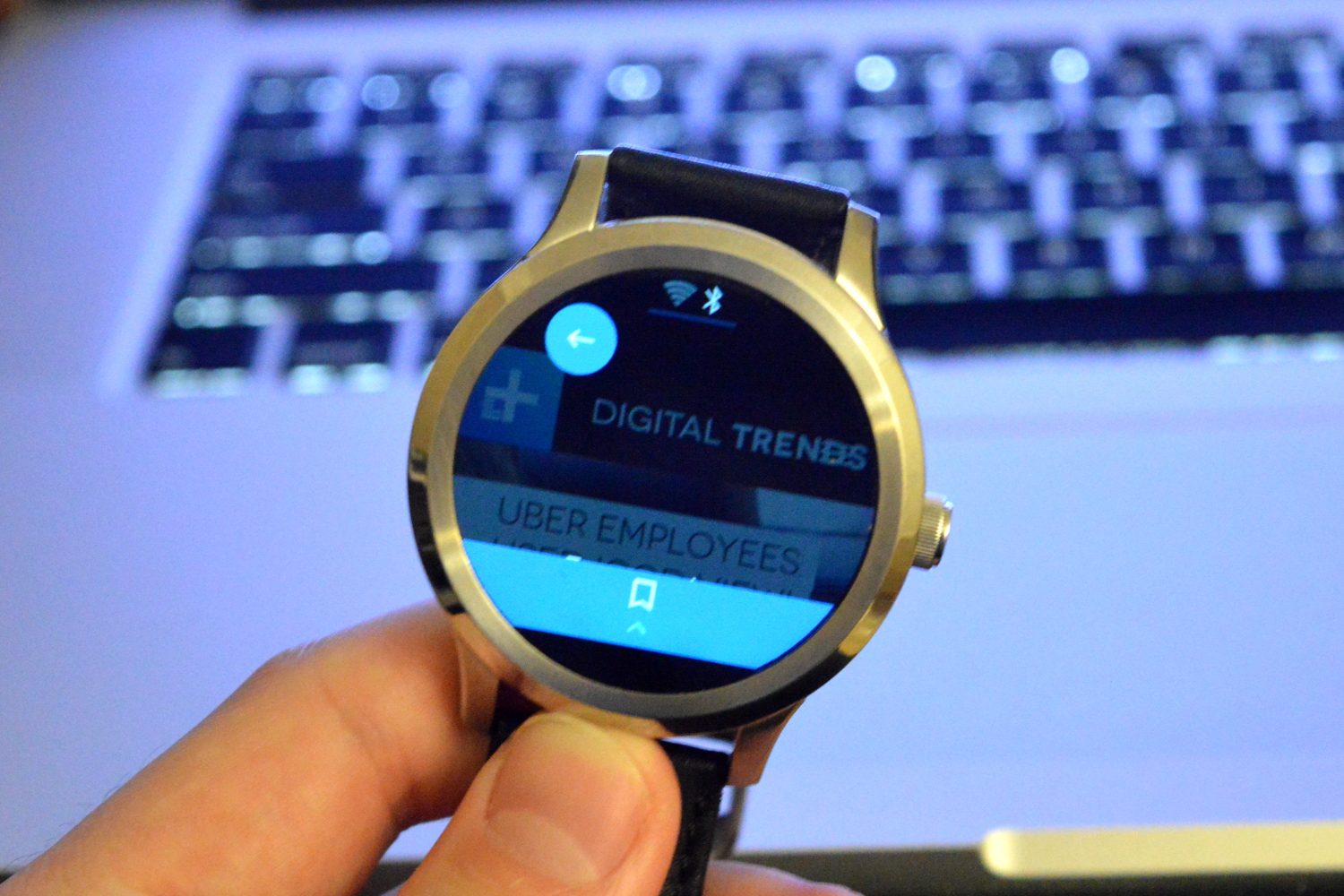
It’s hard to think of practical reasons for accessing a web browser from a smartwatch, but Wear Internet Browser lets you do just that. You can tap into your phone’s browsing history and access bookmarks. Expect a frustrating experience, though, and you will have to pay for the full version of the app if you want to use this for more than search. Press the crown on your watch, and visit the Google Play Store to download the app.
Block notifications from specific apps

You can block notifications for specific apps from your phone. Go to your Wear OS app on your phone, choose Settings > Block app notifications. Touch the plus icon then select the apps you want to block.
Dim screen with your palm

Dimming the screen on your Wear OS watch is actually very easy. All you need to do is place your palm over the watch screen until you feel it vibrate. Take your hand off again and you should see a dimmed screen.
Use voice commands

Taking advantage of all that is Wear OS means using voice commands. It all works with Google Assistant, though you won’t find the same features on your phone’s Assistant. Press and hold down your watch’s main button and say your command. On many watches, you can also use the classic “OK, Google” voice command to activate Google Assistant, provided you give Assistant permission to listen out for your voice.
If your Wear OS watch has the latest version of the software, swipe to the right and you’ll find a screen dedicated to Assistant, reminders, and other activities. You can use Assistant to check the weather, place a call, send a text, set a reminder, create an alarm, and more.
Review the list of voice commands

Hold down your power button. A black screen will appear with the Google Assistant colored dots. Say “show me a list of voice commands.” You’ll then see some suggested commands that you can try. We’ve listed some of our favorites below:
- When is [Valentine’s Day]
- Should I bring a jacket today?
- Who is [the Speaker of the House]
- Show me the stocks for [Sony]
- Set a reminder
- Play [Modern Love]
- Start [stopwatch]
- Define [oxymoron]
Voice texting

Voice texting is easy — activate Google Assistant with the main button or your voice. Then say “Send a text to [insert contact here].” Assuming that person is in your contact list, you’ll be prompted to voice your message. You’ll get a chance to review the content of your message before sending. Google does a pretty good job of transcribing your messages, but it may have some trouble sorting between the three different Kates or four Joes in your contacts.
Take notes with your watch

Wear OS also lets you take notes. Using your voice, you can prompt your watch to transcribe a quick memo by saying “take a note.” The note will then land in your inbox or to Google Keep (if you have it installed). If you don’t want to use your voice to write a note, you can open the Google Keep app, press the “+” icon, and choose the keyboard to write it manually.
Navigation
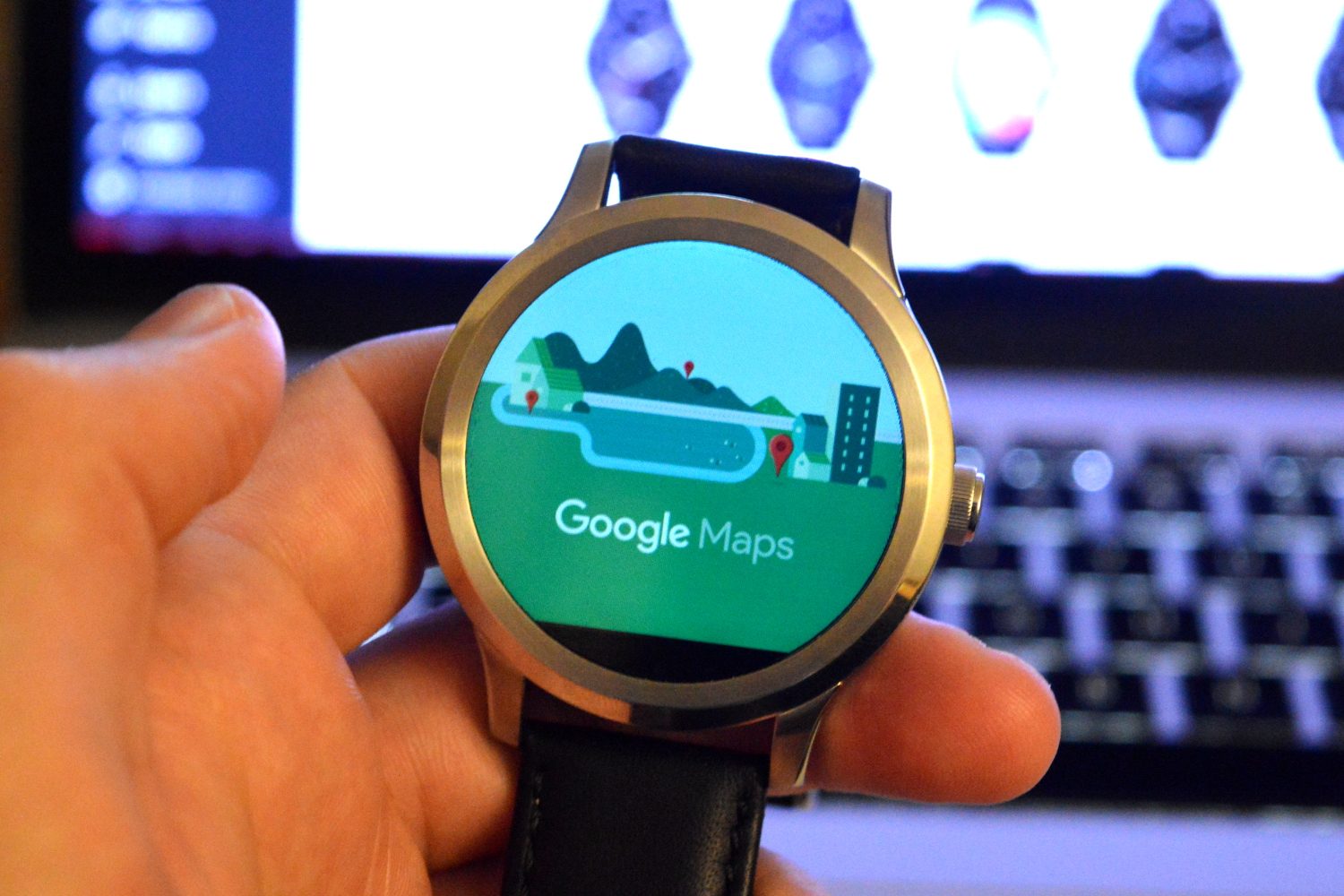
Wear OS can be used for navigation too. Say “Navigate to Mt. Hood” and you’ll get turn-by-turn directions, but no voice directions. If you need audible assistance, make sure your watch is paired with its smartphone and your phone — or Bluetooth connected headphones — will provide audio commands.
We hope you enjoy life with a smartwatch on your wrist. Wear OS is continually improving, so it’s a great time to buy a Wear OS watch if you don’t own one yet. Here are our recommendations for the best Wear OS smartwatches.