Tired of ads tracking and targeting you? Beyond the obvious privacy concerns, ad targeting can keep you from seeing ads you might actually be interested in, or potentially reveal your browsing habits to other users on that computer.
As you can guess, many people would rather have more control over what ads they see online, and avoid specific types of ad targeting if possible. To help out, we’re going over how to gain more control over online ads on Google, Facebook, and websites as a whole.
Controlling ads on Google
Step 1: First, you need a Google Account, so set one up if you don’t already have one. When you’re ready, sign into your Google Account. You will immediately see several management sections, the first being Privacy & Personalization. In this block, select the option that says Manage your data & personalization.
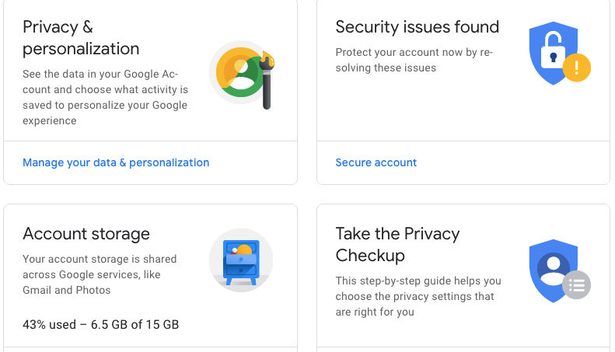
Step 2: The new window that opens contains a lot of options for privacy, and you may want to look through them all in time. But to deal with ads specifically, head to the Ad personalization block and select Go to ad settings.
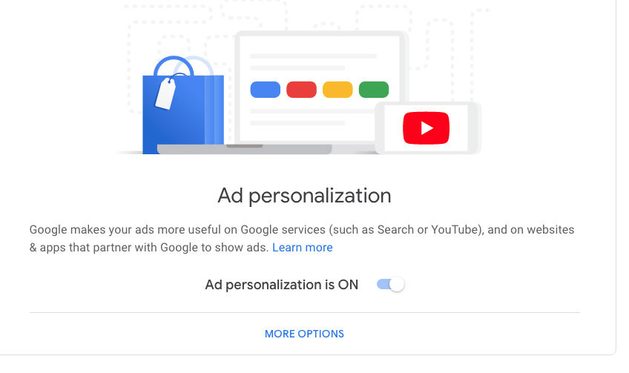
Step 3: Now you’ll see a large Ad personalization setting with a single switch saying Ad personalization is on. Simply switch this to off, and Google will stop tracking your ads for ad partners (or at least, it won’t track as much).
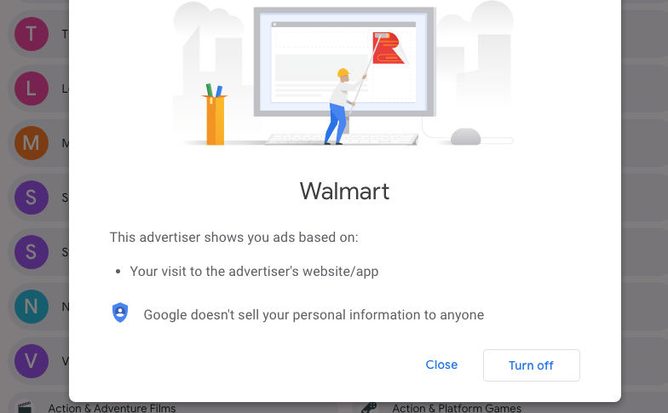
Step 4: Below the large ad personalization switch, you will see a long list of brands, topics, and industries that are collecting information over Google about you. If you don’t want to turn ad personalization off altogether, or want to target a specific company/field, then you can click on any of the sections for further control.
Once selected, you’ll see why that particular thing is tracking you, and the ability to Turn Off tracking for that item. Select Turn Off for everything that you want to stop from collecting information about you — information that can be used to target ads toward you when you are browsing. Keep in mind, you can also leave tracking on for the ads that you don’t mind seeing if you don’t mind some forms of targeting.
Controlling ads on Facebook
Step 1: Facebook is the other large company that allows for specific ad controls while you are browsing.
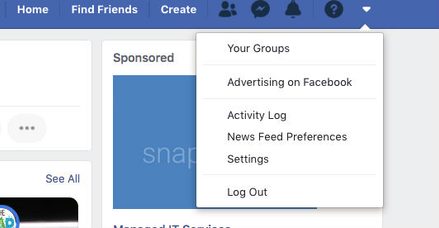
If you use Facebook, you have an account: To begin, log in to your account and look at the top right corner of the window, where you should see an arrow point down in the menu section. Select this, and then select Settings from the dropdown menu.
Step 2: In the Settings menu, look to the left-side menu and choose the Ads section, which is lower down on the menu.
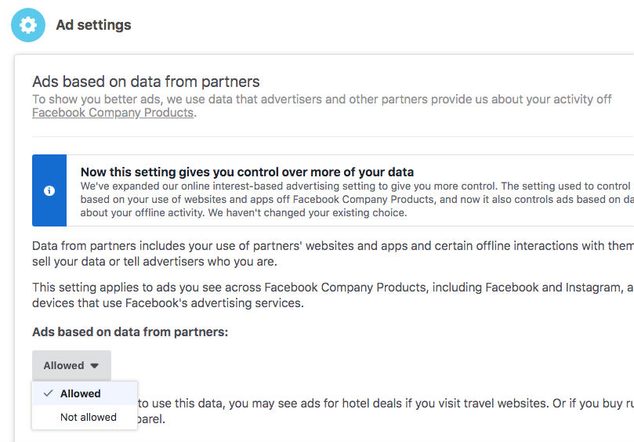
Step 3: You should now be in an ad preferences menu, which has a number of different sections about your Facebook activity and ads. You can peruse all of these, but for now let’s start at the section that says Ad Settings. Select this, and you will see several different types of ad information, such as “Ads based on data from partners.”
On the right side, you will see if this data is Allowed to be seen or not. Select these sections to find a longer explanation of how they work, and a dropdown menu that allows you to switch this ad data to Not Allowed. Switch your preferences for every section as you desire.
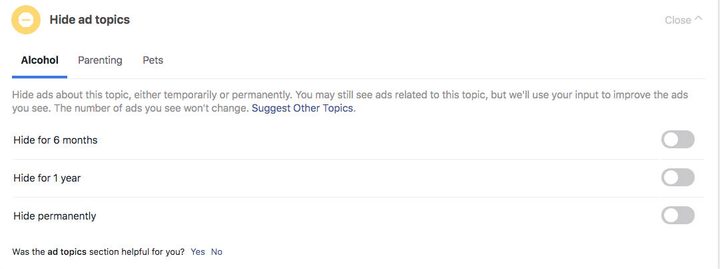
Step 4: You may also want to pay a visit to the section that says Hide ad topics. This allows you to hide specific ad topics for a certain period of time, or permanently, depending on your needs. For now, the topics available to block are, understandably, Alcohol, Parenting, and Pets.
Facebook may ad more topics to this section in the future (the company continues to change its approach to social content).
Controlling ads with an ad blocker
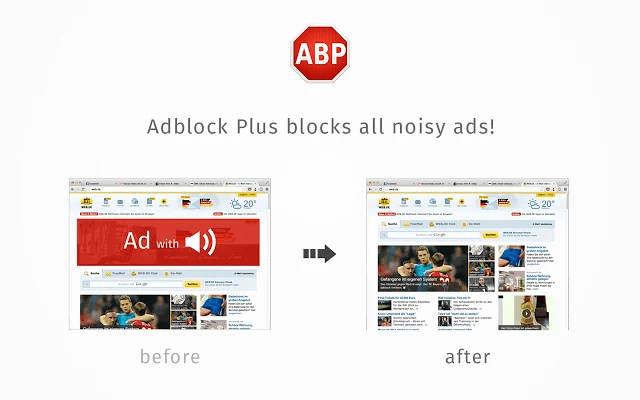
When casually browsing the internet, you will still see lots of ads. They just won’t be as targeted to you after completing the above steps, but they’ll still be around. If you prefer to see fewer ads, especially from specific sources, your best option is to install an ad blocker.
They take only a couple minutes to set up, and they will block all kinds of ads from appearing in your browser, with some exceptions from brands that have broader whitelisting.
No matter which ad blocker you choose, you should also have the option to whitelist yourself. This means you can allow specific sites or content to make it past the ad blocker filter, so you can experience the content or support websites that you like while still blocking other things you don’t want. For example, here’s the guide on how to whitelist with AdBlock, a very popular ad blocking tool. Your own personal whitelisting can be done and undone as needed, allowing you to control many (but not all) of the ads you see online.