There’s a myriad of tools, online and off, for organizing your life, but one of the easiest to access and use is Google Calendar. With options for setting specific dates and times for events and reminders, notifications sent to your email, and the ability to keep others in the loop about what you’re doing, it’s a versatile tool with a ton of features.
To take advantage of all that, you need to learn how to use Google Calendar. Fortunately, it’s easier than you might think and in this guide we’ll teach you everything you need to know. In just a few clicks, you’ll have your schedule for the next few weeks mapped out, and you’ll never forget a birthday again.
For more help with Google’s online tools, here’s some great tips for using Gmail, and everything you need to know about the Google Assistant.
Use your Google Account
To be able to use Google Calendar, you need to have a Google Account. If you have one of those already — and you do, if you ever logged in to Gmail, YouTube or any other Google applications — click through to Google Calendar and skip forward to the next section. If you don’t, follow the steps below to create one.
Step 1: Go to the Google Calendar homepage. When presented with the Google Account login page, click “More options,” followed by “Create account.”

Step 2: Fill out all of the relevant information in the account form and click “Next step” to continue.
Step 3: Google may ask you to verify your account using a mobile device. Do so and then you’ll be sent through to the welcome screen.
You now have a Google account that can use all of its services, and that includes Google Calendar.
Creating an event
Arguably the most important element of a calendar is making sure you are reminded of important dates. To do that with Google Calendar, you need to create an “event.” Here’s how to do so.
Step 1: Find the date and time that the event is taking place on. Click the corresponding block. Alternatively, click the red “+” button in the bottom right-hand corner.
Step 2: Choose whether you want this to be an event with extra details or a simple reminder. Reminders can be set up to repeat on a regular basis, whereas events are designed as one-off occasions that you need notifying of.

Step 3: Type in a title for your event and use the timing options to select how long it will last.

Step 4: If that’s all you need, hit the “Save” button, but if you want to add more detail, click “More Options.”
Step 5: On the page that appears, you’ll be given a chance to create a guest list and invite people to it, set up notifications to your email address at specific times, add a location, and add a detailed description of what’s happening.
Guest lists
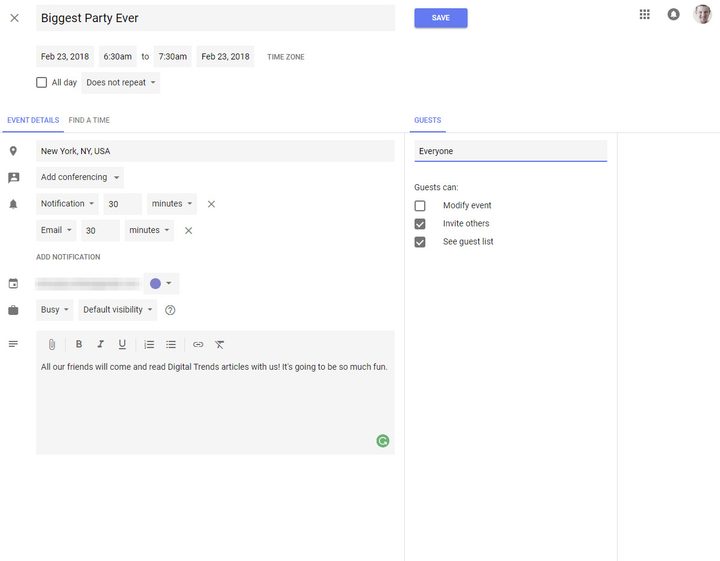
If you have a lot of friends and family coming to your event, it can be handy to create a guest list, and you can do that right within Google Calendar’s “More options” menu. For a look at how to organize everything on your mobile device, here’s a few alternatives.
Step 1: Select your big event and head into “More options” as before.
Step 2: On the right-hand side you’ll notice a section specifically for “Guests.” Decide whether you want your guests to be able to invite others and see the total guest list — and even modify the event itself — using the tick boxes.
Step 3: When that’s decided, click the “Add guests” box and begin inputting names. If guests are already part of your Google address book, a real name will suffice. If not, you’ll need to input their full email.

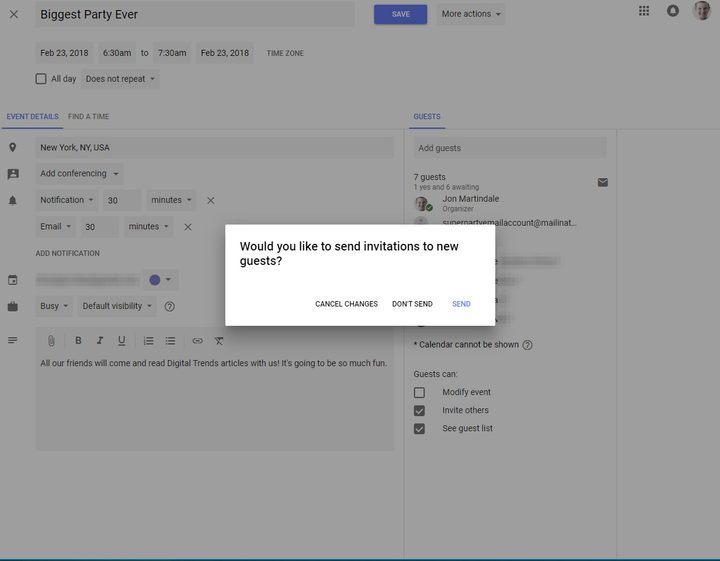
Step 4: When you have populated your guest list, if the event is fully detailed, press the “Save” button. A notification will appear asking you if you want to email the guests. Clicking “Send” will furnish them with an email telling them about the event, who’s going, and asking them whether they will be able to attend.
Sharing your calendar
Although you can invite people to events, if you want someone or a group to know exactly what you’re up to in the coming weeks and months, you can always share your entire calendar with them. Here’s how to do it.
Step 1: On your main calendar page, look to the left panel where you’ll see “My calendars.” Hover over the calendar you wish to share and click the three dotted menu icon that appears on the right, followed by “Settings and sharing.”

Step 2: The menu that appears has a lot of options, but you are looking for the third box down, “Share with specific people.” Click the “Add people” link, and then input names or email address as applicable.

Step 3: When you have added who you want to share the calendar with, you can also tweak how much control they have over it.

Step 4: When you’re happy with your sharing settings, click the “Send” link to make people aware of their new insight into your schedule, and their ability to modify it. If you want to continue adding to or tweaking your calendar after that, hit the back arrow in the top left-hand corner.