
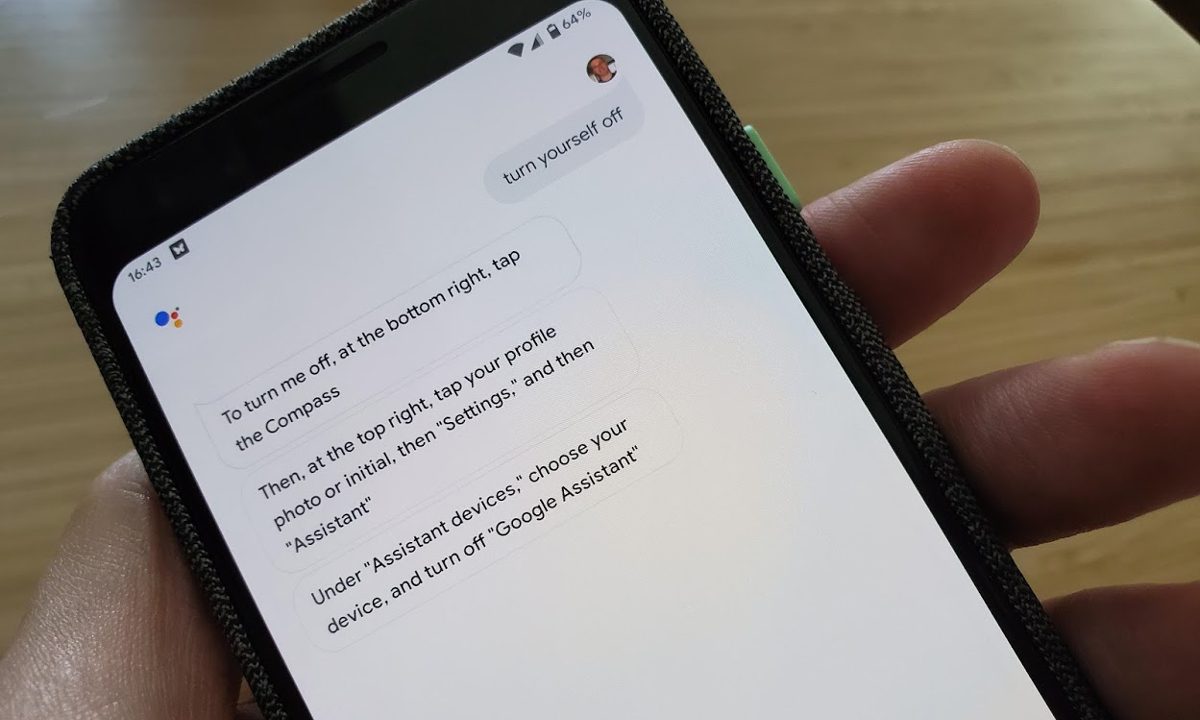
While Google Assistant is a wonderful companion to have around, you don't always want it chiming in on your life. Whether it's accidentally taking commands when you're not speaking to it or getting activated by voices on your televisions, some people find it best to turn off the companion. Google Assistant can be turned off entirely on your smartphone, though you can also limit its abilities — giving it the exact amount of control over your smart home as you deem necessary.
Here's a detailed look at how to turn off Google Assistant on any device, including your smartphone and smart devices.

How to turn off Google Assistant on your smartphone
There are a few different ways to disable Google Assistant on your smartphone, depending on your device and software. Here's a general look at how it works:
Step 1: Open the Google app on your phone.
Step 2: Enter the options menu by clicking on your profile picture at the top of the screen.
Step 3: Tap Settings.
Step 4: Tap Google Assistant.
Step 5: Enter the General menu, then toggle Google Assistant to the off position.
Step 6: That's it! Google Assistant is now deactivated. However, if those steps don't work for your device, you can try something else. Just dive directly into your smartphone's Settings menu, select Assistant, then General. You can then toggle off your Google Assistant right from this menu screen.
Manage smart home devices connected to Google Assistant
Since there are so many devices that support Google Assistant, there are a variety of ways to modify their settings. Be sure to check the instructions for your specific device, but here's a general way to look at which smart devices are syncing with Google Assistant.
Step 1: Open the Google Home app on your smartphone.
Step 2: Tap Settings.
Step 3: Select Google Assistant.
Step 4: Click Manage all Assistant settings.
Step 5: Select Devices.
Step 6: Here, you'll be able to manage all devices that are linked to your Assistant. This includes adding or removing devices.

How to tweak your Google Assistant settings
You can tweak all sorts of different settings in the Google app if you go to the Google Assistant menu as shown above, but what if you want to turn off specific triggers?
Sometimes Google Assistant will pick up your voice even if you’re not issuing a command, so it can be frustrating around the house. An ideal solution is to set the app preferences so it’ll only pick up voice commands when you’re in the car. Here’s how to do that on a Samsung Galaxy phone — the path will be slightly different on a different device.
Step 1: Go to Settings and tap Apps.
Step 2: Tap the three dots icon at the top-right for more options, and tap Default apps.
Step 3: Tap on Device Assistance App (or Assist App).
Step 4: There are various settings you can change here, and they’ll be different depending on your device. Some might ofter to read text messages out loud, while others will launch Assistant when you squeeze your phone.
Step 5: Tap the Gear icon to dig deeper and access more options. Tap Voice Match.
Step 6: You can now toggle off Access with Voice Match but leave on While Driving.


