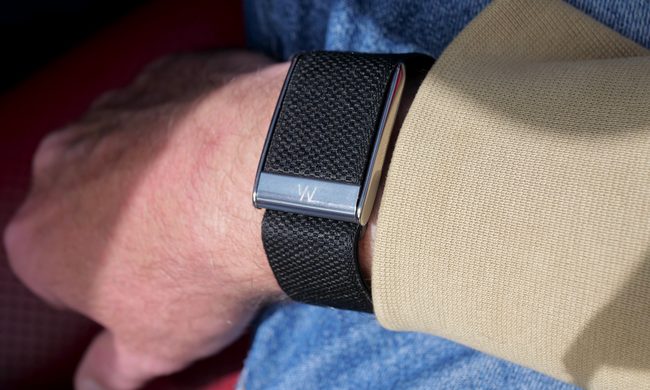
While it may have been superseded by WatchOS 8 and WatchOS 7, it’s worth remembering the huge impact WatchOS 6 delivered. An always-on display, the Apple Watch App Store, Health features like period tracking, Health Trends, and the Noise app were added, becoming the mainstays we see today.
Of course, if you’re rocking an Apple Watch Series 3 or newer, you’ve probably upgraded past WatchOS6 now, making this guide outdated. Check out our list of the best WatchOS8 tips and tricks if that applies to you — but if you’re using an Apple Watch Series 2, you’re now stuck with WatchOS 6. That’s why we’ve rounded up the best WatchOS 6 tips and tricks to help you get the most out of your Apple Watch.
How to turn off the always-on display (Apple Watch Series 5 onwards only)


The Apple Watch Series 5 introduced a highly anticipated feature with the always-on display. Apple maintains the feature does not significantly affect battery life, so the watch should still last a full day with the feature enabled. The watch faces dynamically change in unique ways, depending on the one you choose and how you customize it. But, if you’d like to turn this off, it’s pretty simple to do so. Go to Settings > Display & Brightness, then tap Always On to toggle this feature on or off.
How to record a voice memo on your wrist


Along with the introduction of Apple Watch’s on-device App Store, we also got a new app for the platform (you’ll recognize this as an existing iOS app). Voice Memos is now available for the Apple Watch and, as long as it’s installed on your phone and you’ve chosen to sync all your compatible phone apps with the Apple Watch during setup, then it should be installed right in your Watch’s app cluster. If not, you can simply head to the App Store on your Watch or on your phone, search for Voice Memo, and download like you would any other app.
How to track your menstrual cycle


Apple’s WatchOS 6 finally added cycle tracking to the Apple Watch, which helps women keep track of their periods with predicted timing and estimated fertility windows. You can also log important secondary symptoms like mood swings, nausea, and headaches, which are important to keep track of for overall health. Setting this up requires your iPhone to launch Apple’s Health app. Tap the Browse tab and open Cycle Tracking to get started.
How to use the Noise app to avoid loud environments


Auditory health is often overlooked as an integral part of well-being, but one that the Apple Watch now can help you protect. Based on the World Health Organization’s (WHO) guidelines, the Noise app will notify you when you’re in an environment that could potentially damage your hearing.
Setting this up is easy, and the Apple Watch will send you a notification shortly after setup reminding you to enable and customize this feature. Otherwise, you can head right into the Apple Watch Settings, scroll down and click on Noise, where you can choose to turn on Environmental Sound Measurements or set the thresholds you’d like Noise notifications for, all of which are based on the WHO’s recommendations for avoiding hearing damage.
How to turn on hourly chimes or vibrations (Taptic Time)


Remember when you could set digital watches (the ones that had calculator-like displays) to beep every hour? Well, your Apple Watch can do that now, too, and if it’s on silent, it will just vibrate lightly. Even more useful is the Watch’s ability to tap out the time in Morse code (or other codes) or speak the time.
An hourly tap can be useful to keep track of time, but for those with accessibility issues, the option to have the time spoken or tapped out can be invaluable. To enable, head to Settings > Clock. Toggle on Chimes, Speak Time, and Haptic Time.
How to use the Activity app’s Trends tab for fitness guidance
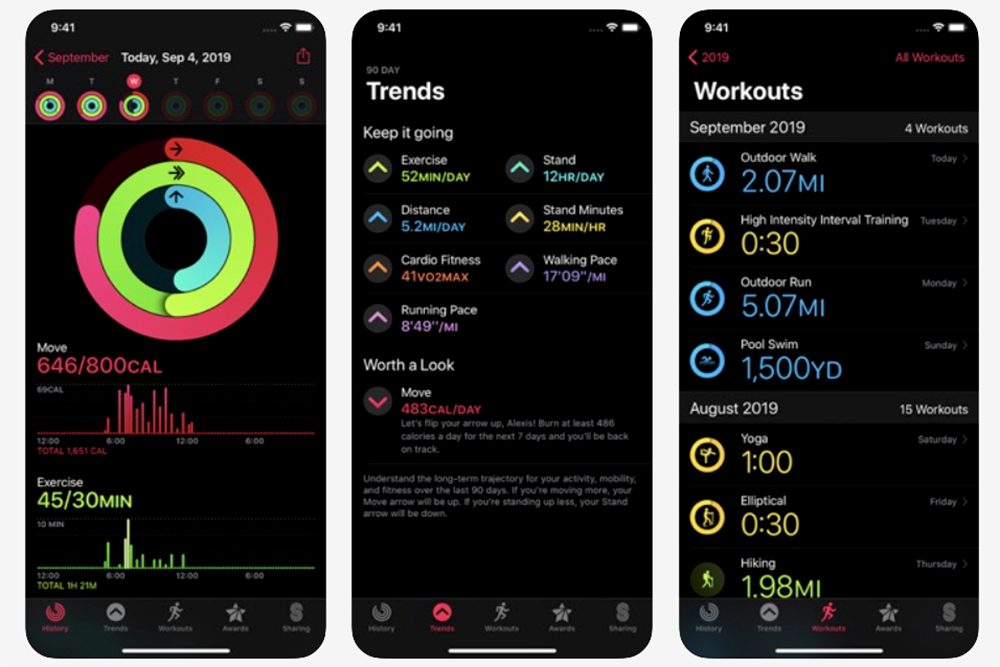
The Trends tab within the iPhone’s Activity app facilitates collaboration between the WatchOS and iOS. Focused on your health — specifically your achievements in the Move, Exercise, and Stand goals — this tab shows changes (for better or worse) over the last 90 days and gives you tailored tips on how to improve your numbers. For instance, if your calorie burning is trending downward compared to your last 90 days, your watch may tell you to burn X more calories each day for seven days to get back on goal. These tips only come when you’re not maintaining or trending upward in your goals.
Using this feature won’t require you to do anything on the Watch other than wear it for more than 180 days. Once enough data is gathered, you’ll start to receive tailored insights and a trend assessment.