
Ever since its debut, Disney+ has taken the streaming world by storm. Now, a mere six months later, it boasts 50 million subscribers worldwide. With so many great movies and shows to choose from, it’s the perfect way to spend an evening with the family. Getting Disney+ to stream on your TV, however, is not always as straightforward as it seems.
To enjoy the robust Disney+ catalog in your living room, you’ll want to ensure you have the correct streaming devices at your disposal. The best way to find out what you need is to look at the Disney+ Help Center, which outlines the various platforms and devices the service is currently available on.
For your convenience, we’ve broken down the most common ways to get Disney+ on your TV.
Smart TVs
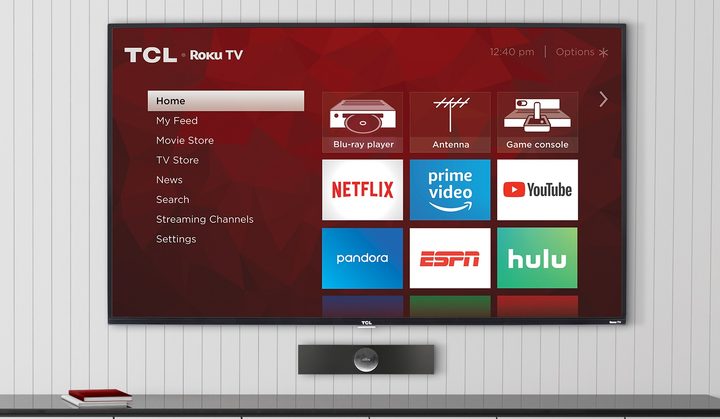
As you are probably already aware, it’s easy to access popular streaming platforms such as Netflix and Hulu using a smart TV. Disney+ does not work on all smart TV models, however, and it’s generally recommended that you use a TV newer than 2016 to stream content from the service. Let’s break down the requirements for some of the more popular brands on the market.
Samsung
You can watch Disney+ on any Samsung TV that is from 2016 onward and running the Tizen operating system. The streaming service does not support Orsay OS, so you will want to check the specifications of your television.
LG
For LG televisions, simply download Disney+ from the LG Content Store. Your LG TV needs to be running webOS 3.0, however, as Disney+ does not support any other software from the manufacturer. Unfortunately, the streaming service does not work on LG Netcast TVs.
FireTVs and RokuTV
Disney+ supports all Fire TV Edition smart TVs and FireTV devices. To get Disney+ on these devices, simply download the app from the Fire Store and log in. Disney+ also supports hundreds of RokuTV devices, so it’s a good bet yours works.
Vizio
Vizio’s Smartcast lineup is also supported. Smartcast TVs are convenient because they feature Google’s Chromecast technology, which makes mirroring your smartphone easier (more on that later). Disney+ supports most of Vizio’s Smartcast lineup, from 2016 onward. The exceptions are the E32-D1, E32h-D1, E40-D0, E43-D2, E48-D0, E50-D1, and E55-D0. That means you will want to double-check the model number if you plan on buying a new TV or want to stream Disney+ on the one you already own.
AndroidTV
Android TV is a smart TV platform that’s built a unique instance of the Android mobile operating system. Rather than simply mimicking your smartphone on a big screen, it’s designed to help users curate some of their favorite content. It’s a little bit more robust than some smart TV options, since it includes the Google Play Store with specially designed apps for a TV experience. Android TV is becoming more common, too, as Google partners with major TV manufacturers such as Sony, Hisense, and OnePlus.
You can also get Android TV through set-top boxes like the Nvidia Shield. To play Disney+ on your Android TV, download the app from the Google Play Store or mirror it from your smartphone (more on that below).
Needless to say, if you have a smart TV in your home, it is by far the easiest way to get Disney+ up and going. If you don’t have one yet, you can always check out our recommendations for the best TVs. If you are happy with what you have, rest assured, there are still plenty of options available.
Consoles and streaming devices
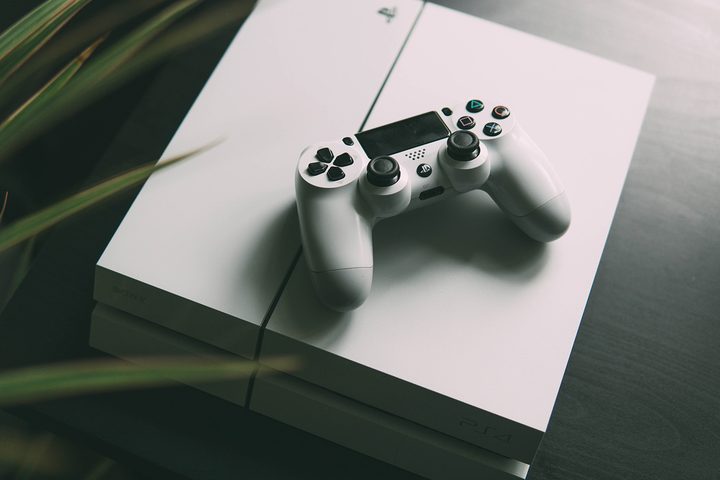
If you don’t own a smart TV, rest assured that all current-gen models from both Sony and Microsoft support Disney+. This includes the original Playstation 4, PS4 Pro, PS4 Slim, Xbox One, Xbox One S, and Xbox One X. To get Disney+ on these devices, just download the app from the respective store and log in.
You can also get Disney+ on the latest models of set-top boxes, like the Apple TV and Nvidia Shield. Disney+ supports the vast majority of Roku products as well, but not all of them. Supported Roku devices include:
- Roku LT (2700X)
- Roku 1
- Roku 2
- Roku 3
- Roku 4
- Roku Express
- Roku Express+
- 4K Roku Premiere
- 4K Roku Premiere+
- 4K Roku Ultra
- 4K Roku Ultra LT
- Roku Streaming Stick
- 4K Roku Streaming Stick+
- Roku TV
- 4K Roku Smart Speaker
You can even stream 4K content and Dolby Atmos sound, as long as your TV and audio setup support it.
Screen mirroring
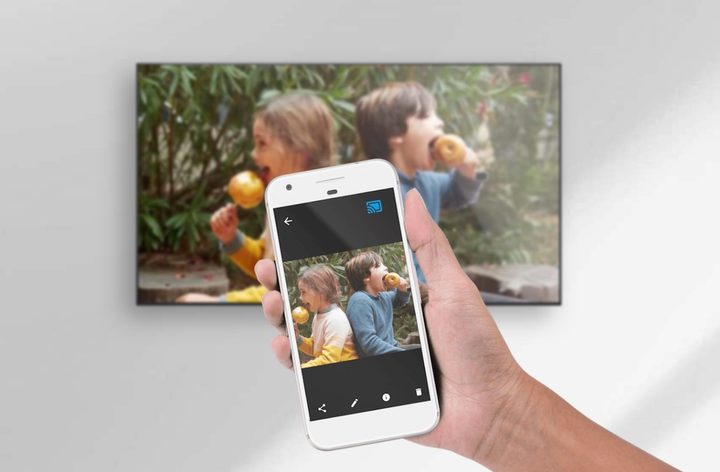
Screen mirroring is another option to stream Disney+ on your TV. Screen mirroring is convenient if you don’t want to fumble around for the right remote, or you don’t own any of the above devices.
AirPlay is Apple’s solution to screen mirroring. To use it, you will need an iPhone, a 3rd- or 4th-generation Apple TV, or a television that is compatible with AirPlay 2. Note that this solution won’t work on older Apple TVs, however, or any device running versions of tvOS older than 11.0.
On the Google side of things, a Chromecast is the simplest way to mirror your smartphone screen on your TV. The basic Chromecast will set you back about $35, but you will be able to cast just about anything from your smartphone onto your TV once you have one. You can also use smart home devices like the Google Nest Hub to cast onto your TV.
If you have an Android TV, a Chromecast is not necessary. You will be able to pull up the show you want to watch and cast it to the TV immediately, as long as the two devices are on the same network. Some smart TVs, like the Vizio Smartcast line, also have Chromecast technology built into them.
In either of these instances, you will want to download the Google Home app and connect your smartphone to the device you will want to mirror on. Then, simply select the show you want to watch, tap the cast icon, select the Chromecast or TV you want to mirror to, and the show will start streaming on your television.
Conclusion
As long as you have a semi-new TV or console, getting Disney+ on your TV is pretty straightforward. If you haven’t signed up yet, you can still opt for a free trial. Disney+ isn’t just for kids movies, either. You can also watch most Star Wars and Marvel films, as well as documentaries about the original shows.


