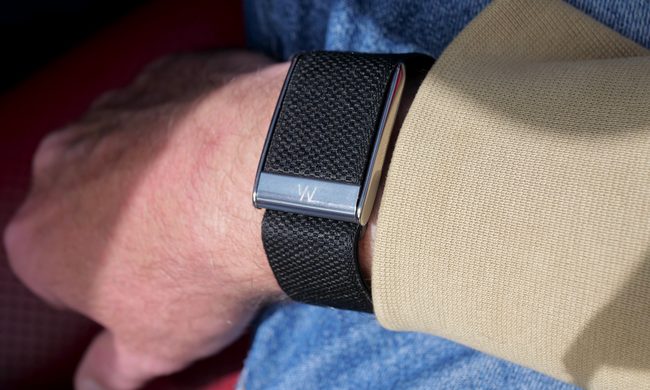
Apple’s new watches have some pretty interesting features packed in them. From the new blood oxygen sensor on the Series 6 to the affordable Watch SE, there are plenty of reasons to love Apple Watch right now.
Among the coolest things Apple introduced in this cycle are the new Solo Loop straps for the smart watch. The Solo Loop doesn’t have any holes or clasps. Rather, it stretches over your hand and fits snugly on your wrist. It’s a sleek and minimal band that comes in a variety of eye-catching colors.
However, since it doesn’t have a clasp, customers need to select a specific size for their Solo Loop. How do you determine which one is the right size for you? That’s what we break down here.
Head to Apple’s website
The best way to find guidance is by heading directly to Apple’s website. You can either design a watch through Apple Studio or simply buy one, but either way should bring you to a screen like this before checkout:
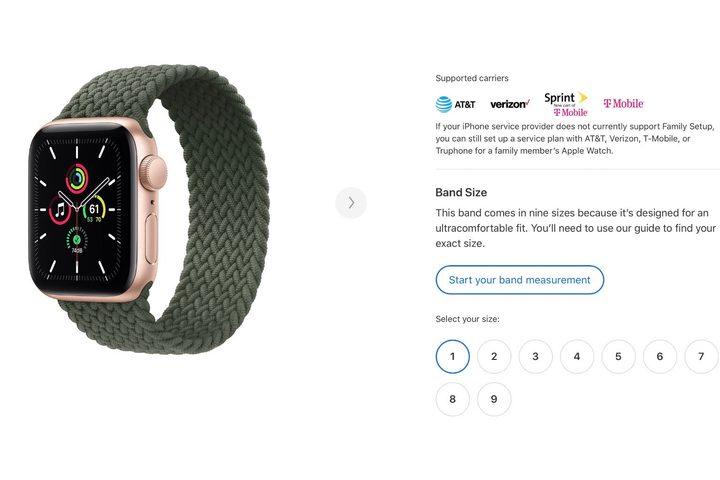
Once you land on this page, click the “Start your band measurement” button to get started. From here, Apple will give you two options. You can either print out a custom-made tool from Apple to help you choose the right one, or use some household objects you already one.
We will break down both now.
The printable tool
When you click on the tool, Apple will prompt you to download the printable tool. It is essentially a paper wrist strap. Make sure to print the page at 100%, not scale to fit. The sheet has been specially created to be printed at a specific size, and if you don’t, the measurements will be way off.

After you print it out, use scissors to cut out the tool and wrap it around your wrist. Make sure the side with the numbers and arrows is facing straight up. The wider section of the tool should sit on the top of your wrist — similar to where the watch face would sit. When you wrap the tool around your wrist, the arrows should point at a number indicating the size you need. If it lands between one of them, Apple recommends going with the lower number.

Once you get the tool printed out, it is really the most convenient way to find the right size. If you don’t have a printer, though, or just don’t want to print it out, there are some household items to get the job done.
Household objects

There are a few things lying around the house you can use to get the right Solo Loop size. First is measuring tape. Wrap the tape around your wrist to get the circumference, and then head back to the Apple page. When you tap “Start your band measurement,” click the blue box that says “Got it. What’s next?” Enter the measurement you just took, and Apple’s site will tell you which size is best for your wrist.
The other option is essentially making your own custom tool. You will need a pen, some paper, and a ruler. Cut a narrow strip out of the paper, about 1/2 inch according to Apple. Next, wrap the strip around your wrist and mark where the two ends meet. Take the strip off and use the ruler to measure the distance from the end to the mark. Be exact, and then put that measurement in as described above. Apple will give you the size you need.
The printable tool is obviously the easier method, but using household objects is great if you’re in a pinch or don’t own a printer.
For more on Apple’s products, check out our review of the latest iPad, as well as our comparison between the iPad and iPad Air.