
With Android Auto, you can keep your focus on the road while still accessing maps, music, podcasts, messages, phone calls, and more from your Android smartphone. Designed to work with Android Marshmallow 6.0 and up, your favorite apps can appear on your dashboard while driving, providing you with a more connected digital experience.
With Google Assistant built-in, you can issue voice commands hands-free to remain safe on the road. If you have an Android device and want to get started, follow our guide on how to set up Android Auto.
Do you own an Apple iPhone? Be sure to check out our guide on how to set up Apple CarPlay to access what’s important to you while you’re on the road.
Acquiring the necessities
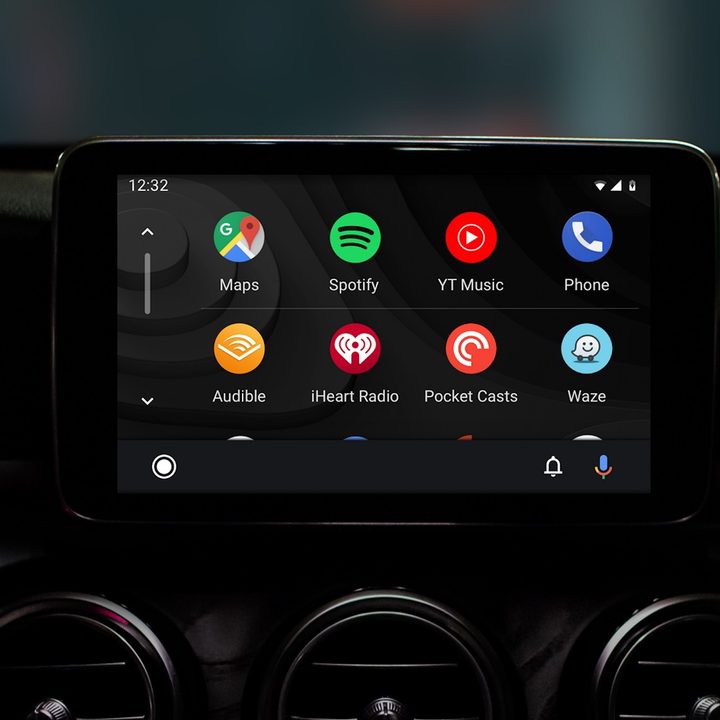
Before we can get started with Android Auto, you’ll need to make sure that you have everything required for the experience. As a starter, you will need an Android smartphone running Android Marshmallow 6.0 or greater. Wireless Android Auto, available on some vehicle stereos, requires Android 10 or higher. Some Samsung Galaxy devices, including the S8, S8+, and Note 8, will work running Android 9.0 or greater.
Additionally, you will need a car or stereo compatible with Android Auto. To check if your vehicle or stereo is compatible, visit Google’s website, where they list all brands currently supported and which models support wireless Android Auto. If your car or stereo does not support a wireless connection (most will require a wire), you will need a USB cable to connect your smartphone.
Setting up Android Auto (Wired)


The most common type of Android Auto connection is wired, which uses a USB cable to connect your smartphone to your car stereo. Ensure that you select a cord with the proper connectors; for example, a car with a USB-A port and a smartphone with a USB-C port will need a USB-A to USB-C cable for the connection process. When ready, follow these steps to connect your Android smartphone:
Step 1: Ensure that you are in a safe location and put your vehicle into Park.
Step 2: Turn on, and unlock, your Android smartphone.
Step 3: On your smartphone, if not already present, download the Android Auto app from the Google Play store.
Step 4: Using the USB cable, plug your smartphone into your vehicle.
Step 5: Your smartphone will display a Welcome to Android Auto screen; if it does not, check your car’s stereo display for any confirmation prompts.
Step 6: Accept Google’s notices and permissions by clicking OK or Next.
Step 7: From your vehicle’s touchscreen, select Android Auto if it has not automatically launched. For more information on your vehicle, contact your automotive manufacturer or reference your vehicle’s instruction manual.
You can now begin using Android Auto in your vehicle. For more assistance using Android Auto, reference our How to use Android Auto guide.
Setting up Android Auto (Wireless)
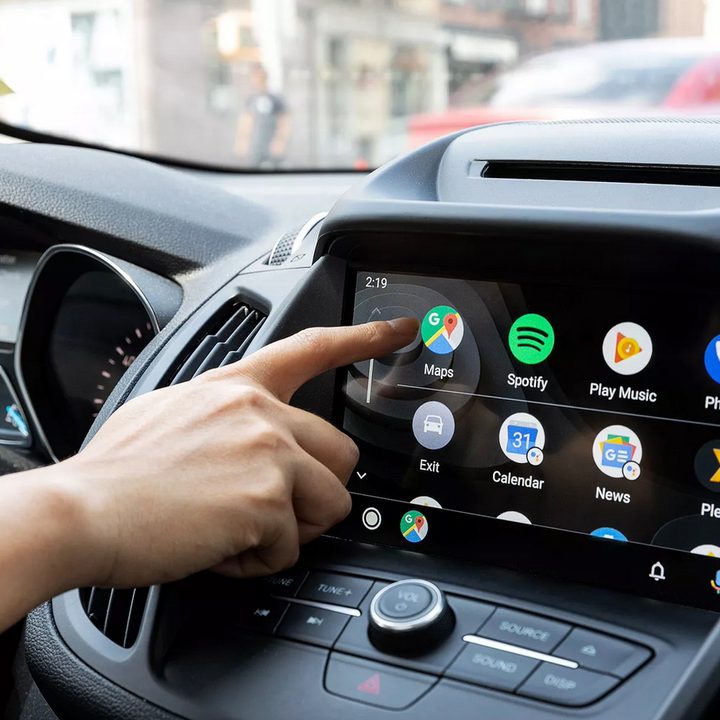
Some new stereo units and vehicles offer Android Auto Wireless connectivity. If you choose, you can use the wireless option to use Android Auto without needing to plug your smartphone in with a USB cable. Remember to check Google’s website for compatibility to see if your smartphone and stereo both support the wireless feature.
Step 1: Ensure that you are in a safe location and put your vehicle into Park.
Step 2: Turn on, and unlock, your Android smartphone.
Step 3: On your smartphone, if not already present, download the Android Auto app from the Google Play store.
Step 4: On your vehicle’s stereo, navigate into settings, then locate the Bluetooth option. For more information on your using your car, contact your automotive manufacturer or reference your vehicle’s instruction manual.
Step 5: On your smartphone, open the Settings app, then select Bluetooth.
Step 6: Within the Bluetooth menu on your smartphone, select your car to begin the pairing process; you may need to confirm a PIN.
Step 7: Once connected, your smartphone will display a Welcome to Android Auto screen; if it does not, check your car’s stereo display for any confirmation prompts.
Step 8: Accept Google’s notices and permissions by clicking OK or Next.
Step 9: From your vehicle’s touchscreen, select Android Auto if it has not automatically launched. For more information on your using your car, contact your automotive manufacturer or reference your vehicle’s instruction manual.
You can now begin using Android Auto in your vehicle. For more assistance using Android Auto, reference our How to use Android Auto guide.


