
When working with a spreadsheet, shortcuts and tips that help you complete tasks faster or better are invaluable. Similar to ways to improve your workflow in Microsoft Word, Excel has its own set of helpful tricks.
With this list of useful tips, you can eliminate tedious work, quickly perform operations, reduce errors, and insert graphs or tables with a click. Use one or use them all to make your daily Excel duties a breeze.
Perform paste special operations
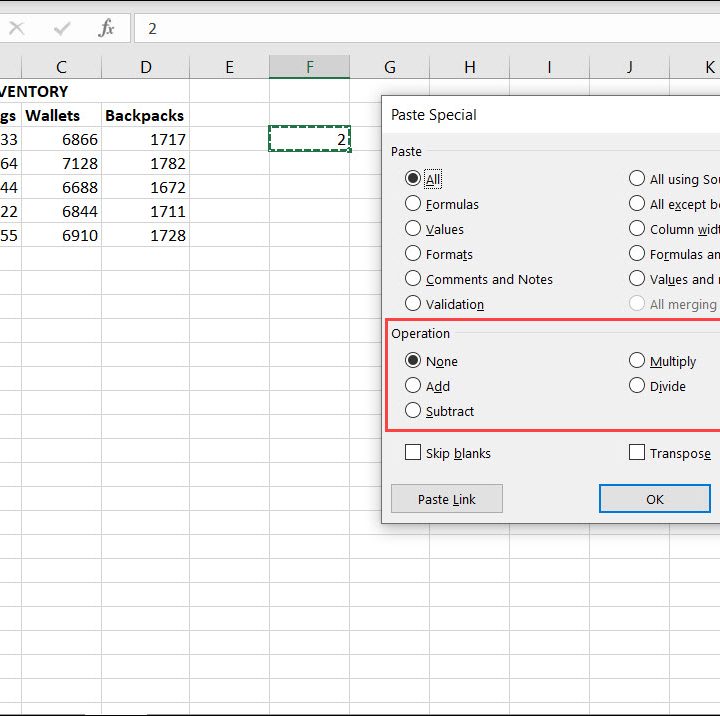
Copy and paste are simple actions that most people know how to use. However, Excel offers several paste special options that let you paste data and perform basic equations at the same time.
This means that you can add, subtract, multiply, or divide every value in a cell range by a specific number with paste special.
Step 1: Copy the cell containing the number you want to use in your calculation one of these ways:
- Right-click and select Copy.
- Select Copy in the Clipboard section of the ribbon on the Home tab.
- Use the keyboard shortcut Ctrl + C on Windows or Command + C on Mac.
Step 2: Select the cells containing the values where you want to perform the calculation.
Step 3: Open the Paste special menu one of these ways:
- Right-click and pick Paste special.
- Select Paste > Paste special in the Clipboard section of the ribbon on the Home tab.
Step 4: When the Paste special box appears, choose the calculation you want to perform in the Operation section.
Step 5: Click OK.
You’ll then see your data update with the calculation performed. You don’t have to worry about manually adding, subtracting, multiplying, or dividing a group of cells, which is a tedious task and increases the risk of errors.
Learn to love functions

Functions and formulas can be intimidating. But once you start using them, you’ll appreciate how much time they can save you. Plus, you’ll lessen the chance of errors from performing calculations manually.
If you’ve never used functions before, you can start with the basics of sum, average, minimum, maximum, and count.
Step 1: Select the cell where you want to use the function. This is the cell where the formula resides and the result of it displays.
Step 2: Select the arrow next to AutoSum in the Editing section of the ribbon on the Home tab. Choose the calculation you want to use.
Step 3: You’ll see the Function appear in the cell awaiting the values you want to use.
Let’s say you want to add the values in the cells A1 through A5. Drag through that cell range or add it after the opening parenthesis in the formula as A1:A5. Be sure to finish the formula with a closing parenthesis as in the screenshot above.
Step 4: Press the Enter or Return key.
You’ll then see your calculation performed per the function you selected.
For the full set of functions available in Excel, head to the Formulas tab. Then, use the Function Library in the ribbon to pick a logical function like IF or reference function like VLOOKUP.
Use quick analysis to add formats, charts, totals, and tables
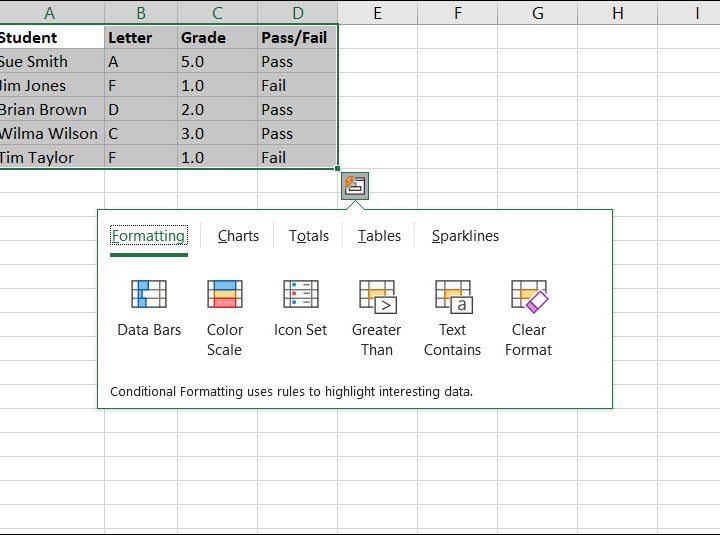
Excel helps you to automatically format cells with conditional formatting, create charts with recommendations, insert tables and pivot tables, and get totals. But what you might not know is that you can do things like this superfast with the quick analysis tool. Here’s how it works.
Step 1: Select a range of cells where you want to perform one of the above actions.
Step 2: Select the Quick Analysis button that displays in the corner of the cell range. Alternatively, you can right-click and pick Quick Analysis.
You then see a small box with a list of the actions and available options for each. These vary depending on the type of data in your cells, so let’s look at an example.
Here we have student grades and the cell range includes names, letter grades, numerical grades, and pass/fail text. When we open the quick analysis tool, we can then apply conditional formatting, insert a chart, get totals, create a table, or add sparklines.
Step 3: Simply select the tab for the action you want and then choose the option for that action.
Boom! You just saved yourself a ton of time from doing one of these things from scratch.
Autofill patterns and formulas

Microsoft Excel provides a handy autofill feature for populating cells easily. You can enter a couple of items in a list, such as months of the year, and add the remaining items by dragging. Autofill also helps you copy and paste formulas you create with the functions mentioned earlier.
Pattern Fill: Enter (at least) two list items, select the cell containing the second one, then use the fill handle (plus sign on the cell border) to drag through the remaining cells. As examples, you can enter January and February, Monday and Tuesday, or even A and B. Then, fill the rest of the cells!
Formula Fill: Select the cell containing the formula and use the fill handle to drag the formula to the remaining cells. Note: If you use absolute rather than relative references, you’ll need to adjust the formulas after filling them.
Tip: You can fill the remaining cells to match the number of rows already filled by simply double-clicking the fill handle.
Autofill is an enormous timesaving tool in Microsoft Excel.
Copy from the status bar
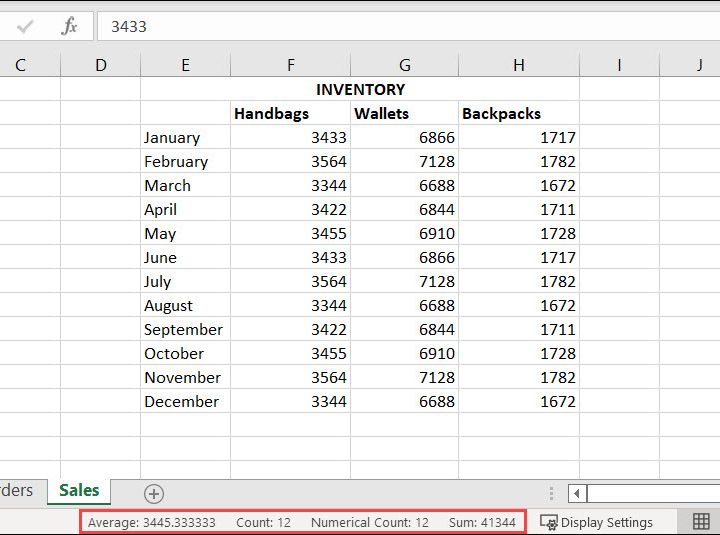
The status bar at the bottom of the application is helpful for seeing quick calculations like sum, average, and count. But with an update to Excel for Windows in March 2022, you can actually copy these calculations with a click.
While this feature may still be rolling out to users and you might not see it yet, it’s definitely one to keep on your radar.
Step 1: First, make sure that you have the calculations marked so that they appear in the status bar. To do this, right-click the Status Bar and select each to place a checkmark next to it.
Step 2: Select the cells to display the calculation you want in the Status bar.
Step 3: Next, select the calculated value in the Status Bar. This places it on your clipboard.
Step 4: You can then paste the value in your spreadsheet or a completely different application.
The ability to copy values directly from the clipboard keeps you from having to enter a formula or function manually, but still get the result you need — faster than ever!
Want even more? Take a look at these additional Excel tips for mastering your spreadsheet.


