  1. Home
  2. Computing
  3. How tos

How to pin a tab in Google Chrome

Add as a preferred source on Google
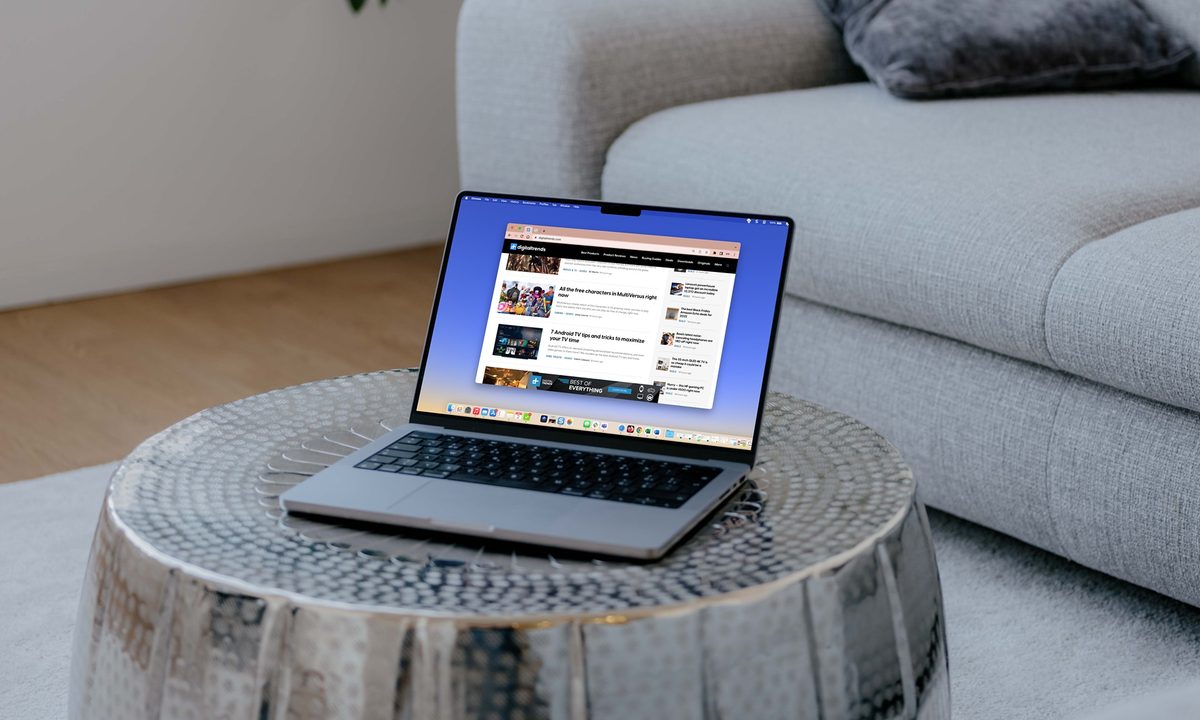
Google Chrome with pinned tabs on a MacBook on a table.
Digital Trends

Like all of the best browsers, if you have particular websites that you visit regularly, Google Chrome offers a handy feature so that you can keep those sites at your fingertips. Here’s how to pin a tab in Google Chrome for quick and easy access to your favorite websites.

Recommended Videos

Difficulty

Easy

Duration

5 minutes

What You Need

  • Google Chrome web browser

How to pin a tab in Chrome

The pin feature for Chrome is available on both Windows and Mac and works the same way on each platform.

Step 1: Open Google Chrome and head to a website you want to pin.

Step 2: Right-click the tab for the site at the top of the Chrome window.

Step 3: Select Pin from the shortcut menu.

You can also use a Chrome shortcut to pin a tab. Right-click the tab, press the P key, and hit Enter or Return.

Pin in the shortcut menu for a Chrome tab.
Image used with permission by copyright holder

Step 4: You’ll then see the tab shrink to the website’s favicon without its name and move to the left of the tab row. The pinned tab stays in the spot, even if you close and reopen Chrome. So, you always have the site you need just a click away.

Tab pinned in Google Chrome.
Image used with permission by copyright holder

Rearrange pinned tabs

Because you can pin more than one tab in Chrome, you may want these tabs in a certain order from left to right. Just like with tab groups in Chrome, you can drag to move a pinned tab where you want it.

Select a pinned tab and drag it left or right to position it where you want in the tab row.

How to unpin a tab in Chrome

If you pin a tab for a site that you no longer want, you aren’t stuck with it. You can unpin a tab just as easily as you pin one.

Step 1: Right-click the pinned tab that you want to remove.

Step 2: Select Unpin in the shortcut menu.

Like pinning a tab, you can use a Chrome shortcut to unpin a tab. Right-click the tab, press the U key, and hit Enter or Return.

Unpin in the shortcut menu for a Chrome tab.
Image used with permission by copyright holder

Step 3: You’ll then see the tab return to the tab row as an ordinary tab with the favicon and the site name.

Unpinned tab in Google Chrome.
Image used with permission by copyright holder

Having fast access to websites you visit daily or several times a day is a true time saver. So, remember this tip for how to pin a tab in Google Chrome.

For more, check out these things you didn’t know you could do in Chrome.

Sandy Writtenhouse
Sandy has been writing about technology since 2012. Her work has appeared on How-To Geek, Lifewire, MakeUseOf, iDownloadBlog…
AI may have just won a literary prize. My heart weeps seeing it poison our love for books.
updated book and AI photo

I had a hard time processing this news. As someone who has been deeply in love with stories since childhood and who grew up on the works of Arthur Conan Doyle, Terry Pratchett, J.R.R. Tolkien, and other such venerable authors, seeing an AI-written story win a prestigious writing award is hard to digest. 

If you are unaware, the winners for the Commonwealth Short Story Prize for 2026 were announced, and three of the five winning regional stories have been found to be entirely or partially written by AI. Or at least that seems to be the consensus among readers. As a reader and an amateur fiction writer, this hurt me deeper than any other tale of AI corroding our lives.

Read more
Canva and Adobe are coming to Gemini, and they want to make everything chatty
Adobe and Canva are plugging into Google’s assistant, betting that creative work starts with a prompt, not an app icon
Art, Collage, Photography

Canva and Adobe are moving deeper into Google Gemini, giving the assistant a bigger role before users ever open a design app.

Adobe says its "Adobe for creativity" connector is coming to Gemini in the coming weeks, giving users a way to describe tasks and send them through Adobe tools for imaging, design, and video. Canva is already rolling out its Connected App for Gemini in select English-language markets, with full availability coming soon.

Read more
AI can pass the Turing Test in live chats and appear more human than us. I am spooked now
UC San Diego researchers found GPT-4.5 was judged human 73% of the time in live conversations
Image of a human woman next to an AI-generated face with Real or Fake text at the bottom.

AI can pass the Turing Test in live chats, and the latest result lands with a chill. In a UC San Diego study, GPT-4.5 outperformed real participants at convincing judges there was a person on the other side.

The setup was harder to shrug off than a standard benchmark. Judges reacted to real-time exchanges rather than static prompts, then made a fast call based on conversation alone.

Read more