

ChatGPT has been hailed as a revolutionary tool in the technology space. However, it does have its limitations in terms of interface functionalities. One such constraint is the lack of an integrated search that would allow you to easily bring up former conversations by typing a simple keyword or phrase.
ChatGPT does keep an itemized history of former conversations that you can reference manually on the left side of the home page. Once you find the conversation you’re looking for, you can click it and it will repopulate in the main response space. However, if you’re a power user with hundreds of prior queries who might want to refer back to old results, this could be somewhat of a challenge.
A recent update has organized the ChatGPT conversation history by month and year, which could make it easier to manually scroll through and find individual topics. Still, the task of having to scroll through old conversations on a month-by-month or year-by-year basis to find the one you want is potentially tedious. These solutions will help you find what you’re looking for, although if you have deleted ChatGPT conversations, these will remain deleted.
How to search ChatGPT using Superpower ChatGPT
Superpower ChatGPT is an extension that includes an extensive amount of features, in addition to search. The extension is compatible with Google Chrome, Mozilla Firefox, and Microsoft Edge. To install for Chrome, search Superpower ChatGPT in the Chrome Web Store and select Add to Chrome. For Firefox, you search in Browser Add-ons and select Get this Extension. You can find an installation shortcut for Edge through the Chrome Web Store landing page on the Microsoft browser under Superpower ChatGPT. Select Get and it will automatically download.
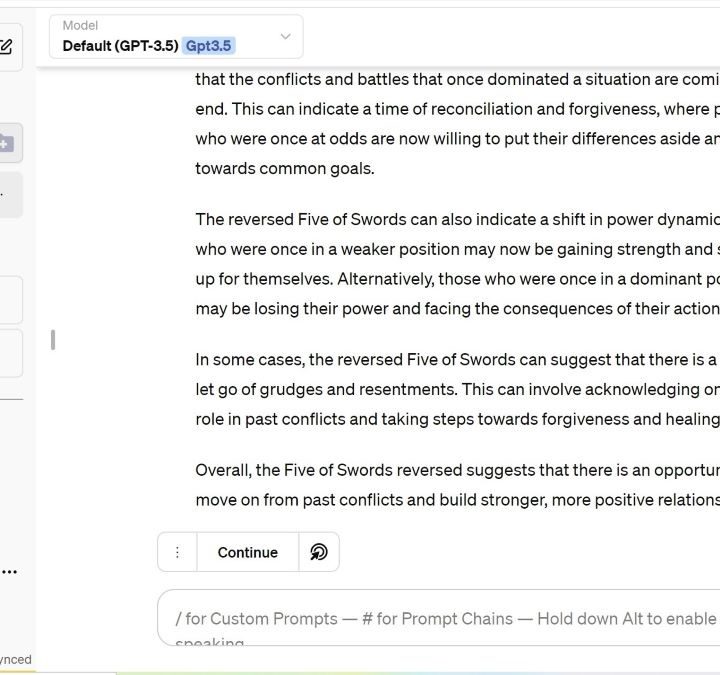
Once it’s installed, you must refresh the web browser and allow it time to sync your data. When it is up to date, your recent conversations will sync automatically. From there, you’ll be able to use the Search Conversations search bar to type in any keywords or phrases to find the conversations you desire. Any conversations with those terms will populate in the main response space and you can go through the results to find the exact prompt you were seeking.
Superpower ChatGPT has other notable features to help you save and retrieve conversations in the future, including Folders, which allow you to move chats for better organization, pin important messages for easy retrieval, and review conversations in My Prompt History, which also has a search feature and a separate section for Favorites.
How to search ChatGPT using ChatGPT history search
The ChatGPT history search is a straightforward tool that enables a search bar within the chatbot interface with no frills. The extension is compatible with Google Chrome and Microsoft Edge. To install for Chrome, search ChatGPT history search in the Chrome Web Store and select Add to Chrome. The Edge extension is also accessible through the Chrome Web Store landing page on the Microsoft browser.
Once installed, refresh ChatGPT and you’ll find a new Search Chat option below the New Chat option on the left side of the home page. This will bring up a pop-up search bar on the right. Type your keyword or phrase and click the text bubble on the right side of the search bar to enable the search. This will bring up the option or options that show up in the results. Once you find the result you’re looking for, you can click the expand icon to have the conversation populate in the main response space.
Search ChatGPT wih Ctrl + F
While installing an extension is a great option to enable a search function on ChatGPT, you might have missed the fact that all computers have a built-in search function that can easily be used to locate old conversations on the chatbot. You can use the browser-agnostic Control/F function, which is the same across operating systems as well.
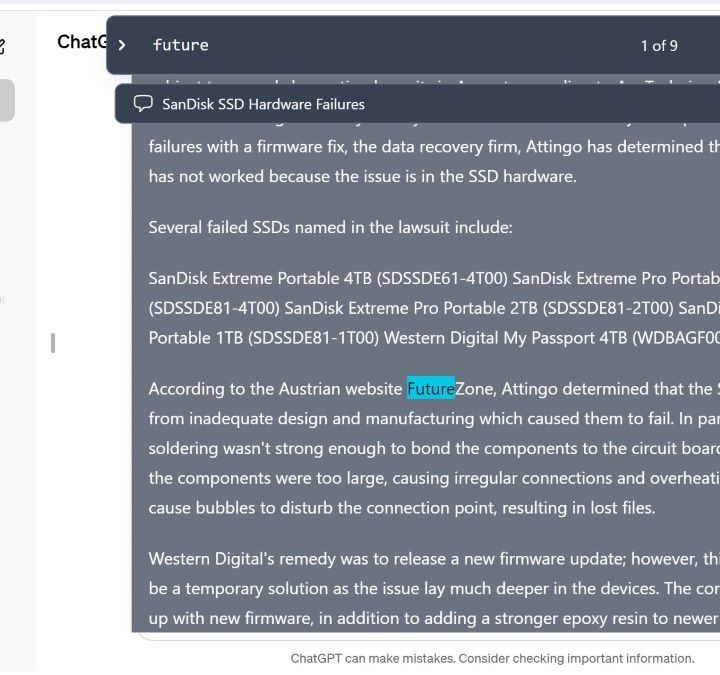
To ensure this method works best, clear any old conversations by clicking New Chat. Press the Crtl + F keyboard shortcut type your keyword or phrase in the find bar that pops up and press enter. This will highlight all of the corresponding phrases on the webpage, particularly in the conversation history. Keep pressing enter until you find the conversation that you’re looking for and click it to populate it into the main response space. It might be tedious if you have a lot of conversations in your history, but it is still a savvy option in a pinch.
Knowing how to search the AI tool is one of the best ChatGPT tips you should learn.


