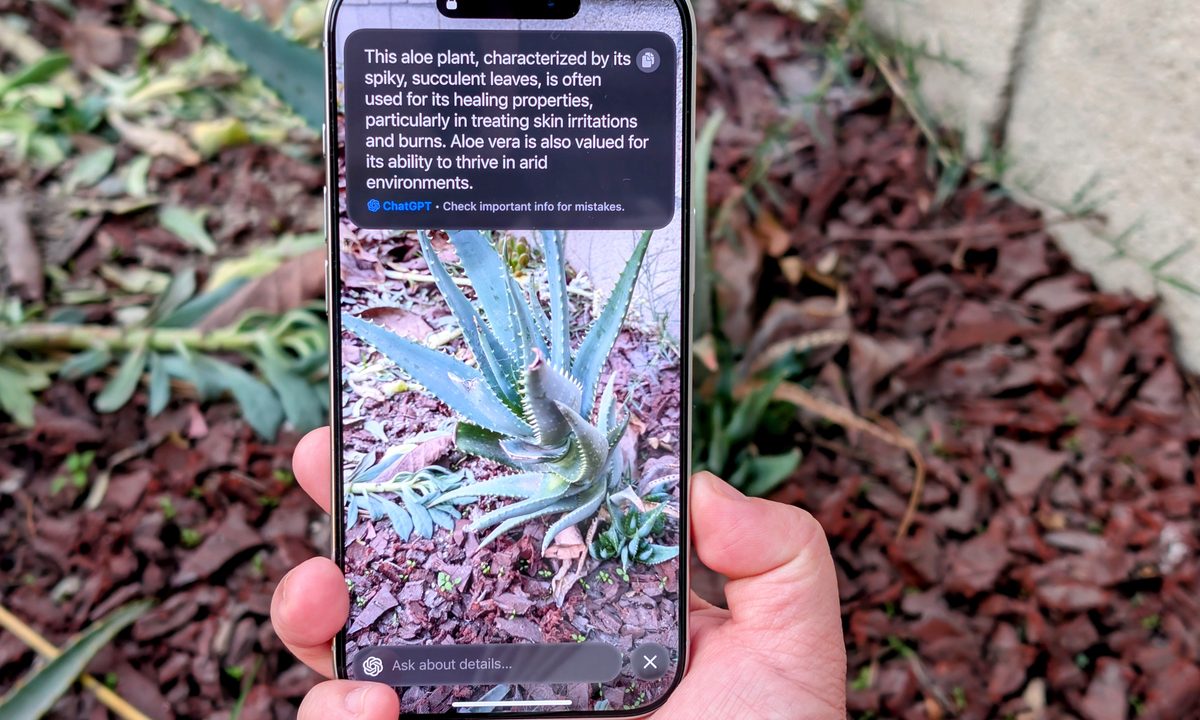
Though the iPhone 16 series launched in September, it shipped with iOS 18 sans Apple Intelligence. Instead, Apple began rolling out Apple Intelligence features starting with iOS 18.1, and then more AI tools arrived in iOS 18.2, including Visual Intelligence for the iPhone 16.
But how do you use Visual Intelligence? It’s actually super easy, but you need to make sure you have an iPhone 16 device, as it requires the new Camera Control feature. Here’s how it works.

What is Visual Intelligence?
Before we get into how to use Visual Intelligence, let's first break down what it is exactly? Think of it like Apple’s version of Google Lens for your iPhone 16.
Once Visual Intelligence is activated, just point the camera at something, and then you can ask ChatGPT to identify it or do a Google Search on what the camera is seeing. The results that you get will vary depending on what you’re pointing at and whether it’s trying to figure out what an object is or get more details about a location. It can even do various actions with text.
Again, Visual Intelligence requires iOS 18.2 and an iPhone 16 device. This means you must have an iPhone 16, iPhone 16 Plus, iPhone 16 Pro, or iPhone 16 Pro Max to use this feature, as it requires the new Camera Control button.
How to activate Visual Intelligence
Activating Visual Intelligence is pretty easy, but you do have to make sure Apple Intelligence is on first.
Step 1: Launch Settings on your iPhone 16 device.
Step 2: Select Apple Intelligence & Siri.

Step 3: Make sure the Toggle for Apple Intelligence is On.
Step 4: If this is your first time turning on Apple Intelligence, you may need to join the waitlist first. Once you're in, it may then need to download data in the background before you can start using it.

Step 5: Activate Visual Intelligence by pressing down and holding the Camera Control button.
Step 6: Point your camera at something you want to find out more about.
Step 7: Select the shutter button to do a quick snapshot (not saved to Camera Roll) and then select Ask or Search.
Step 8: Another method is to just point the camera at something and then select Ask or Search directly.
Step 9: By default, the Ask option will ask ChatGPT “What is this?” However, if you want something more specific, just type in a question about what you’re looking at.
Step 10: For Search, it basically gives you Google search results.


What can you use Visual Intelligence for?
Visual Intelligence is a simple feature that can open up a world of possibilities.
The basic use case is just looking up what something is. This is great for identifying plants, flowers, animals, food, or anything else. It’s also useful for looking up where you can purchase an item that catches your eye with the Google search results.
Visual Intelligence is also very useful for getting information about a place that you’re passing. For businesses, you can get information on things like hours, available services or menu, contact information, reviews and ratings, and reservations. You can even place an order for delivery. You can also call a phone number or go to the website, all just from pointing Visual Intelligence at a business.
Lastly, you can use Visual Intelligence on text for a variety of reasons. Visual Intelligence can help you summarize text, translate it, or even read it out loud. And if there’s contact information, Visual Intelligence can call the number, start an email, create calendar events, and more.
As you can see, there’s quite a lot that you can now do with Visual Intelligence through the Camera Control. Unfortunately, it doesn’t look like this feature will end up on the iPhone 15 Pro or iPhone 15 Pro Max due to the Camera Control requirement, which allows Apple to make it a selling point for the iPhone 16 series.