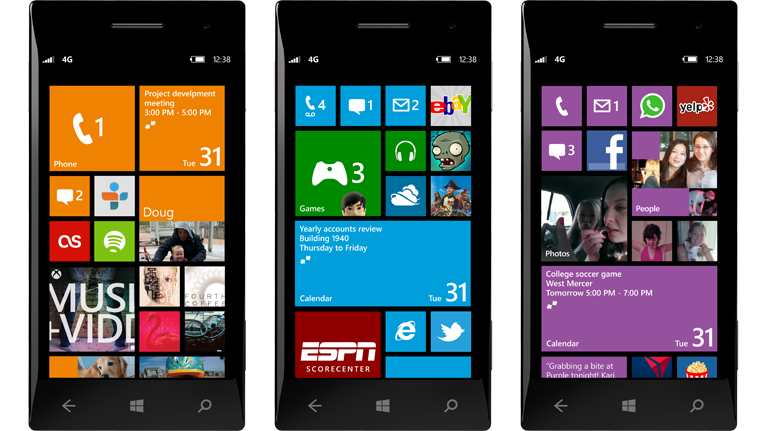
The main draw and most heavily advertised aspect of Windows Phone 8 is the homescreen – or Start screen, as Microsoft calls it. According to its celebrity-stuffed advertising, WP8 is able to suit the needs of any smartphone user by offering an incredibly customizable homescreen. However, rather than blindly accepting WP8’s hyped-up chameleon qualities, we decided to put it to the test using a Nokia Lumia 920.
As an experiment, we crafted five possible WP8 user types and designed unique layouts for each one. The only constants in each Start screen are the four core apps (phone, messaging, Internet Explorer, and email). In our experience, WP8 is the most easily personalized mobile operating system out there. Below are our first attempts at crafting some custom Start screens.
Recommended Videos
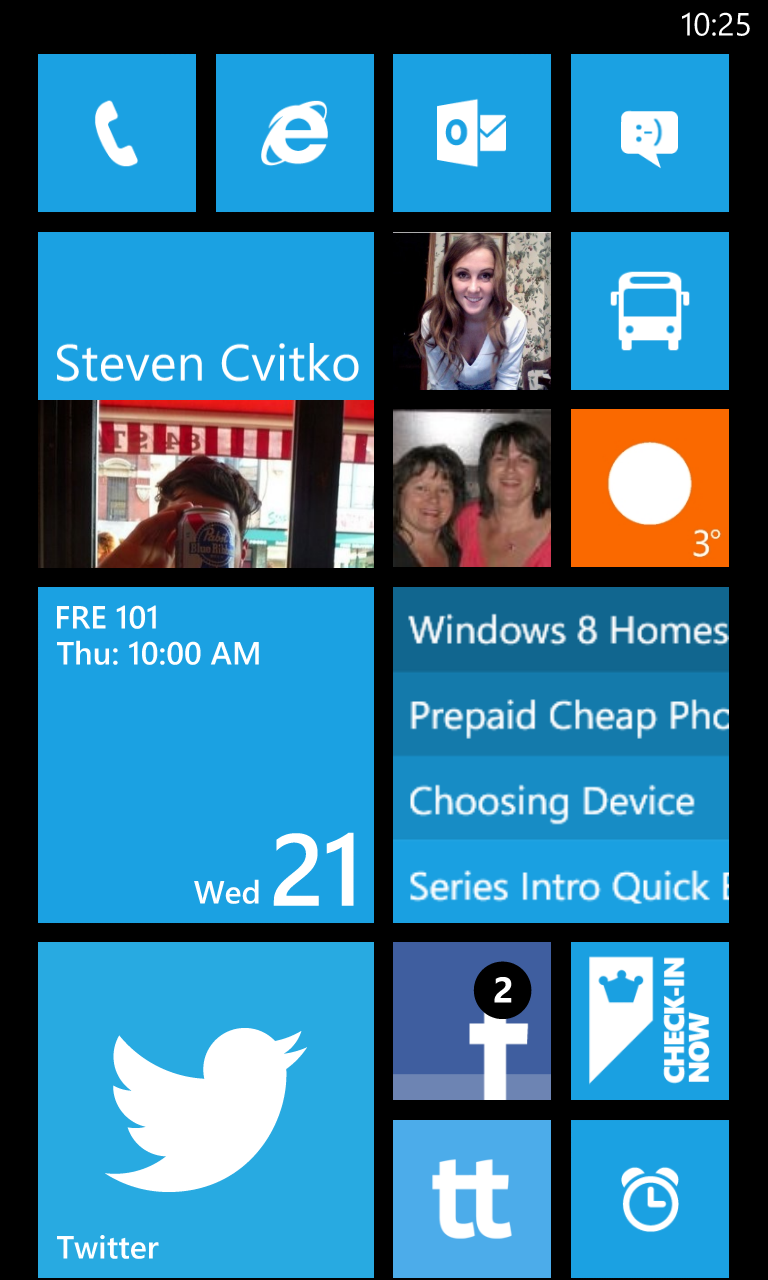
Start screen for the Average Joe
This homescreen is designed to cover the basic needs of an “average” user. A square calendar tile displays upcoming appointments, Clearer (our favorite to-do list app, though it is a blatant rip-off of Clear) depicts pressing tasks, and a few favorite people are pinned near the top. We also included a live tile for Weather and a shortcut to Nokia’s transit apps, both indispensable items for the urban professional.
Another option for this would to incorporate a Me tile to keep track of most social notifications, freeing up some space taken by the Twitter and Facebook tiles. But most people will appreciate the option of a more conventional social media experience.
Obviously, the minimalist likes to keep the homescreen to a bare minimum. We went with the slate theme as minimalists aren’t the types to mess around with colors … too distracting.
Every basic function is represented on the Start screen, and aside from the weather forecast, no animated tiles are used. This arrangement shows that WP8 doesn’t necessarily have to be saturated with information and flashy animations.
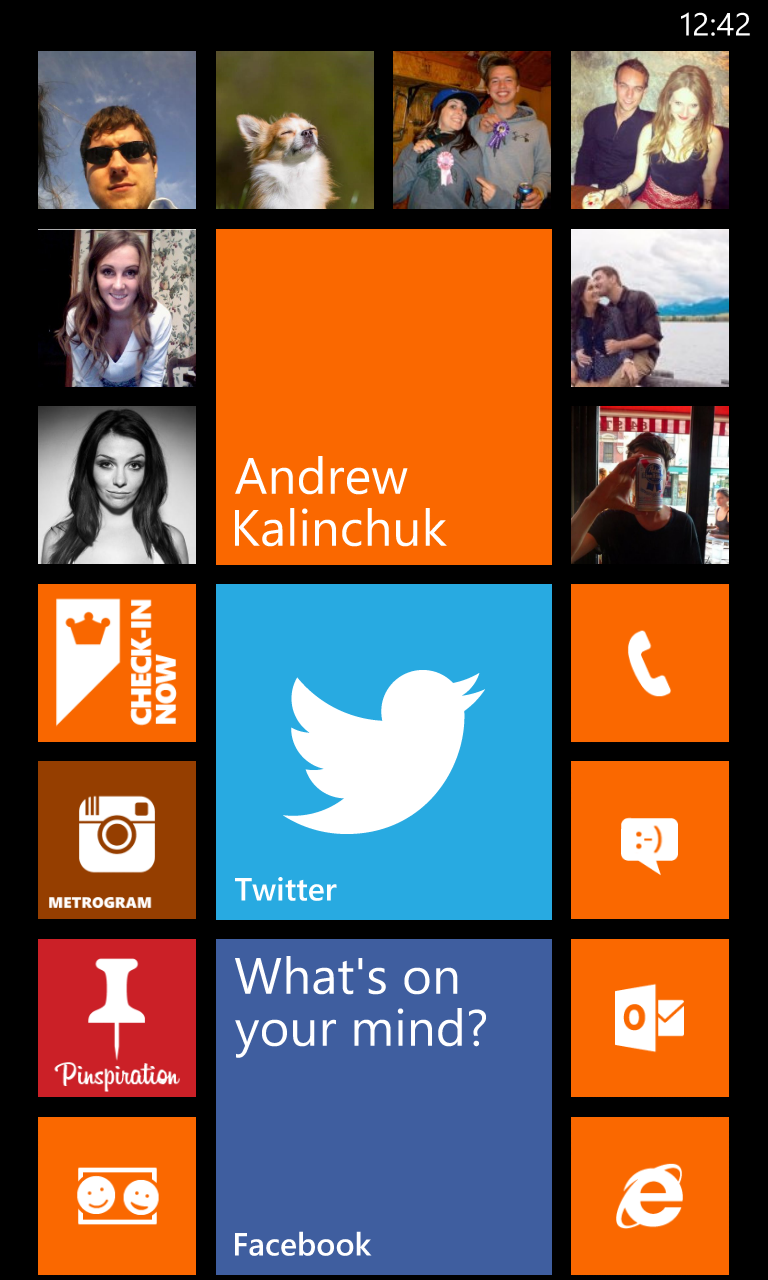
This design is made for the social media addict, who impulsively shares each and every moment. It revolves around a medium-sized Me tile capable of aggregating social notifications. Surrounding that are frequently viewed contacts. Social networking apps are pinned below.
We included third-party clients for Pinterest and Instagram, though they don’t compare to what’s available on iOS or Android. But we’ve all cried enough about lackluster WP8 apps, time to move on.
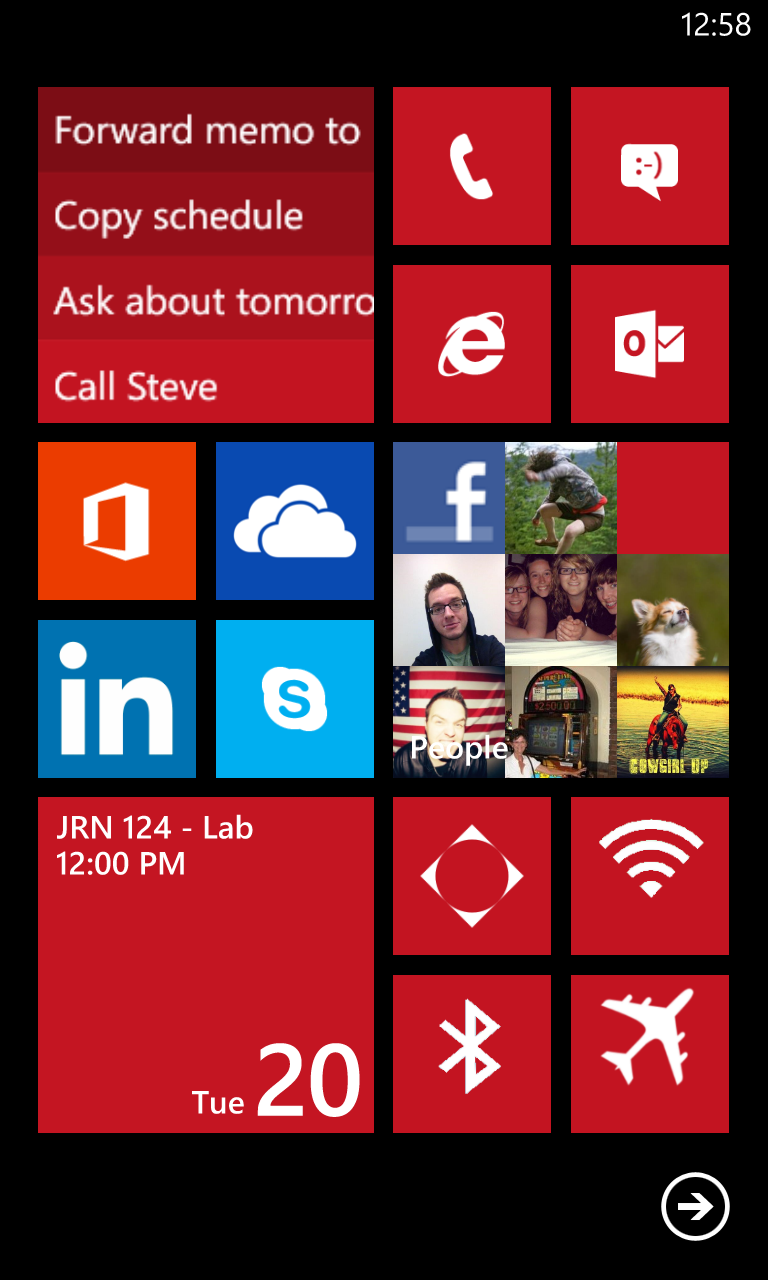
A power user doesn’t have the stomach for clutter and garish colors. They want to get in, get stuff done, and get out. Here we created a one-page layout – no scrolling required.
The four core apps are present, as well as Clearer for to-do lists, Skype for IM, Office for on-the-go editing, and shortcuts to common settings (Bluetooth, Wi-Fi, GPS, and Airplane). Unfortunately, these shortcuts aren’t toggles – they link to the actual Settings – but we’d love to see more immediate access in the future.
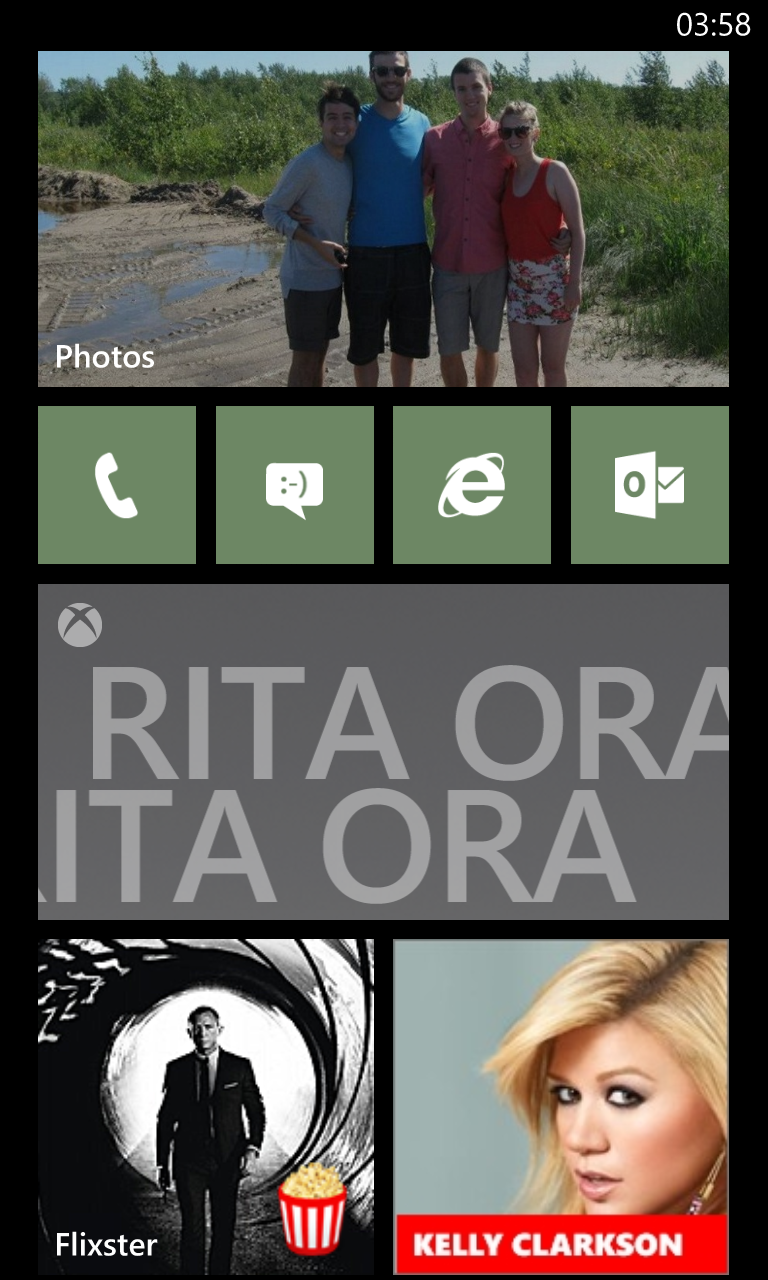
The final design we created leans toward a media-heavy user, someone who spends most of his or her time listening to music and watching video. We used a broad Photos tile, a full-size Xbox Music + Video tile, and pinned Flixster and VEVO to the homescreen for the latest in film and music. Other apps like Netflix and Spotify could also work.
With the right tiles in use it’s easy to have media be the focus of your WP8 device, rather than exclusively displaying colored blocks. Plus, everybody loves a good slideshow.
Snapchat Planets: What’s the order, and what do they mean?
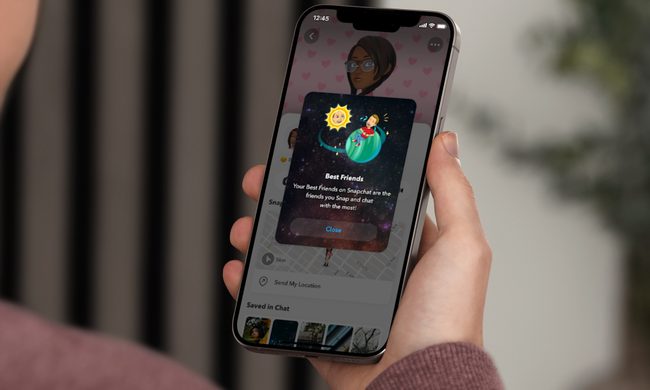
Snapchat Planets turns your best friends list into a solar system, and yes, your orbit says a lot
Snapchat is already packed with little symbols that can be weirdly hard to decode. You have streaks, emojis, badges, scores, Best Friends, and if you use Snapchat Plus, a tiny solar system that shows where you sit in someone’s closest-friends list.
The feature is called Friend Solar System, though most people just call it Snapchat Planets. It takes your position in a friend’s Snapchat orbit and turns it into a planet. From Mercury to Neptune, these celestial bodies signify how close a person is to you.
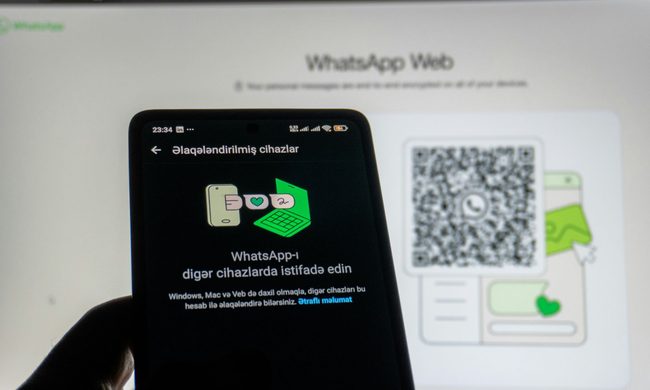
We'll show you how to use WhatsApp on your desktop or laptop
As one of the most popular messaging services, you’ve already heard of WhatsApp. From its humble beginnings in 2009—two years before Apple introduced iMessage—to its acquisition by Facebook (now Meta) in 2014, WhatsApp has become the dominant messaging platform around the globe.
In recent years, it's grown even more potent with new features like video messages, self-destructing voice messages, the ability to edit sent messages, and more. We even finally got an WhatsApp iPad app in May 2025.
What is WhatsApp? How to use the app, tips, tricks, and more
From setting it up to mastering hidden features, here is your complete guide to WhatsApp.
There's no shortage of messaging apps out there. The past decade has given us more options than we know what to do with, largely because smartphones demanded something better than plain old SMS.
Both the App Store and the Play Store are packed with apps that promise to revolutionize the way we communicate. Most of them didn't make it. The truth is, a messaging app is only as good as the number of people using it, and most apps never cross that threshold.