The year 2025 is shaping up to be a special one for the Apple ecosystem adherents, especially from a software perspective. So far, the chatter around the big yearly software upgrades has been focused on the controversial Liquid Glass design across all platforms, but there are enough functional changes that will keep Mac users happy.
Apple’s latest computing software is macOS Tahoe, which was introduced at the company’s annual WWDC conference back in June, and after a few weeks of developer-focused testing, it is now available in the public realm as a beta update. Going by Apple’s history of past releases, the update will be released widely for all compatible Macs in the Fall season.
What is macOS Tahoe?
Well, it’s the latest version of Apple’s in-house operating system for Mac devices. If you aren’t enrolled in Apple’s beta testing program, your Mac is most probably running the macOS Sequoia build.

macOS Tahoe stands out visually with a design that is inspired by light interaction patterns as seen through the movement of liquid glass. To go with all that aesthetic flash is also plenty of substance that power users will certainly appreciate.
It introduces a supercharged Spotlight that now includes a native clipboard, and also gets a bunch of new apps and features that make it work even seamlessly in tandem with an iPhone. Shortcuts have also received an AI boost, and gaming also gets a boost with support for Metal 4 graphics architecture.
Why is macOS 26 called Tahoe?
Apple has a long tradition of giving a proper name to macOS builds, instead of the numerical pattern it follows for other operating systems, such as iOS and watchOS. At the moment, Apple picks up the name of a famous natural landmark or geographical point.
Prior to that, Apple released macOS X builds inspired by the names of animals, such as Snow Leopard, Jaguar, Panther, and Jaguar. For the latest iteration of macOS, which is technically version 26, Apple picked the name Tahoe.

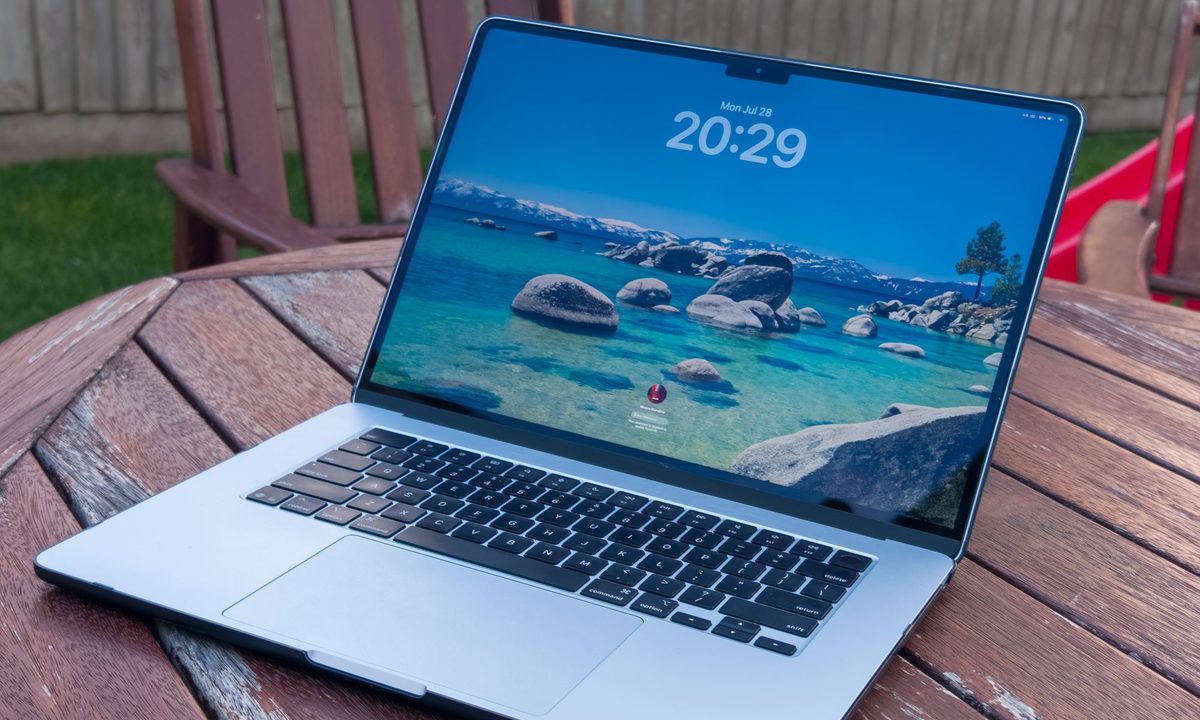
The moniker is derived from Lake Tahoe, a freshwater reservoir in the Sierra Nevada Mountains. Often regarded as one of the most gorgeous natural landscapes in the world, the lake commands a surface area of around 191 square miles.
The most notable aspect of it is the water’s clarity. “Of all the large lakes worldwide, there are none with an annual clarity exceeding Tahoe’s,” says the Tahoe Environmental Research Center.
When will macOS 26 Tahoe be available?
Apple revealed macOS Tahoe at its annual developers conference in June this year. Soon after, it was released for developers for early testing. Just over a month later, Apple released the first public beta version of macOS Tahoe in July.
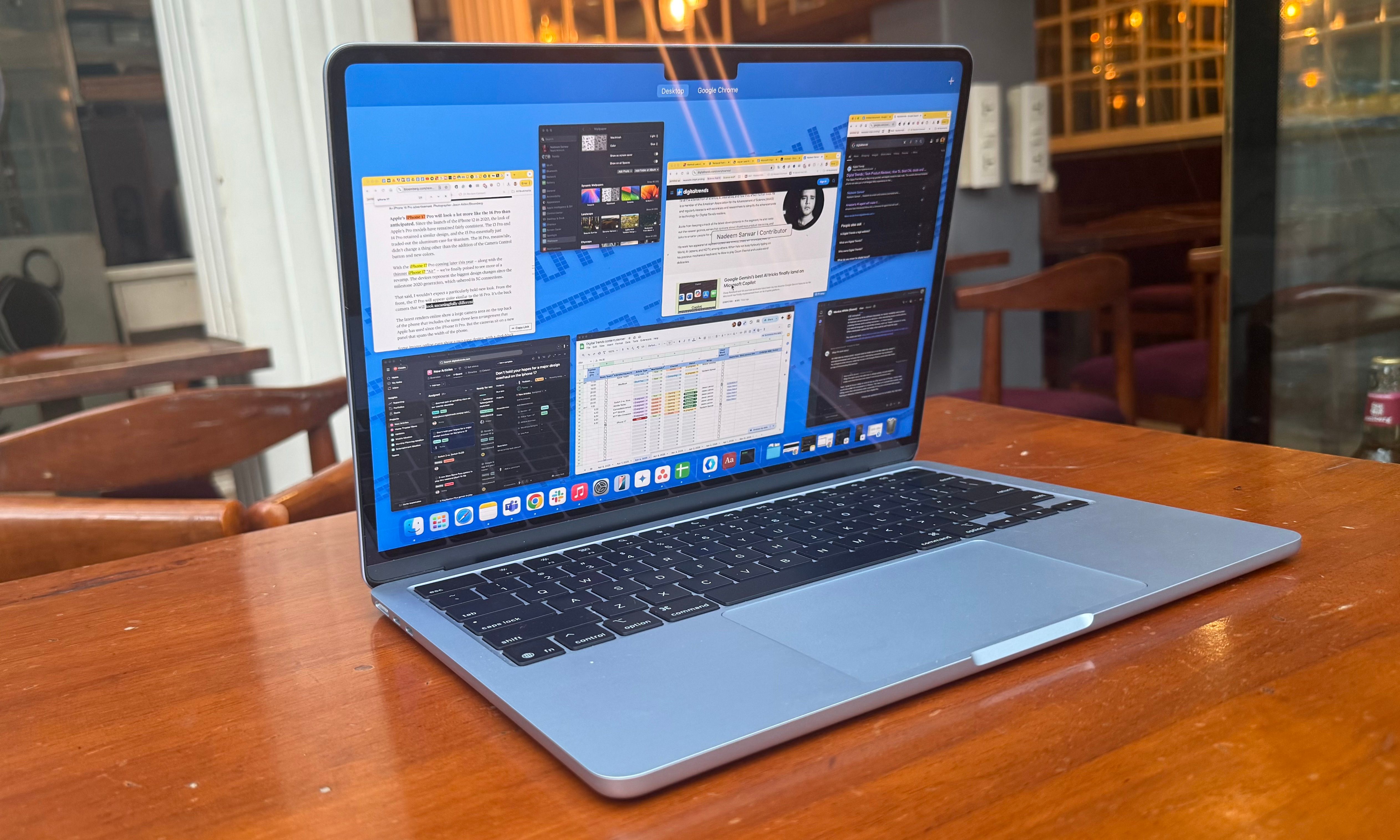
At the moment, the beta testing phase is still in motion. As usual, you must have your Apple account registered for beta testing to install this pre-release build on your Mac. For the rest of Mac users across the world, Apple will likely roll out the stable version of macOS Tahoe at some point in September, probably coinciding with its big Fall launch event.
How can I get macOS 26 Tahoe now?
In order to install macOS Tahoe, you must have a compatible Mac machine and an Apple account. But before you go ahead, do keep in mind that this is still pre-release software, which means there could be performance, efficiency, and app issues.
In a nutshell, don’t install it on your main workhorse machine. If you are still ready to make the plunge, follow these steps:
- Open the Apple Beta registration website (https://beta.apple.com) in a browser, click on the blue “sign up” button, and enter your Apple ID credentials to register for receiving the update.
- After the account is successfully registered, open the Settings app on your Mac.
- Navigate to the General section and click on Software Update.
- Next, click on the info icon (an “i” in a circle). Now, on the Dropdown corresponding to “Beta updates,” click on the arrow keys and switch it on.
- Go back to the software update page. You will now see the latest macOS Tahoe beta update available to download. Click on the Upgrade Now button, wait for it to install, and reboot the Mac to get going.
Which devices run macOS 26 Tahoe?

As mentioned above, you must have a device that is compatible with macOS Tahoe to be able to install it. Broadly, it supports Mac machines that were launched as far back as 2019. Following is the complete list:
- MacBook Air with Apple silicon (2020 and later)
- MacBook Pro with Apple silicon (2020 and later)
- MacBook Pro 16-inch (2019)
- MacBook Pro 13-inch (2020, Four Thunderbolt 3 ports)
- iMac (2020 and later)
- Mac mini (2020 and later)
- Mac Studio (2022 and later)
- Mac Pro (2019 and later)
macOS 26 Tahoe features
MacOS Tahoe is one of the biggest upgrades in the history of Macs, both in terms of functional depth and aesthetic overhaul. The Liquid Glass design interface is not only unique, but it also serves to unify the look across Apple’s platforms.
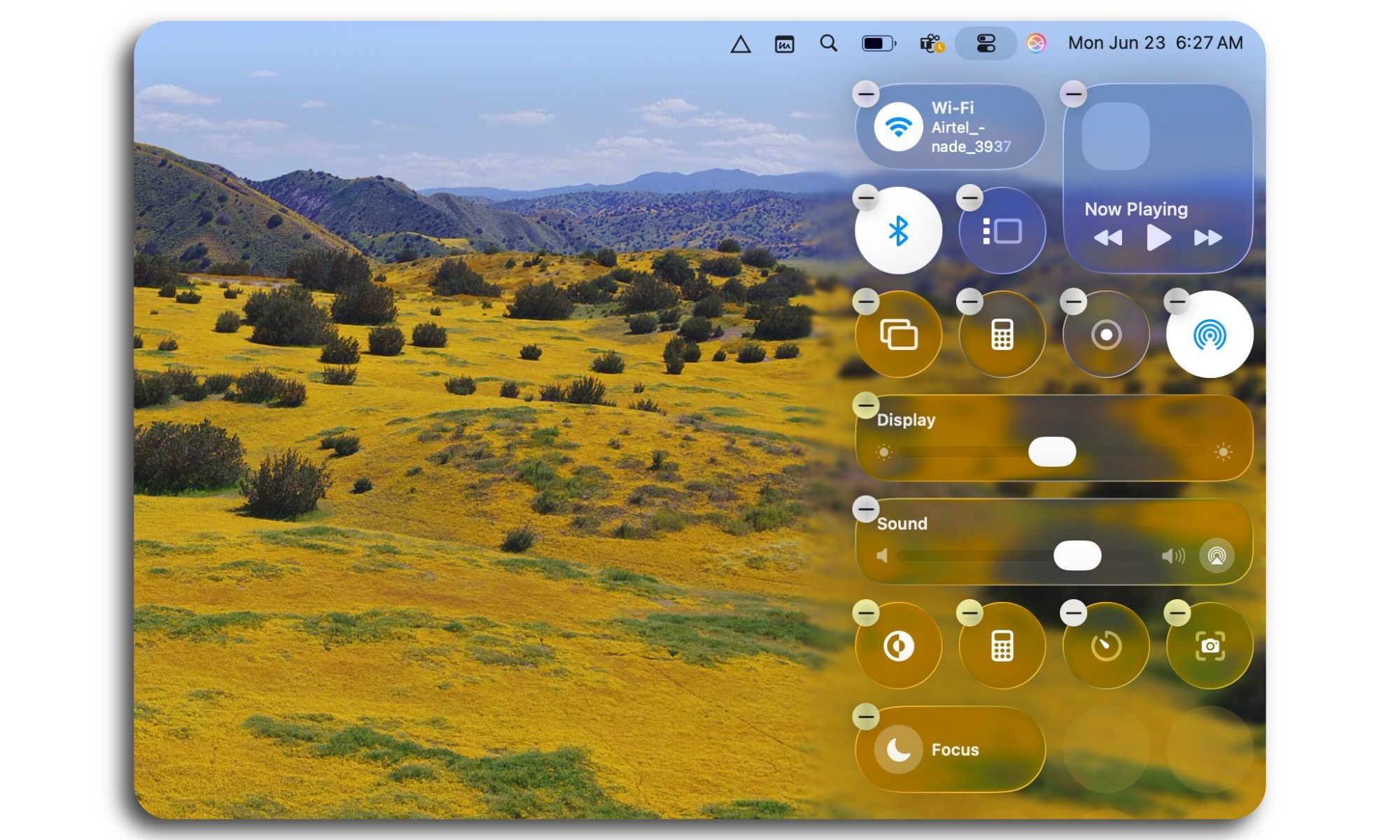
The Control Center is now a familiar affair across iPhones and Macs, and so is the look of iPadOS. But the apparent unification runs deeper than the transparent UI elements. In fact, the deep customization that has been available on Apple’s mobile devices is also making its way to Mac machines.
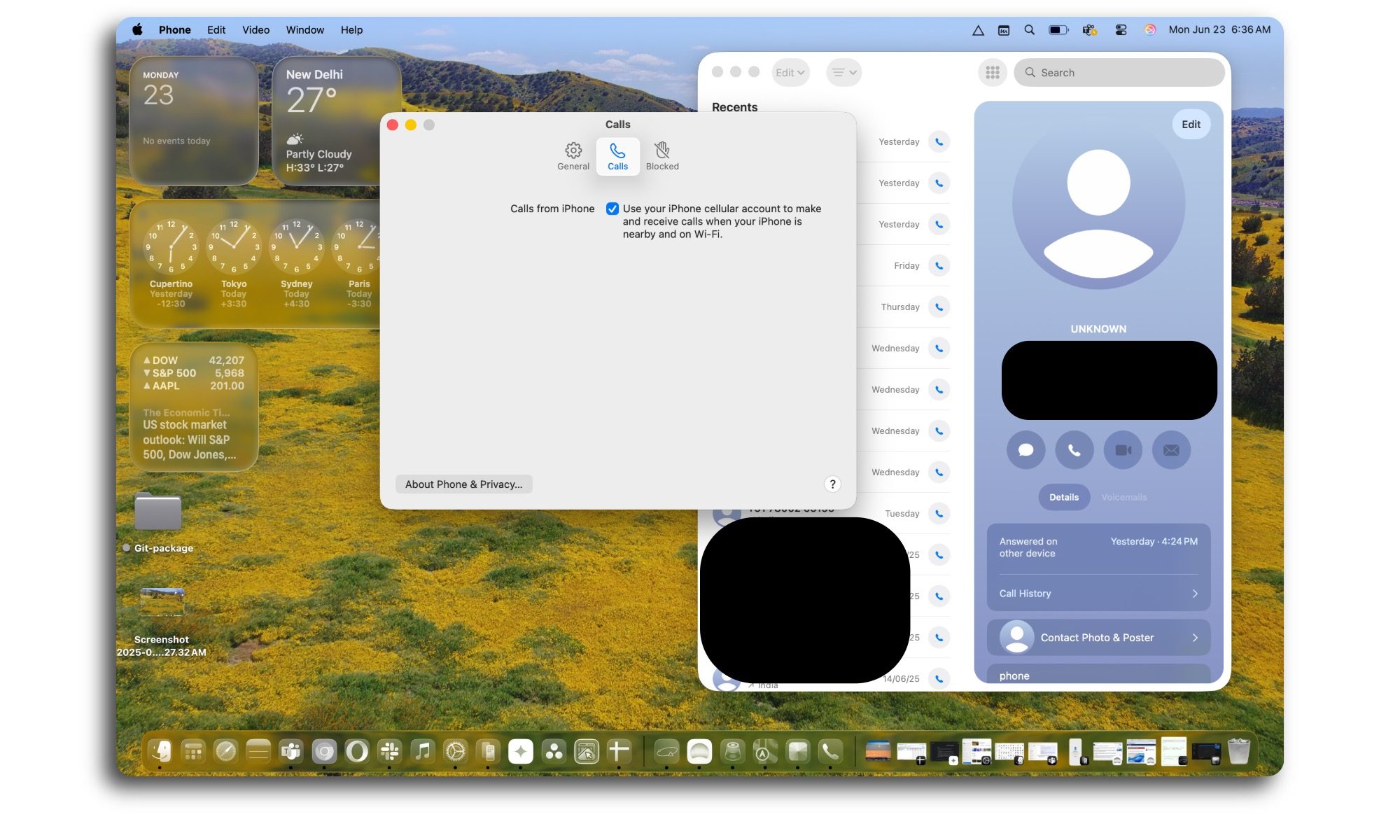
The cross-platform synergy also extends to apps and features. For example, Apple is bringing the full-fledged Phone app to the Mac, with all the scam detection and spam blocking features in tow. Additionally, the new Call Screening and Hold Assist tricks have been ported over to the Mac, as well.
Remember the Live Activities feature that turns the Dynamic Island on iPhones into an activity hub? Well, that facility has also landed on Apple’s computing machines courtesy of macOS Tahoe. Of course, you also have the ability to engage with live activity alerts directly on your Mac.
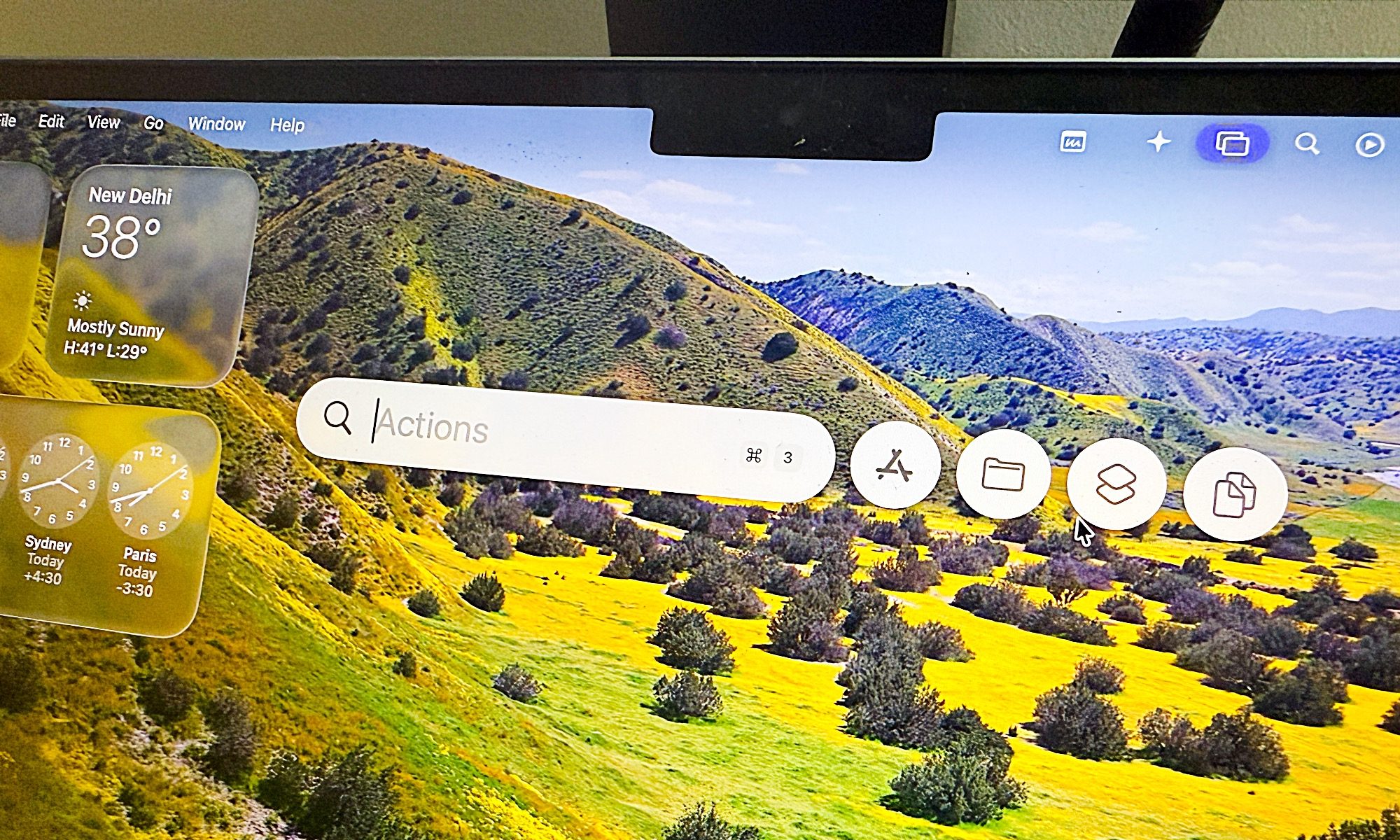
My favorite element of the update is Spotlight. Apple has finally put a native clipboard manager on Macs, and it is directly integrated with Spotlight. The search system has also been tweaked. Now, as you look up an item, all the relevant entries across files, folders, events, apps, and messages are presented intelligently based on the context.
Moreover, there are now filtering categories across destinations, such as PDFs or Mail, that will make the search even easier. App Intents is another underrated feature. Essentially, it’s a framework that allows applications to surface quick actions in Spotlight when you intend to call an app.
The idea is that you can accomplish tasks without having to dig within the menu pages of an app. Apple refers to them as parameters, and it looks familiar to how users fill the intent and destination fields in the Shortcuts app.
Think of them as action hotwords, like “Send.” For example, as you type those letters in the text field, it will show suggestions across apps such as Mail and Messages. And as you proceed, the system makes tweaks in real-time by adding fields such as Recipient and Subject, in case you want to compose an email.
The true gem, however, is the Quick Keys feature in Spotlight. In a nutshell, you can assign keyboard shortcuts for app actions and execute them straight from Spotlight. Essentially, you pick a letter (or a set of letters) that best describes (or summons) a particular tool.
Take, for example, “Br.” Based on how you have set it up, it can perform tasks such as adjusting the brightness of the screen, setting the default browser, or deleting browser data. The actions are ranked based on how frequently or recently you have interacted with a certain file or task in your recent memory.
Other smaller changes in macOS Tahoe include the arrival of the Journal app on Mac machines, a new tiled design for FaceTime video calls, a fresh design for the Photos app, Apple Intelligence integration within Reminders, Markdown import support in Notes, and the arrival of Apple’s new Games app, as well.