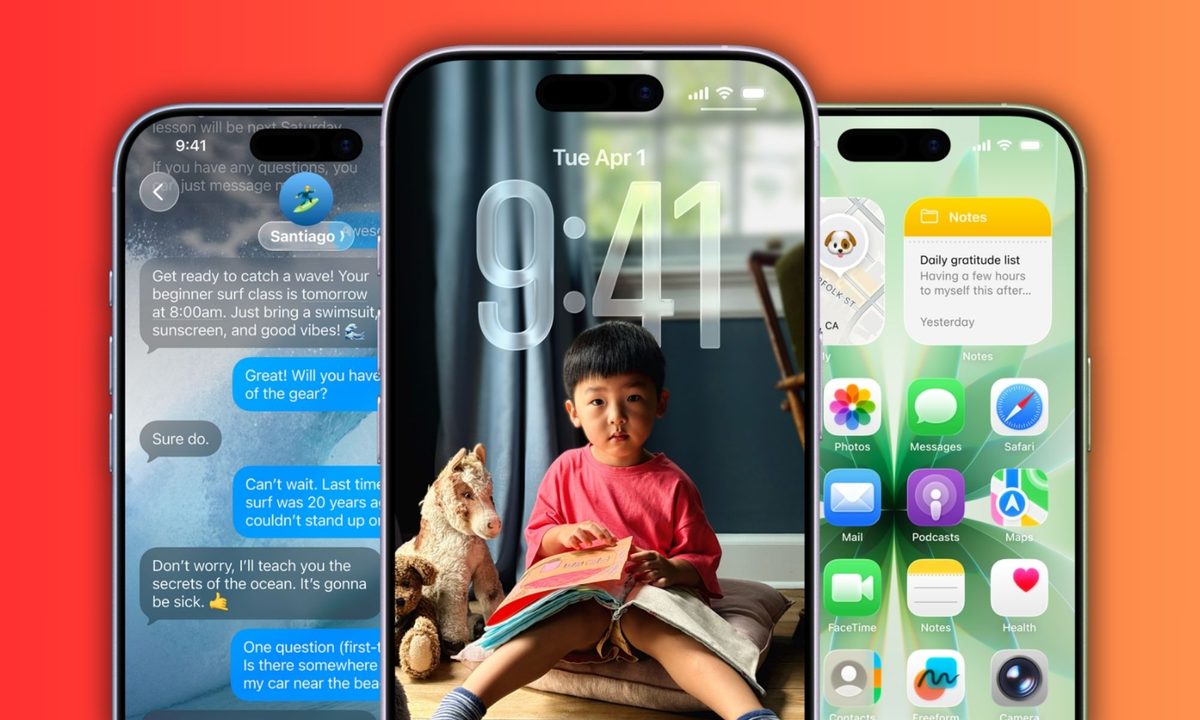
Your iPhone may be looking a lot different today, especially if you didn’t update to iOS 26 and it automatically updated overnight.
From translucent effects to a more helpful menu, iOS 26 is the biggest update to the iPhone I can remember, and I’ve used every single version of Apple’s software since the first iPhone.
This is the most customizable and most helpful version of the iPhone yet, and if you’ve wanted Apple to be more like the best Android phones, you’ll enjoy Apple’s new interface for the iPhone.
With so many changes, it might be a little overwhelming, but you’re not alone; if you’ve just updated to iOS 26 on your iPhone 11 or later, here are the five things you should do first. If you’ve just bought the new iPhone Air, iPhone 17 or iPhone 17 Pro series, your phone will run iOS 26 out of the box, so you can also follow the steps below!
Tweak the look and feel of Liquid Glass
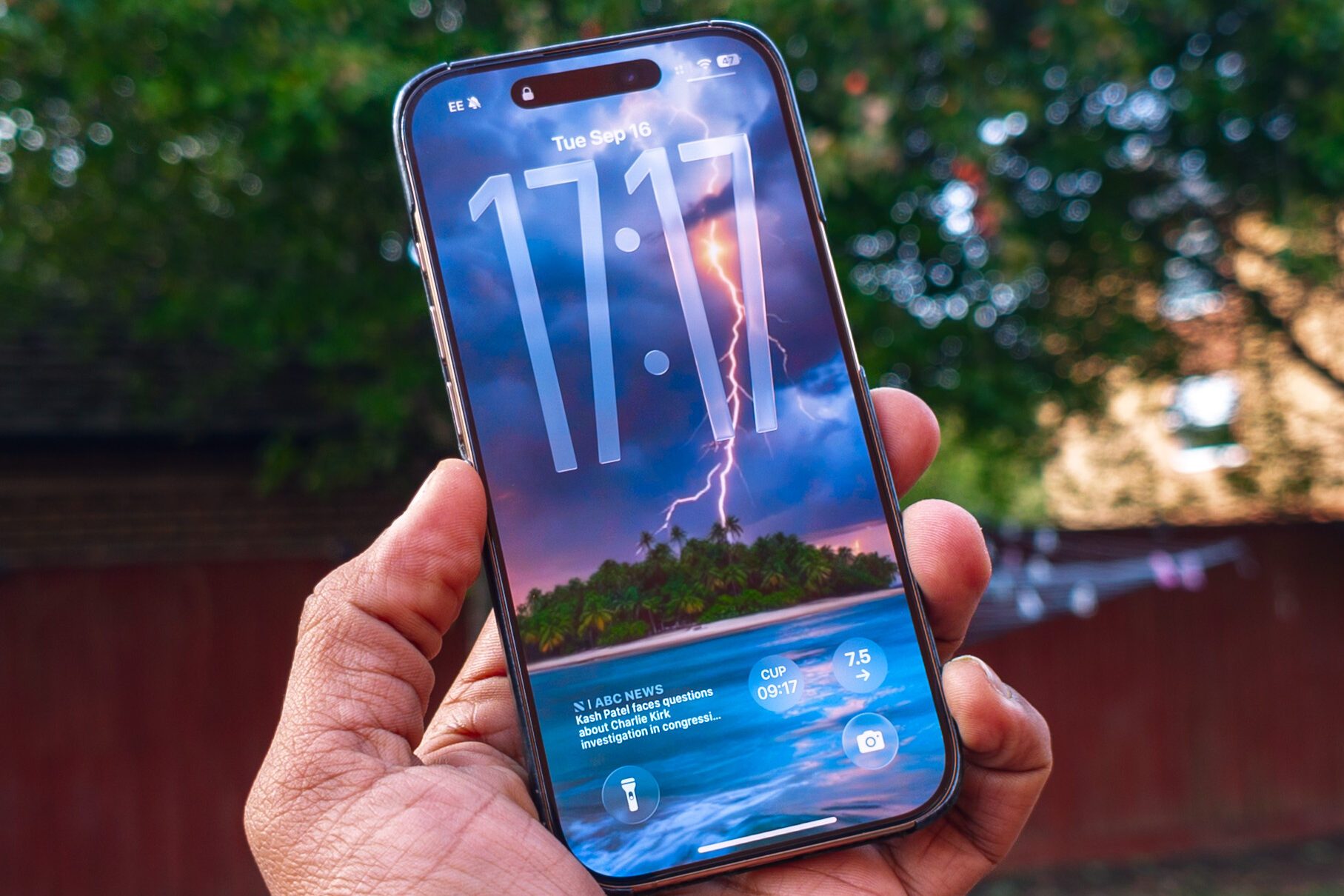
The big new feature in iOS 26 is Liquid Glass, Apple’s new, overhauled user interface that introduces glass-like transparent effects throughout all of its platforms. It’s a major overhaul, and instantly makes any iPhone feel much newer and fresher.
However, this interface may not be suitable for everyone. The effects are vibrant and refreshing, but can be challenging for some people to see. While you can’t disable Liquid Glass entirely — aside from refusing to update — there are a few key options that can make it more pleasing.
If the challenge is the legibility of text, you can address this with darker or tinted icons using the new theming engine introduced in iOS 18. Press and hold a space on the Home screen, and then click Customize. From here, you can edit the theme colors and options to make your iPhone truly yours.
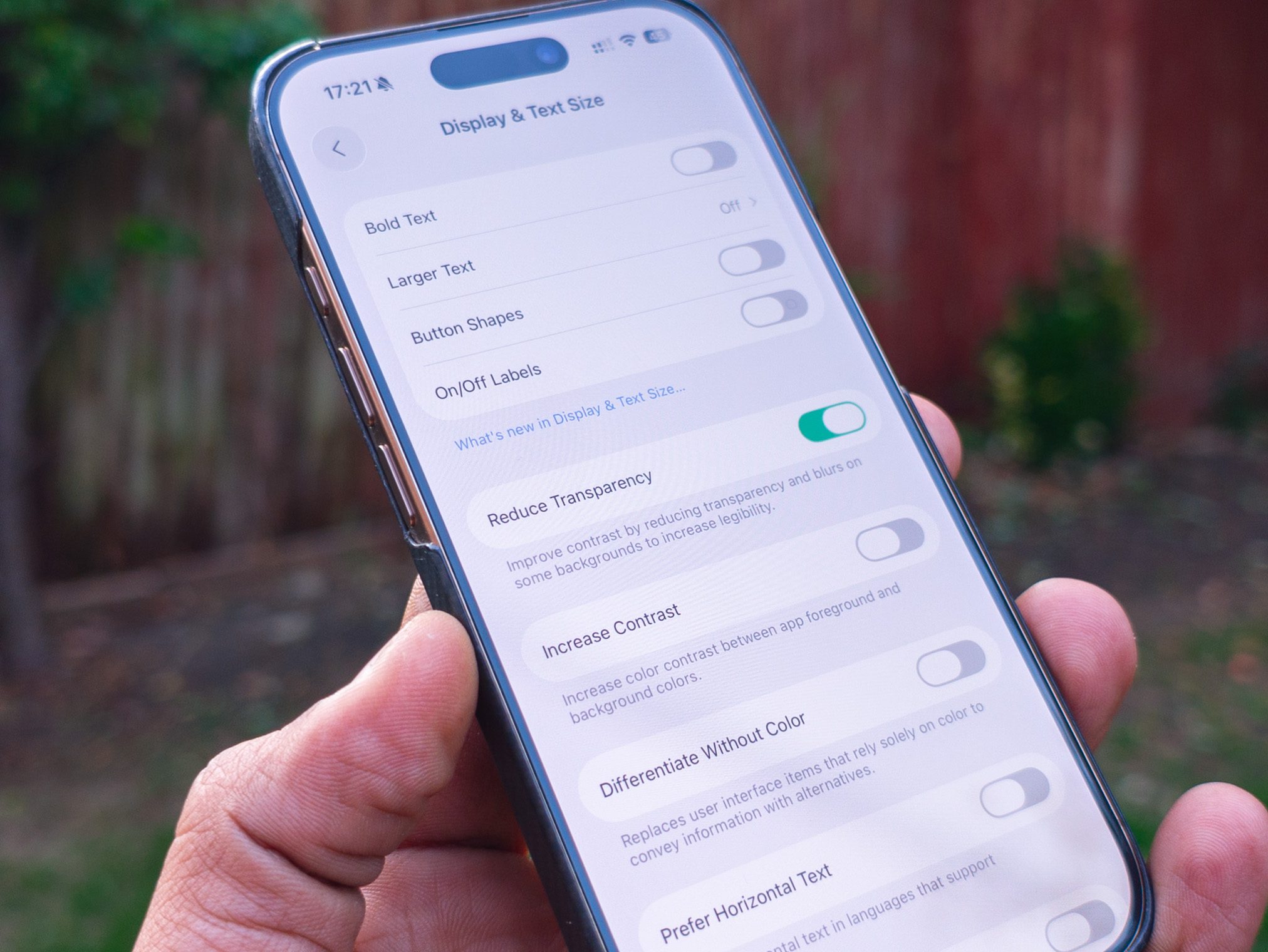
If you find the transparent effects still make it hard to see, you can darken the background considerably through a specific toggle in the settings menu. Go to Settings > Accessibility and toggle Reduce Transparency on; it’ll make things more legible.
Swat away spammers and bots automatically
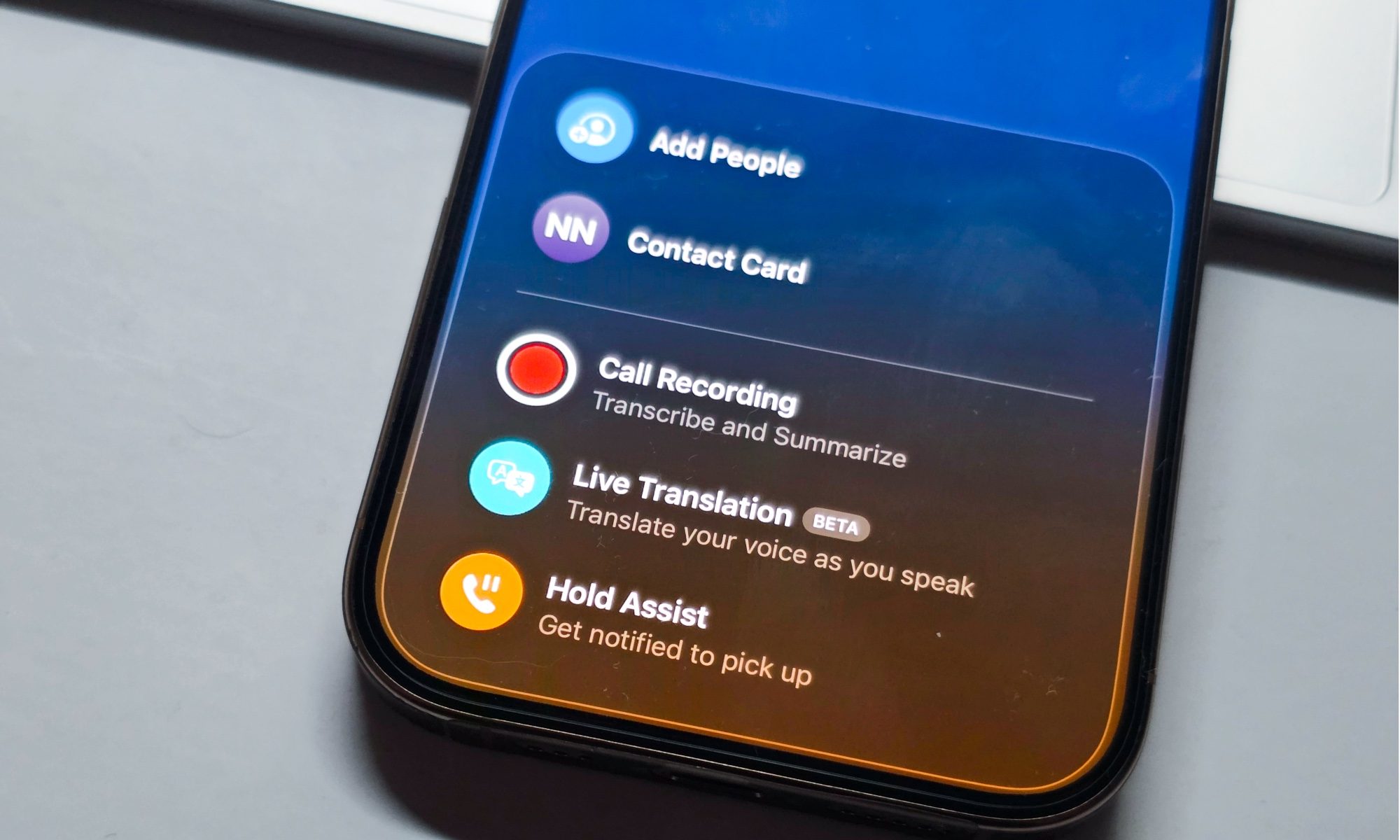
Two of my favorite iOS 26 features are call screening and message filters. We’ve all received nuisance or spam calls and messages from unknown numbers, and iOS 26 addresses these with Apple Intelligence.
First, incoming calls from unknown numbers will automatically be screened, a feature made popular by the best Google phones. Your iPhone will ask the caller to state their name and reason for the call, and display this on-screen for you to decide whether you want to answer. Call Screening makes the iPhone the answering machine of the future.
Then there’s message filtering, and this is a phenomenal upgrade for daily use. Tired of spam or promotional messages drowning out those iMessage conversations with your friends and loved ones? Head to Messages, tap the three dots in the top right, and you’ll see a new Unknown messages section that will filter out numbers you don’t have saved.
Check out the new Phone app and Hold Assist
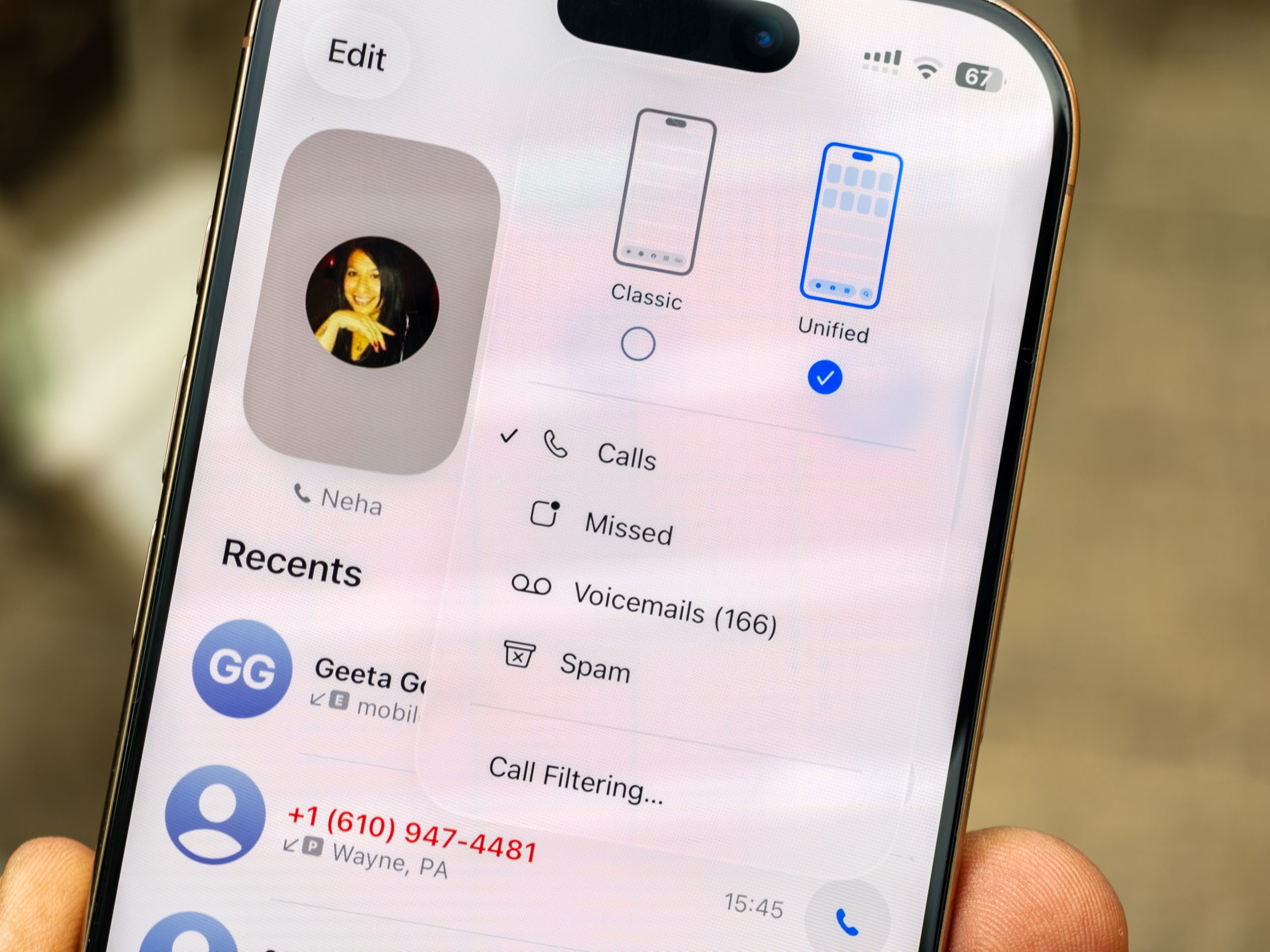
The most significant upgrade for daily usage is in the Phone app, featuring new AI-powered Host Assist features.
The dialer now combines your calls — from internet apps like WhatsApp and Telegram as well as regular phones — with missed calls and visual voicemail messages in one single menu. However, it can be not very clear, so you can easily disable it by tapping the button on the top right corner of the Phone app and selecting Classic.
While you’re in that menu, tap Manage Filtering and let it load the phone app settings page. From here, you’ll want to swipe up and toggle on Hold Assist Detection. As the name suggests, it stays on hold so you don’t need to, and alerts you when a human is speaking on the other end.
Hold Assist has saved me hours, even though I don’t always notice the vibration alert that it’s time to pick up.
Change this one screenshot setting
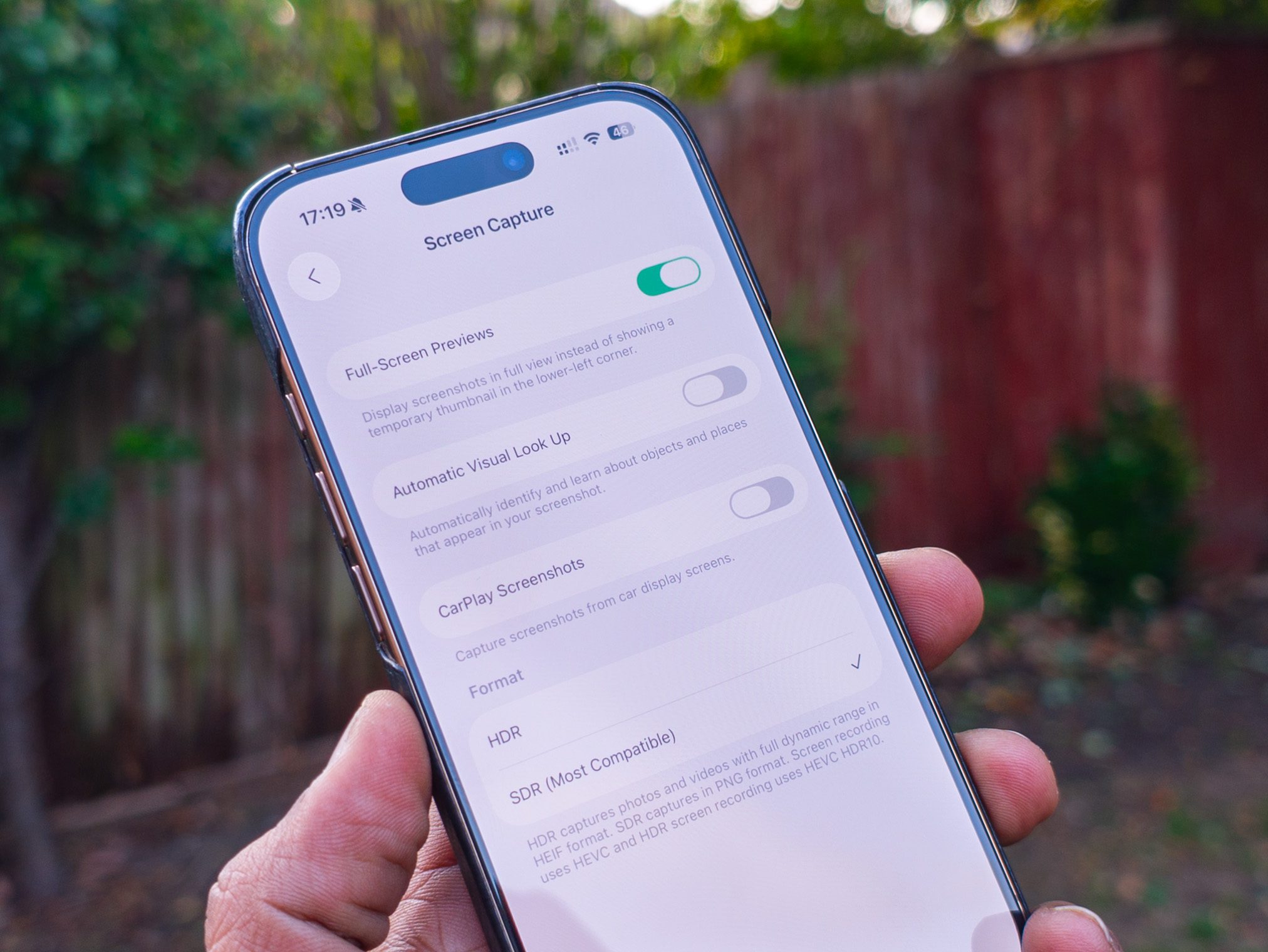
If you take many screenshots, you’ll definitely want to change this setting, as iOS 26 introduces Visual Intelligence to your screenshots.
While this is useful, it also means that a screenshot no longer works as it did previously; instead of a small thumbnail that disappears automatically, Visual Intelligence now adds a full-screen page that’s fairly frustrating unless you want to use that feature.
Although this is the default option, you can easily disable it in the settings by navigating to Settings > General > Screen Capture and turning off the toggle next to Full-Screen Previews. Trust me, this is one setting that most people will want to disable, unless you want to use AI to understand more about locations, products, or people, in a screenshot.
There are many other features that iOS 26 introduces, but the tips above will help you return to the familiar iOS interface that you’re accustomed to, while also gaining the benefits that Apple’s new iPhone experience offers. Have you updated to iOS 26? What do you think of Apple’s latest changes?