
Updated on 5-19-2017 by Kyree Leary to include updated text and new screenshots.
Touch is so 2011. Apple helped kick off the voice-control movement with Siri in 2011, when it first released the iPhone 4S to the masses. Apple’s virtual assistant ties together a range of voice commands and wraps them in a comic personality adorned with your accent of choice. Siri can take dictation for messages, put appointments in your calendar, tell you the latest scores, or give you directions to the nearest Thai restaurant.
Siri is built into the iOS platform and capable of using Apple’s lineup of apps, which includes everything from Music and iMessage, to Calendar and Maps. It can also pull answers from Google, Bing, Yahoo, and Wikipedia, and unlike Google Now, Siri does not pre-empt your needs — it waits for instructions and responds to your commands. The recently-released Google Assistant is now Siri’s biggest competition, but Siri can rest easy knowing it’s the only virtual assistant with full integration on every iOS platform.
Setting Siri up
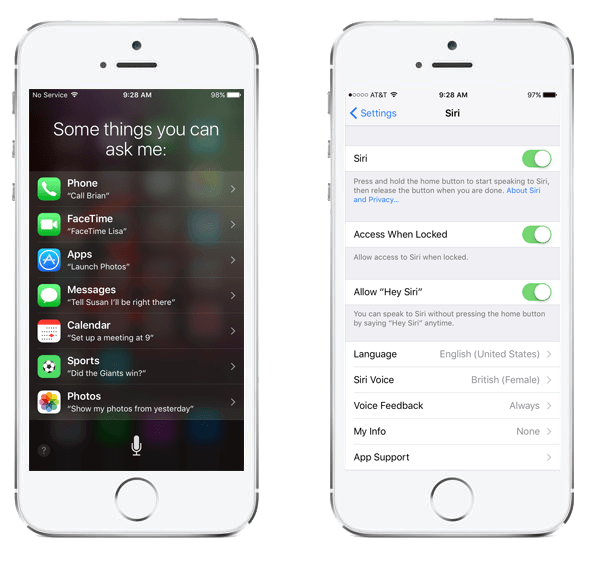
You will be asked if you want to enable Siri when you first set up of your new iPhone, iPad, or iPod touch. If you didn’t enable it, head into Settings > Siri and toggle it on. You will also find options for setting your language and changing the gender of Siri’s voice, along with options for determining when you want voice feedback and enabling the “Hey Siri“ feature. Keep in mind that Siri requires a Wi-Fi or cellular connection to work.
To launch Siri, press and hold the Home button until you see the multi-colored bar pop up at the bottom of your display. If you toggled “Hey Siri“ on, then you’ll also be able to launch Siri whenever your iPhone’s screen is on — assuming you have an iPhone 6S or later — by simply saying “Hey Siri” followed by your question or command. If you’re using an earlier model, your device will need to be plugged in to a power source in order to access the convenient feature.
If you’re using iOS 10, then you’ll see a question mark in the bottom left of the screen when Siri is active. Tap the question mark for a list of commands that Siri can understand. You can also just say “options” or ask “What can you do?” to get the list of possibilities.
Configuring and correcting Siri
Believe it or not, Siri is capable of remembering your relationships with different contacts. This means that you can say things like “Call Mom” or “Send a message to my wife,” and Siri will know who you mean, so long as you set it up first. The quickest way to set this up is to head into Contacts and select your own name and tap Edit in the upper-right corner. Scroll down and you’ll find a section called “add related name,” where you can specify contacts. Then, tap the addition icon, which will allow you to adjust the relationship label. If you tap the “i” icon, you can set a previously-made contact to it.
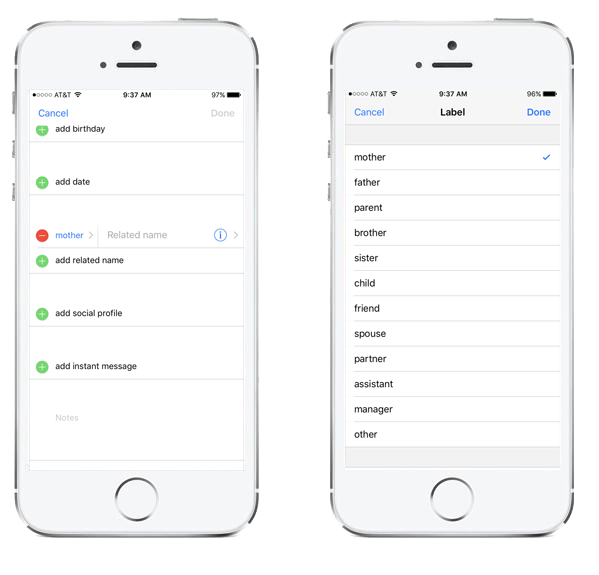
You can also specify your relationships with Siri directly. Start Siri up with the Home button and say “Steven Hill is my brother” and you’ll get the option to add the relationship. If you say “Call my brother,” and you haven’t specified it previously, then Siri will ask you who your brother is, and you can choose a contact.
It can be annoying when Siri doesn’t pronounce names correctly, but you can do something about that. Start Siri, say “That’s not how you pronounce Steven,” and Siri will ask you how to pronounce it, and then give you a couple of options to choose from. You can also go into Contacts, select the one you want, tap Add Field, and choose Phonetic First Name or Phonetic Last Name.
Using Siri
You can ask Siri to find all sorts of information for you, set up appointments, send messages, and carry out a host of other useful tasks. All you need to do is start Siri up and ask for what you need. If Siri doesn’t understand your command or question, it will try to question you and narrow your request. Here’s a brief list of some of the things you can command or ask:
- “Call my wife at home.”

- “Set up a meeting with Jeff at 9 a.m. tomorrow.”
- “Where’s my next appointment?”
- “What day is it?”
- “Email Dad about the football game.”
- “How do I get home?”
- “Find a Thai restaurant nearby.”
- “Play Sabotage.”
- “Open Facebook.”
- “Remind me to buy milk when I leave work.”
- “What’s the weather like tomorrow?”
- “Turn off Bluetooth””
- “Who directed The Shining?”
- “When do the Giants play next?”
- “How far away is the moon?”
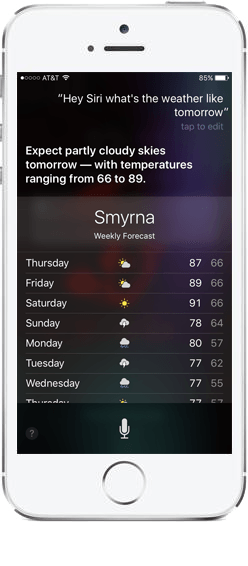
Siri can understand some conversational commands and it has a basic grasp of context, so if you say something like “Find a Thai restaurant nearby,” then you can say something like “how about Mexican?” next and it will search for nearby Mexican restaurants. This doesn’t work for everything, however.
Edit your text
If Siri hears you incorrectly, then you can always repeat your command or question. You can also tap the relevant text in the speech bubble and edit your request or question. You’ll see a line under words that it thinks might be wrong, and you can tap those to get some quick auto-correct suggestions. You can also dictate punctuation in messages, notes, or any app that uses a keyboard. You can enable the dictation feature by going to Settings > General > Keyboard and toggling “Enable Dictation.” Then, instead of typing, tap the microphone next to the space bar, say “comma” or “period,” and Siri will put it in.

Not as great outside the United States
You should generally find that Siri improves over time and gets better at understanding you, though, there’s no doubt it struggles with some accents more than others. It’s also worth pointing out that not all of Siri’s features are available outside of the United States.
Tell it to “Google this” to avoid Bing
When you search for information online, you’ll also find that Bing is the default search engine. You currently can’t change this, but you can say “Google the best iPhone apps” and it will search using Google instead of Bing. The same thing will work with Yahoo or Wikipedia, and you can also ask Siri to search Twitter as well.
It’s worth experimenting with questions and phrases to see what you can find because there are a few comic replies in there if you say things like “Hey Computer” or ask “What is zero divided by zero?” We recently asked Siri a number of things and discovered the virtual helper has a keener sense of humor than we initially thought.
Before we wrap up this section, it’s worth mentioning that you can ask Siri questions like “Where’s my daughter?” or “Is my wife at home?” If you want to keep tabs on your family at all times, then you can use Apple’s Find My iPhone service. The app also allows you to track family members and set alerts for when people get to specific locations, which can be particularly useful for parents. The feature doesn’t always work perfectly, but if it works for you, it can provide real peace of mind.
The future of Siri
Siri has been improving steadily since its first release, and the latest iteration is definitely the best we’ve seen thus far. It’s faster, more accurate, and has an expanding repertoire of tricks that grows with each new iteration of iOS. Previous versions of mobile OS improved the assistant’s pronunciation, and gave it the ability to launch apps and read your emails out loud. Now the assistant can help you send texts hands-free, add punctuation through dictation, call a Lyft, or initiate a Skype call.
It’s tough to predict how good Siri will get. It can already do so much, but the point of Siri is to make our everyday lives easier, and the best way to improve that is by making sure it understands people, allowing it to avoid mistakes caused by simple misunderstandings. Beyond that, being able to interact with more third-party apps and hardware would be greatly appreciated. Perhaps Apple will one day open Siri to everyone, allowing developers to implement new features, voices, questions, and commands at a faster rate. Imagine a future version of Siri that no longer needs the “Hey Siri” prompt, or requires you to hold down the Home button.
While it’s far from perfect, Siri can be an incredibly useful tool, and it’s becoming a part of daily life for many. It may even be on par with Tony Stark’s J.A.R.V.I.S. one day — who knows?


